HealthSpring: Quote and Enroll
For every agent who sells HealthSpring dental, accident and cancer plans. Watch the video, then use the parts below when you have a client on the line.
Watch It First
One video, 7 minutes, 14 parts. Sound on. Click a part to jump to it.
The parts
- Getting Around HealthSpring
- Start a Quote
- Dental: Pick the Family Type
- Dental: Set the Benefit and Read the Price
- Choice Accident
- Flexible Choice Cancer: Our Critical Illness Plan
- Start the Application
- Applicant Information
- Additional Information and Beneficiaries
- Billing Information
- Final Steps and Submit
- Choice Accident Application
- Dental Application
- Before You Close
- What we sell and how we set it
1Getting Around HealthSpring
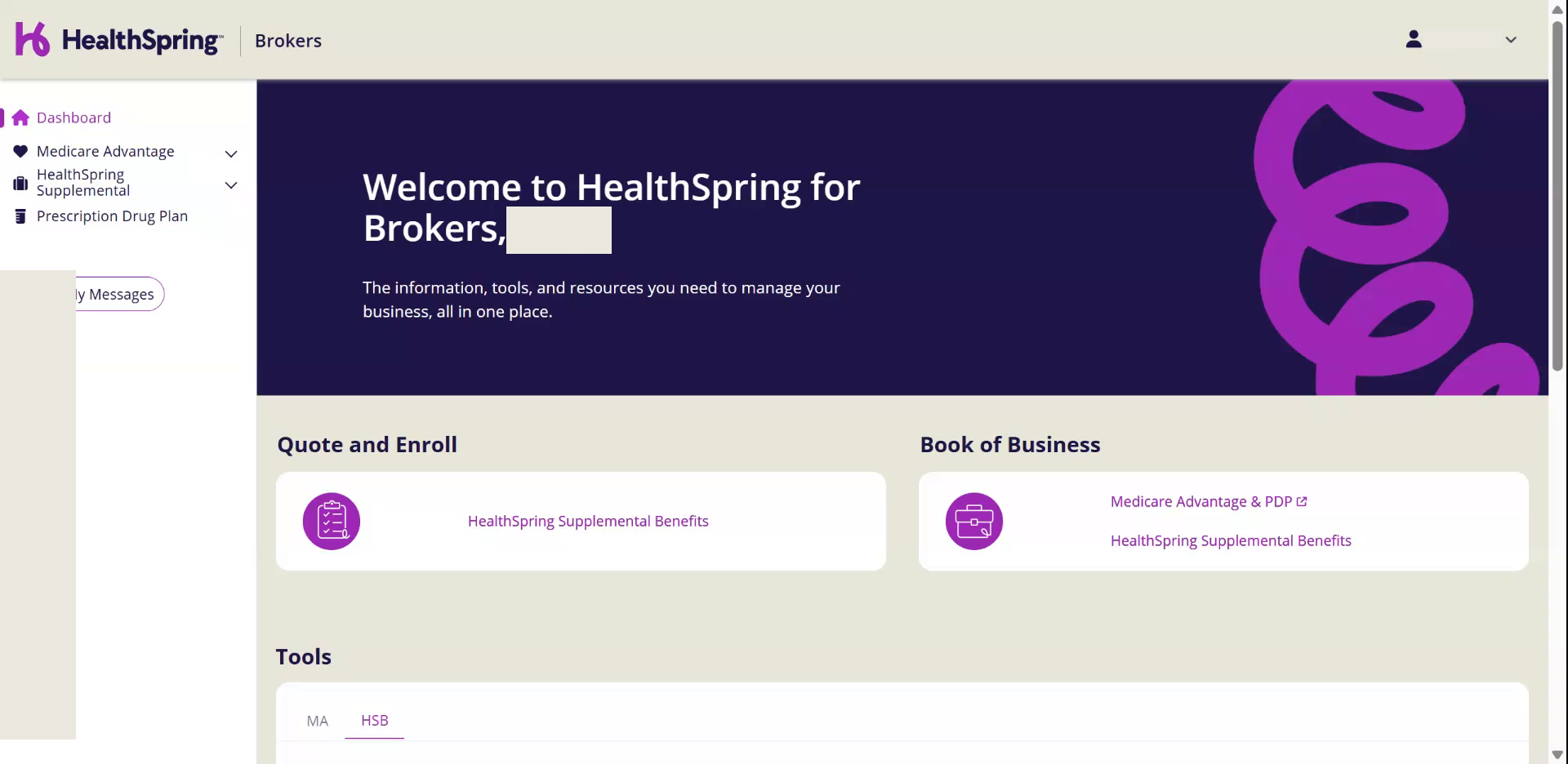
Watch this part in the video (0:00)- 1Sign in to the HealthSpring broker portal.You land on the Dashboard.
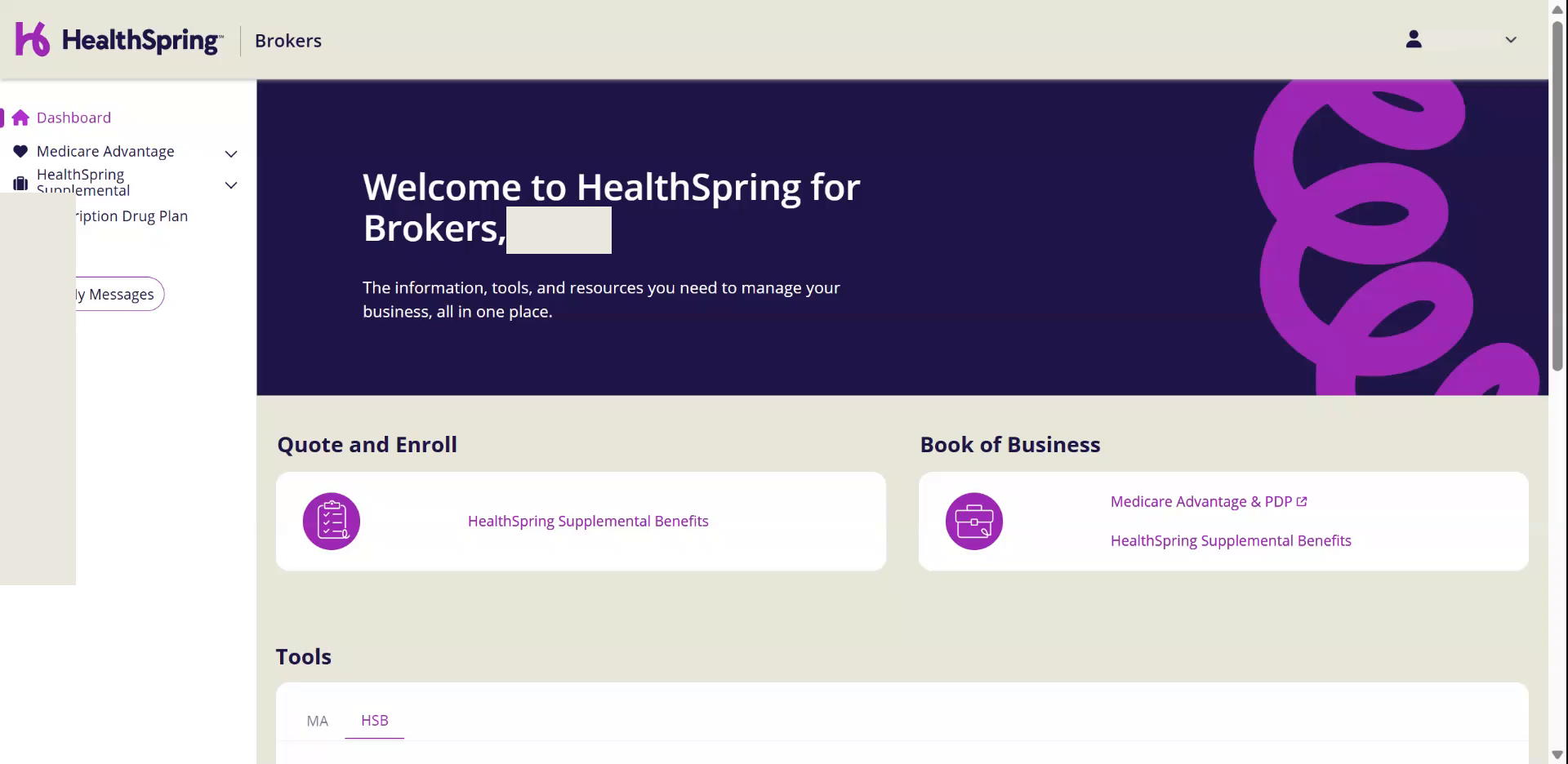
- 2Find Quote and Enroll on the left and Book of Business on the right.Book of Business is every policy you have written.
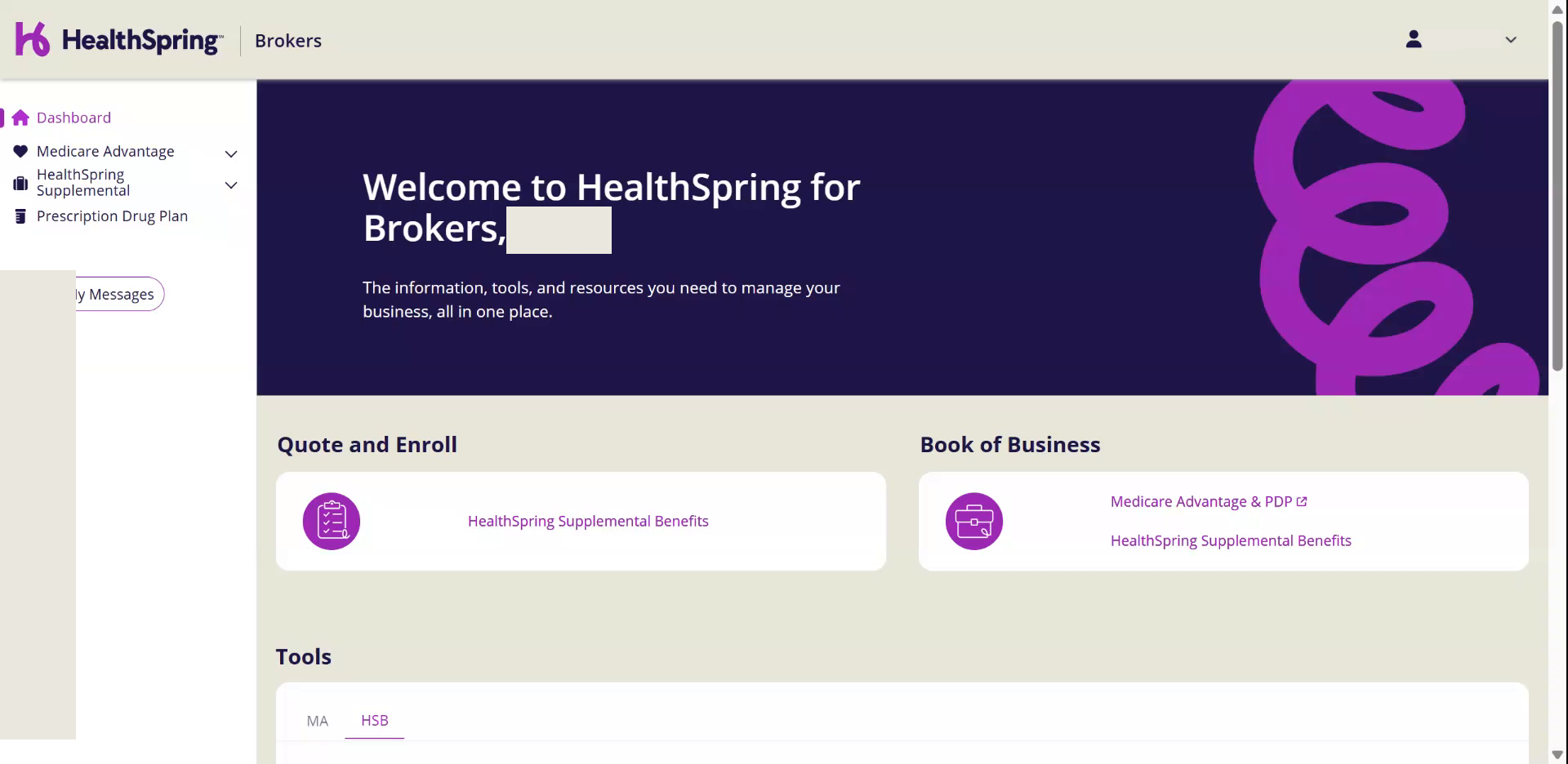
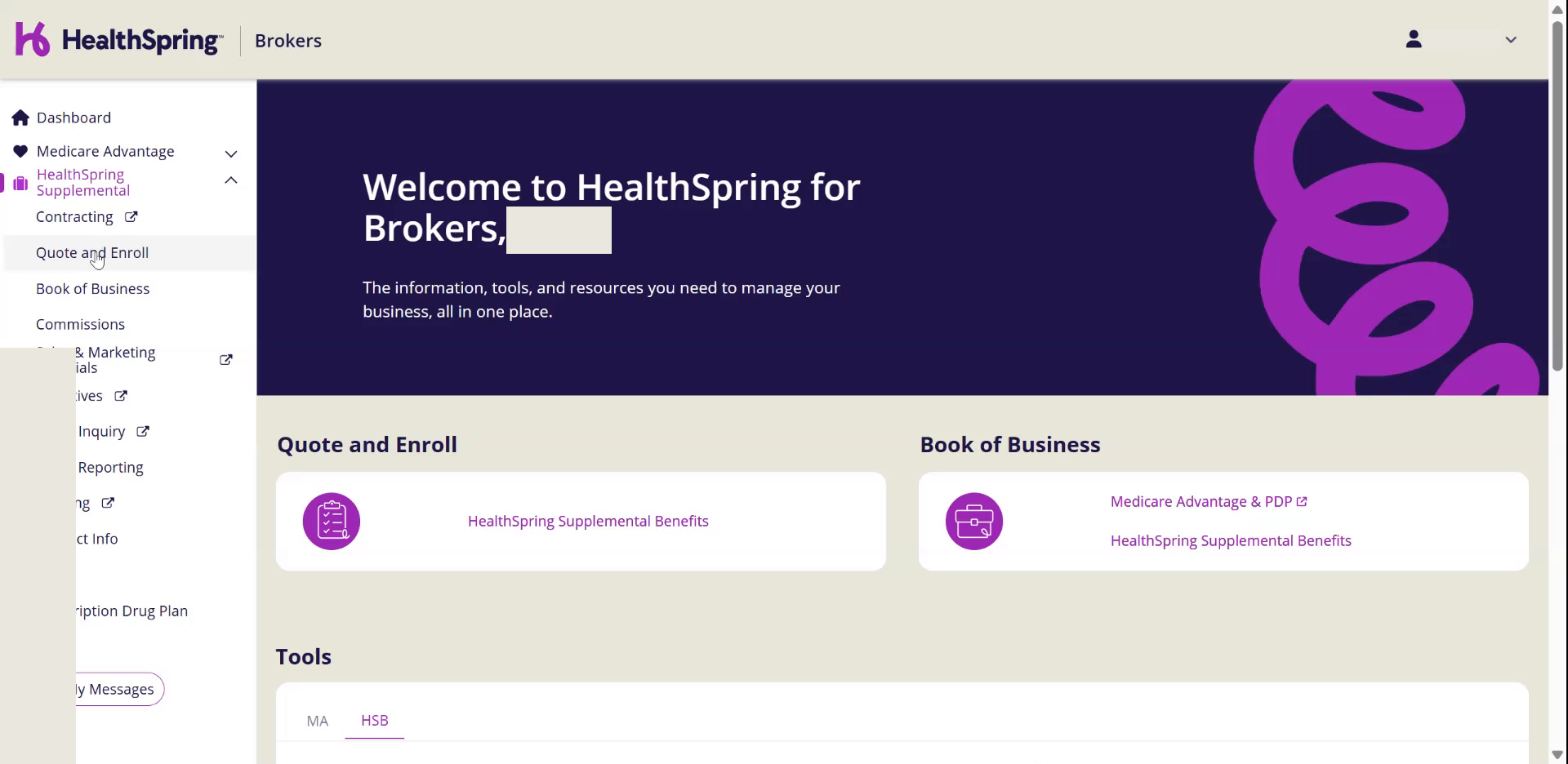
- 3Click HealthSpring Supplemental Benefits under Quote and Enroll.You can also click HealthSpring Supplemental in the left menu, then Quote and Enroll.
2Start a Quote
Watch this part in the video (0:19)- 1Type the client's Zip Code.The State fills in on its own.
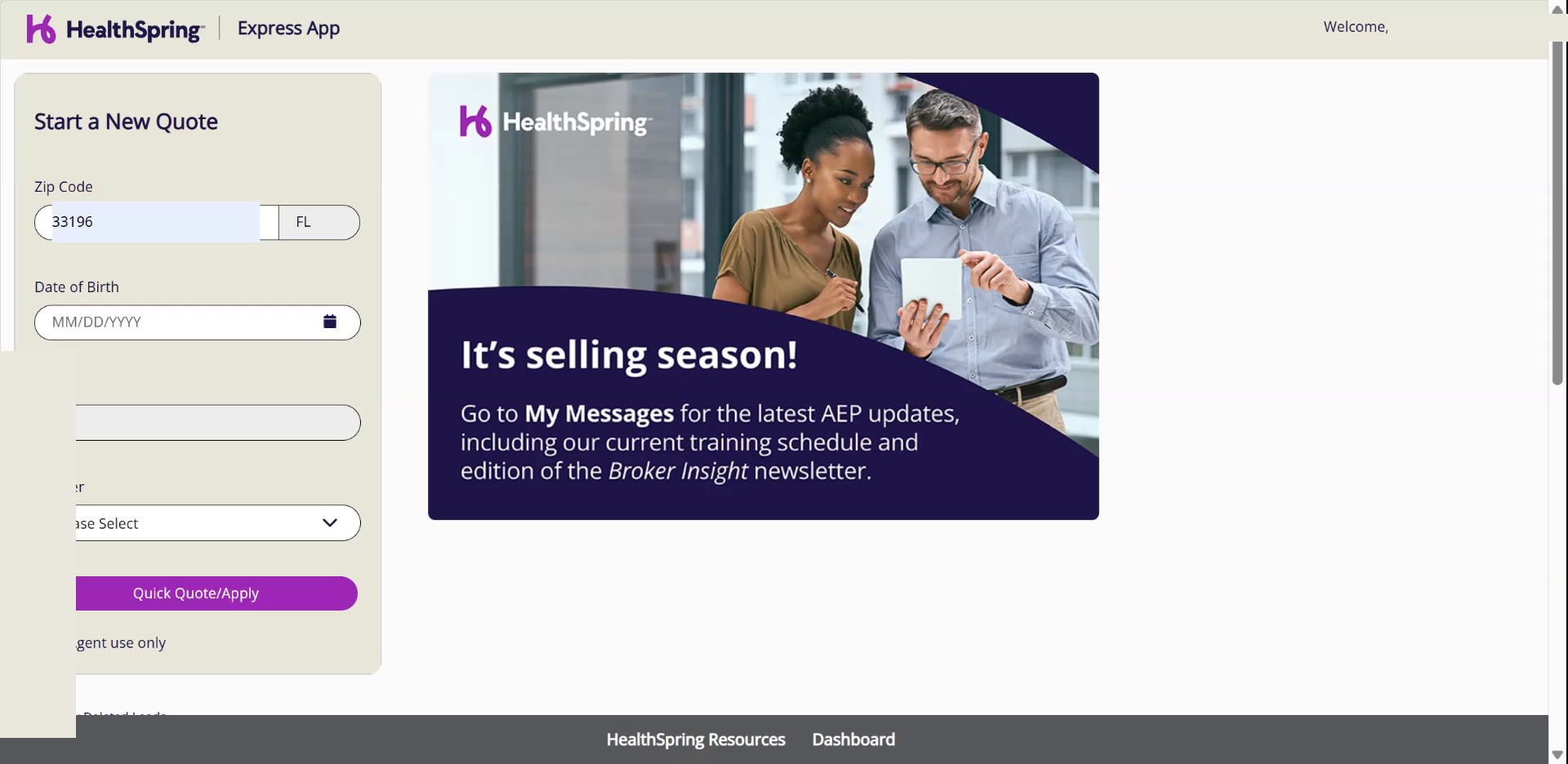
- 2Type the Date of Birth of the person you are talking to.That is the primary applicant. This screen takes one applicant only.
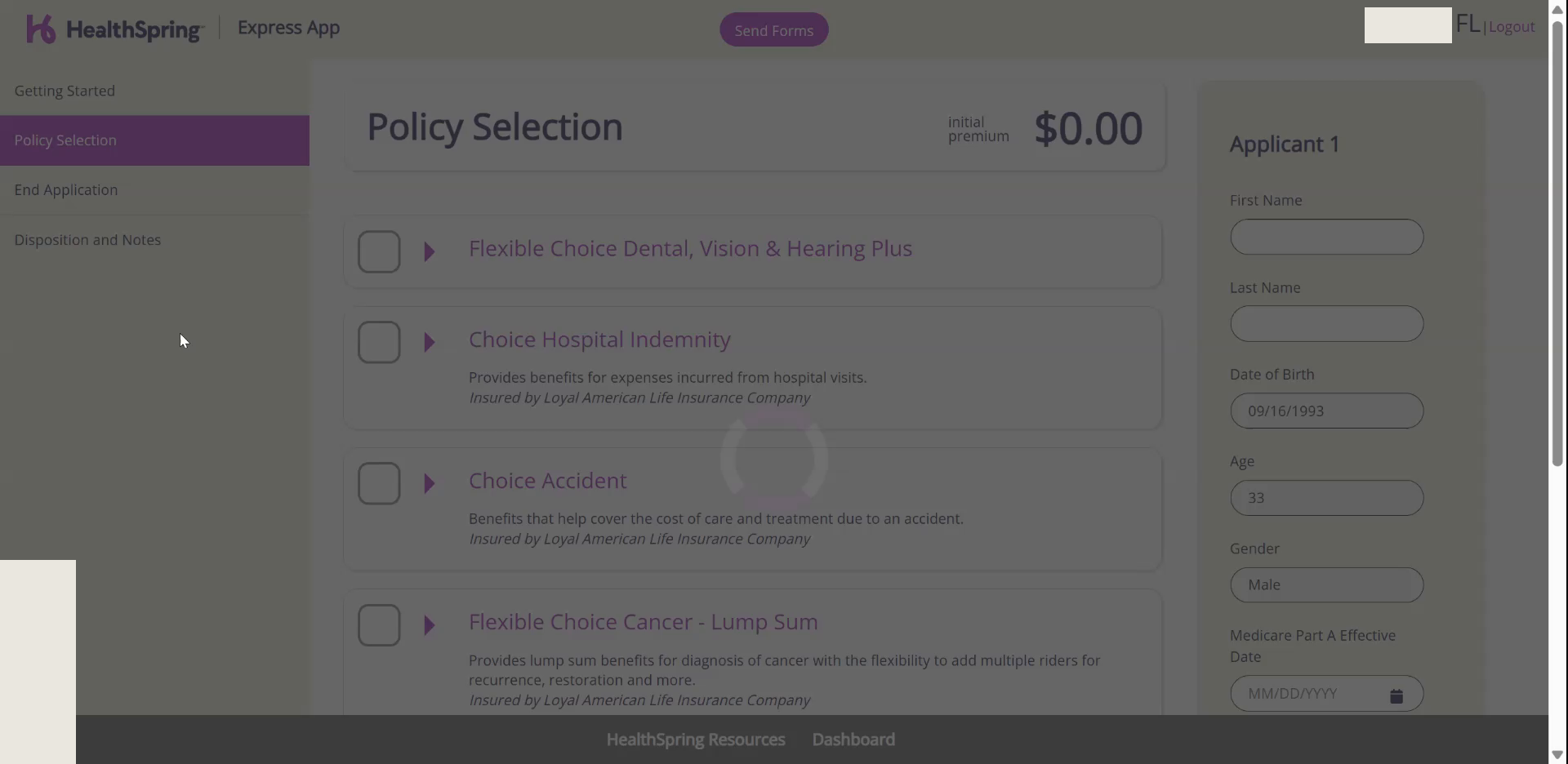
- 3Pick Gender, then click Quick Quote/Apply.
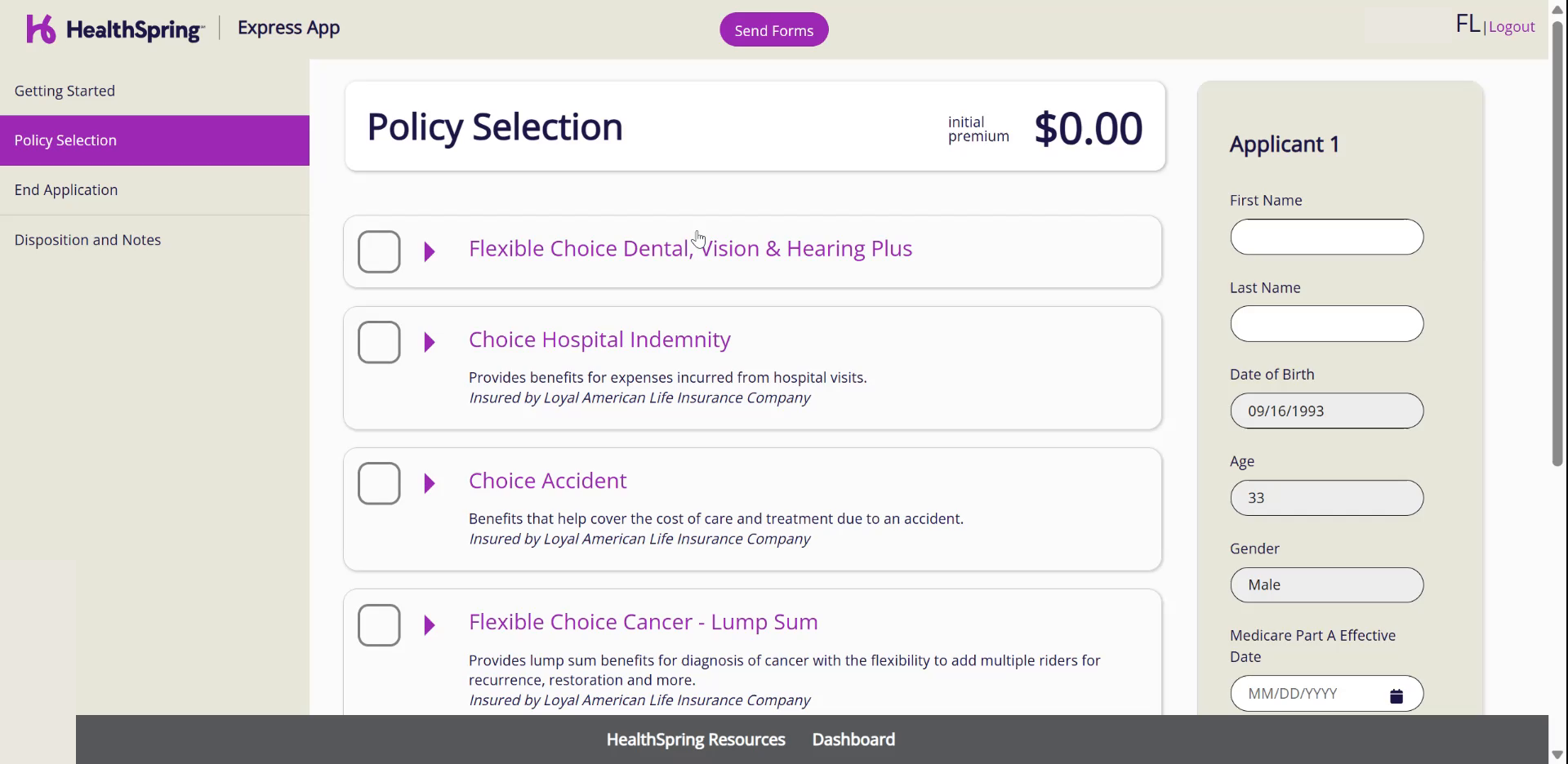
- 4Check the state at the top right of the next screen.Every state has its own prices. Wrong state, go back and fix the zip code.
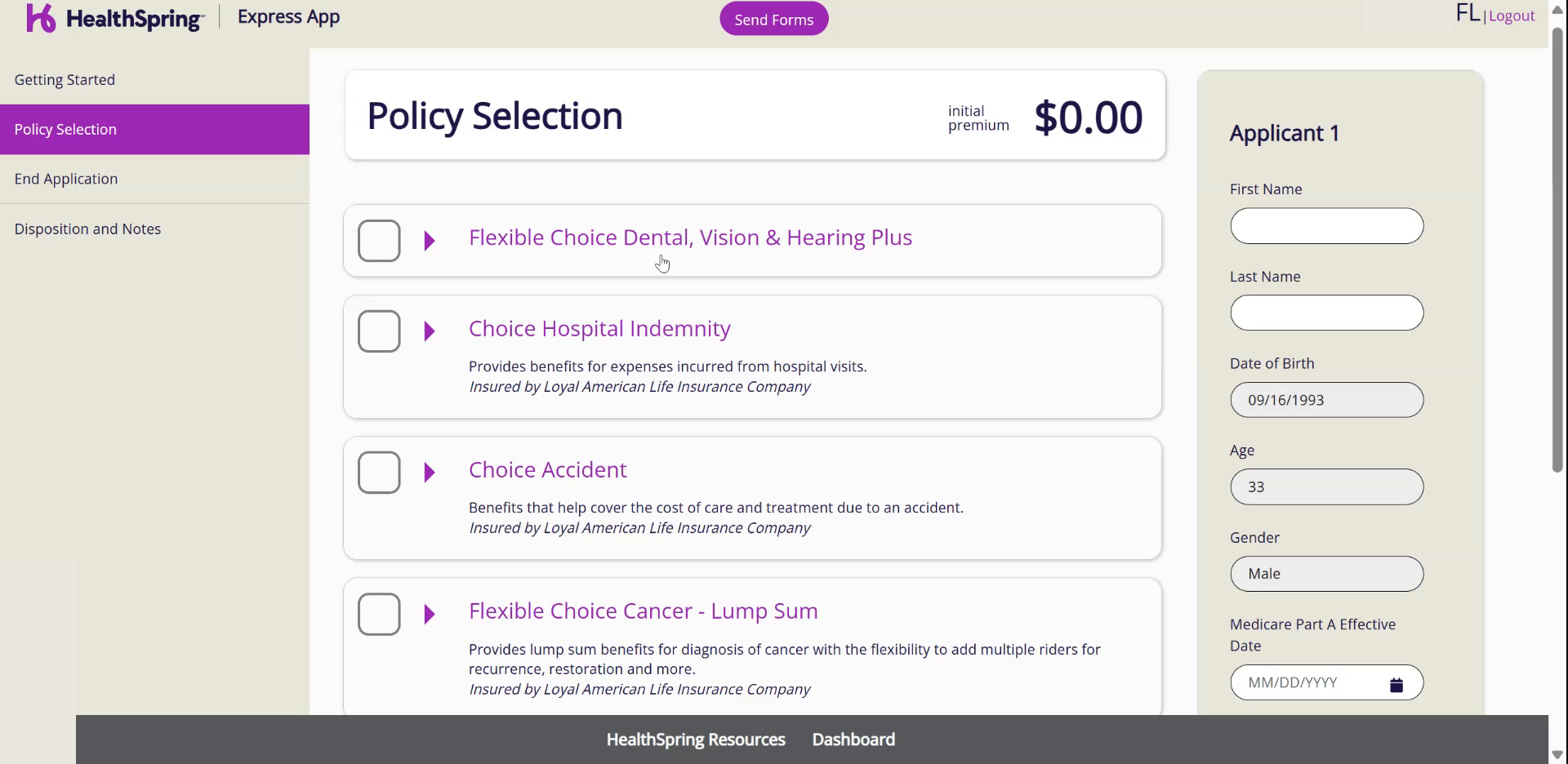
- 5Use only three products on the list.Flexible Choice Dental, Vision & Hearing Plus. Choice Accident. Flexible Choice Cancer - Lump Sum, which we build into a critical illness plan with riders.
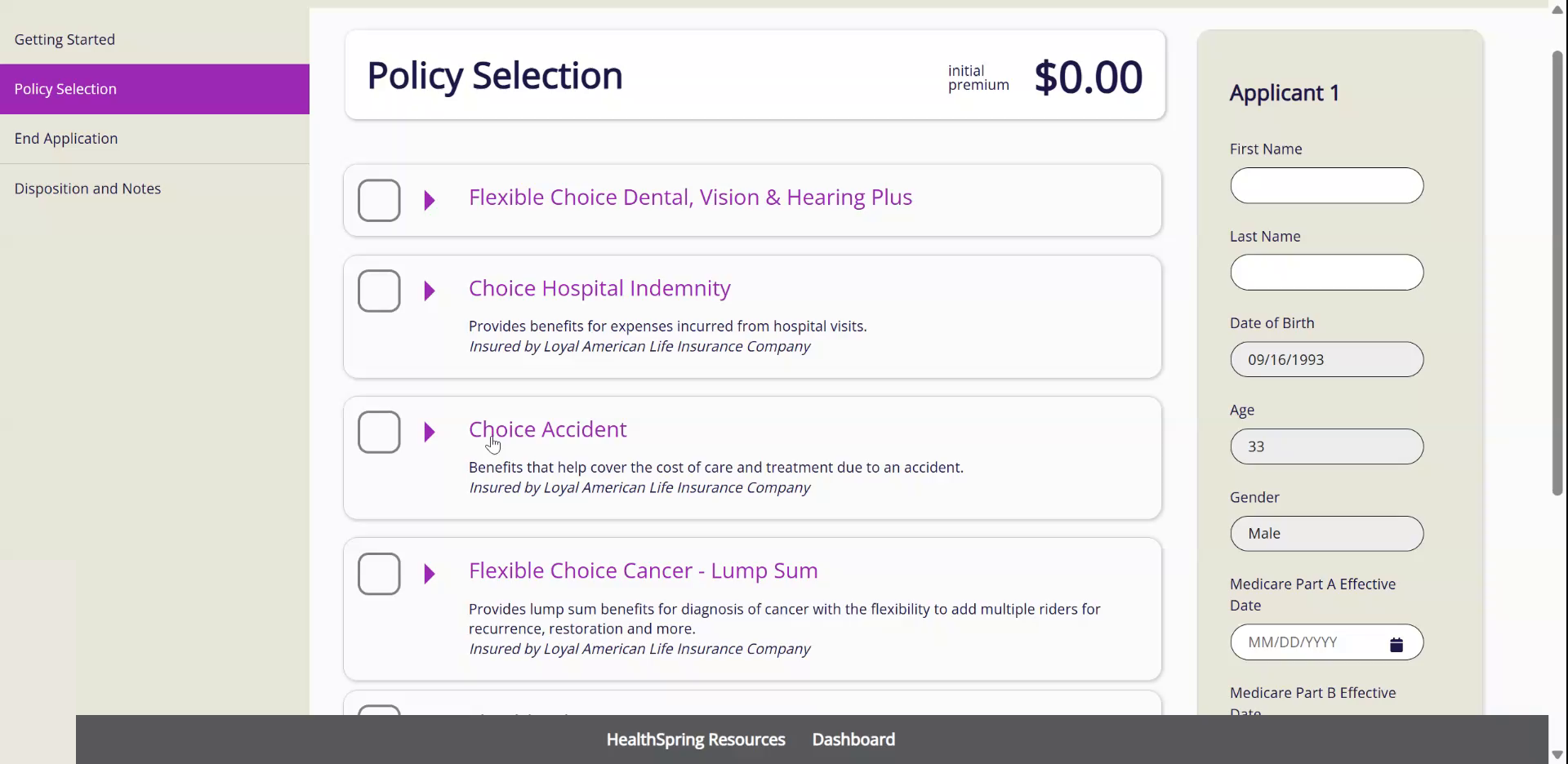
Never. quote from the wrong state. If the top right does not show the client's state, go back and fix the zip code first.
3Dental: Pick the Family Type
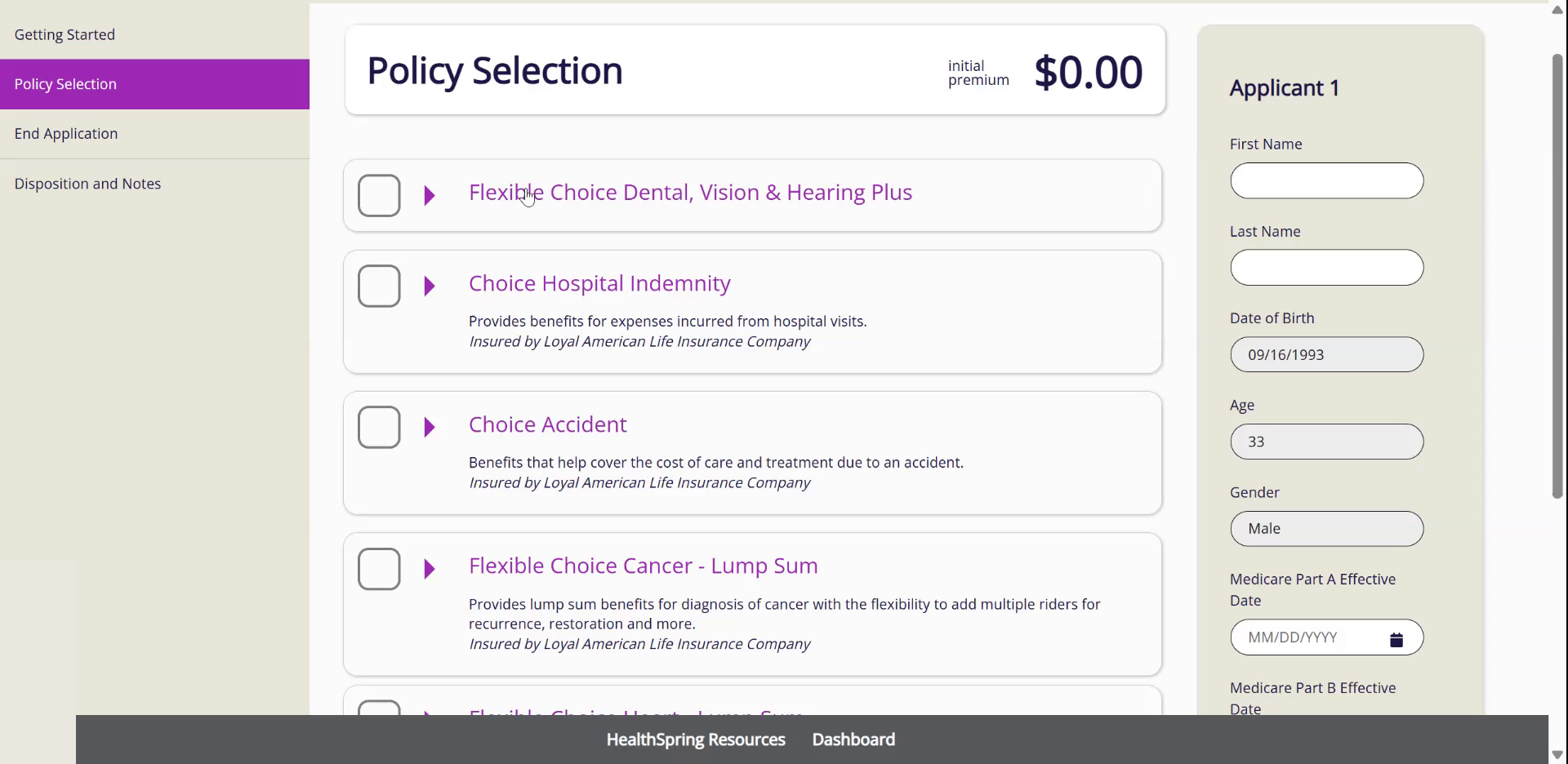
Watch this part in the video (0:48)- 1Click Flexible Choice Dental, Vision & Hearing Plus.Select Customized Coverage.
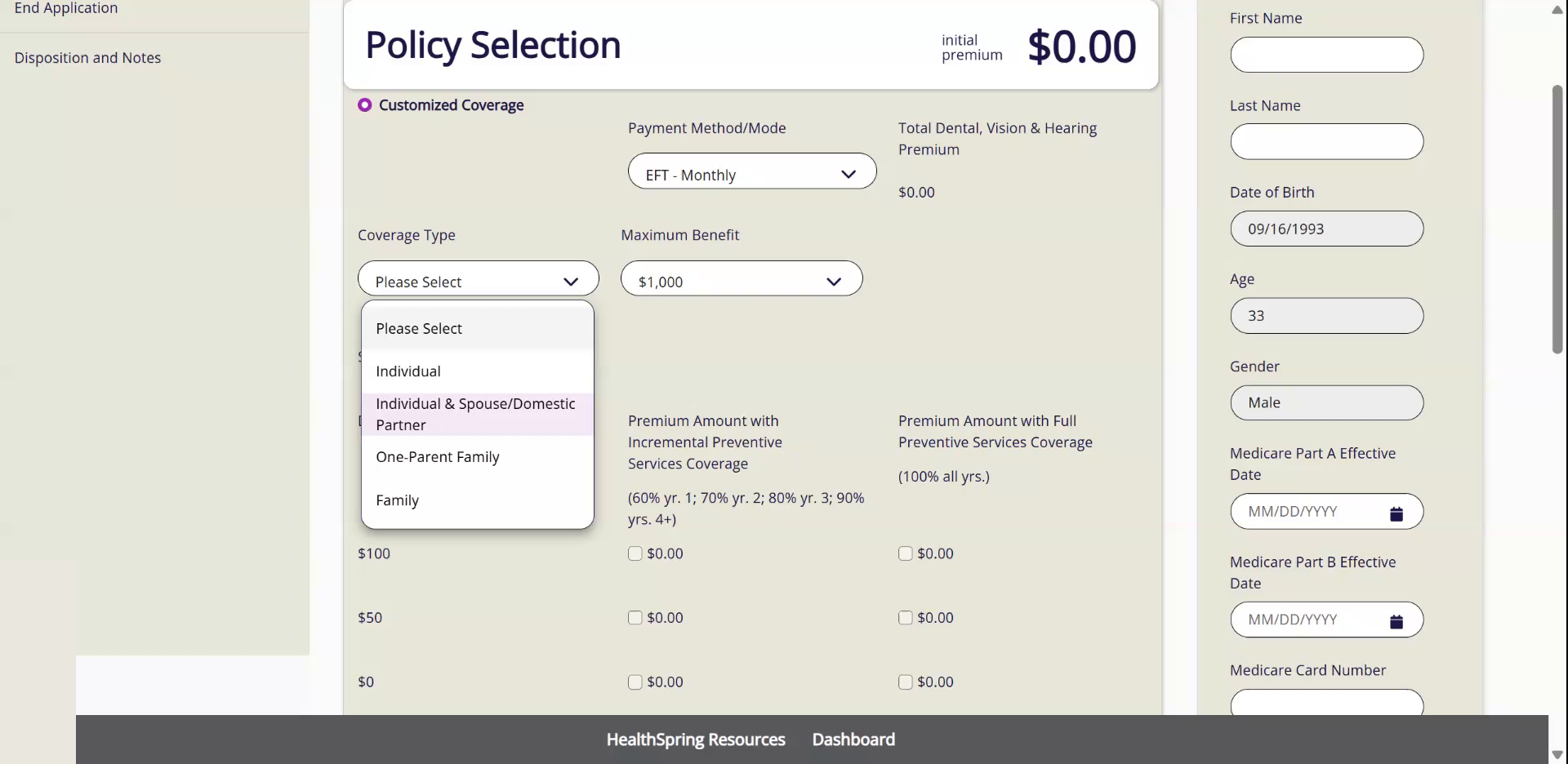
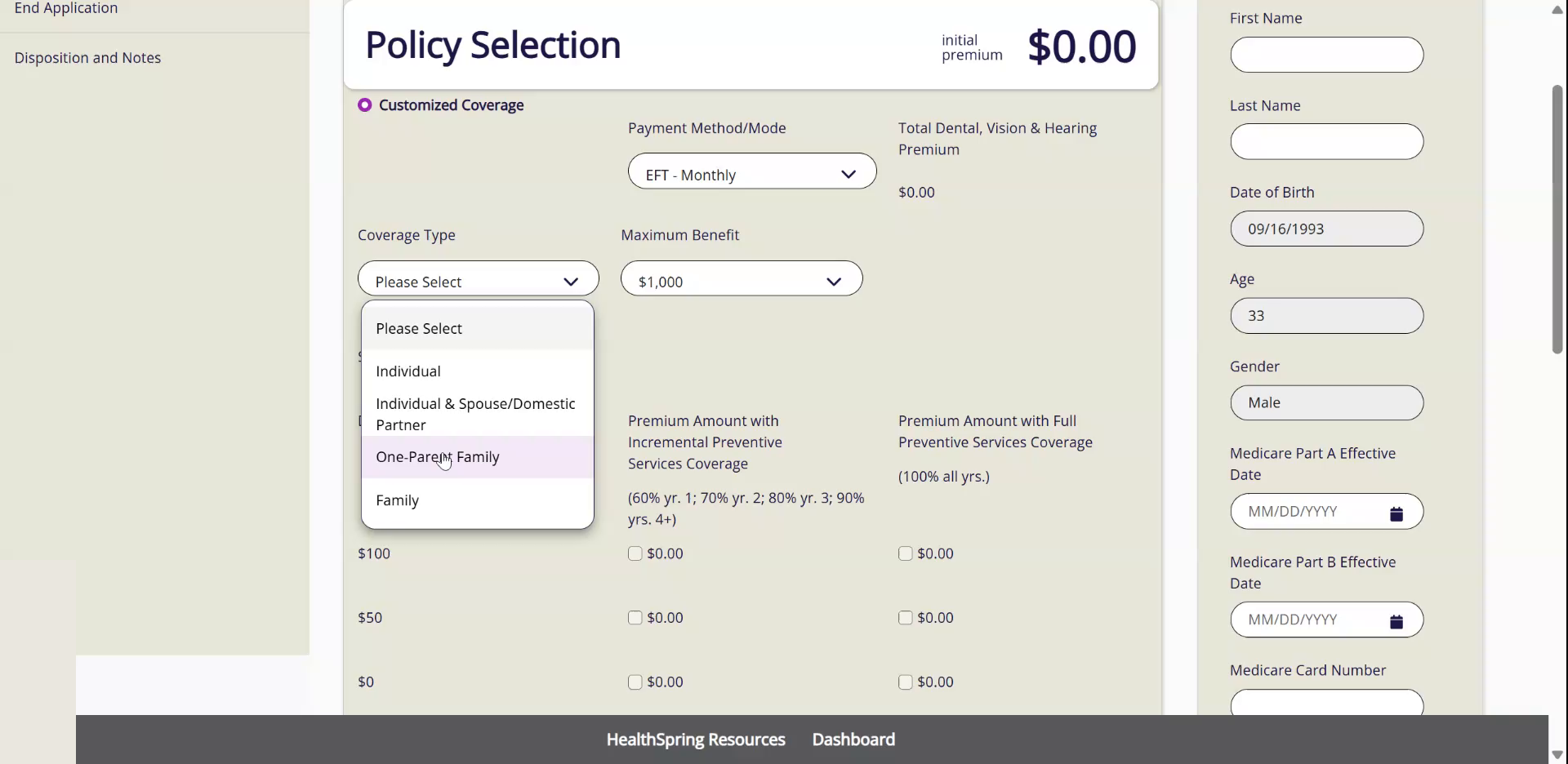
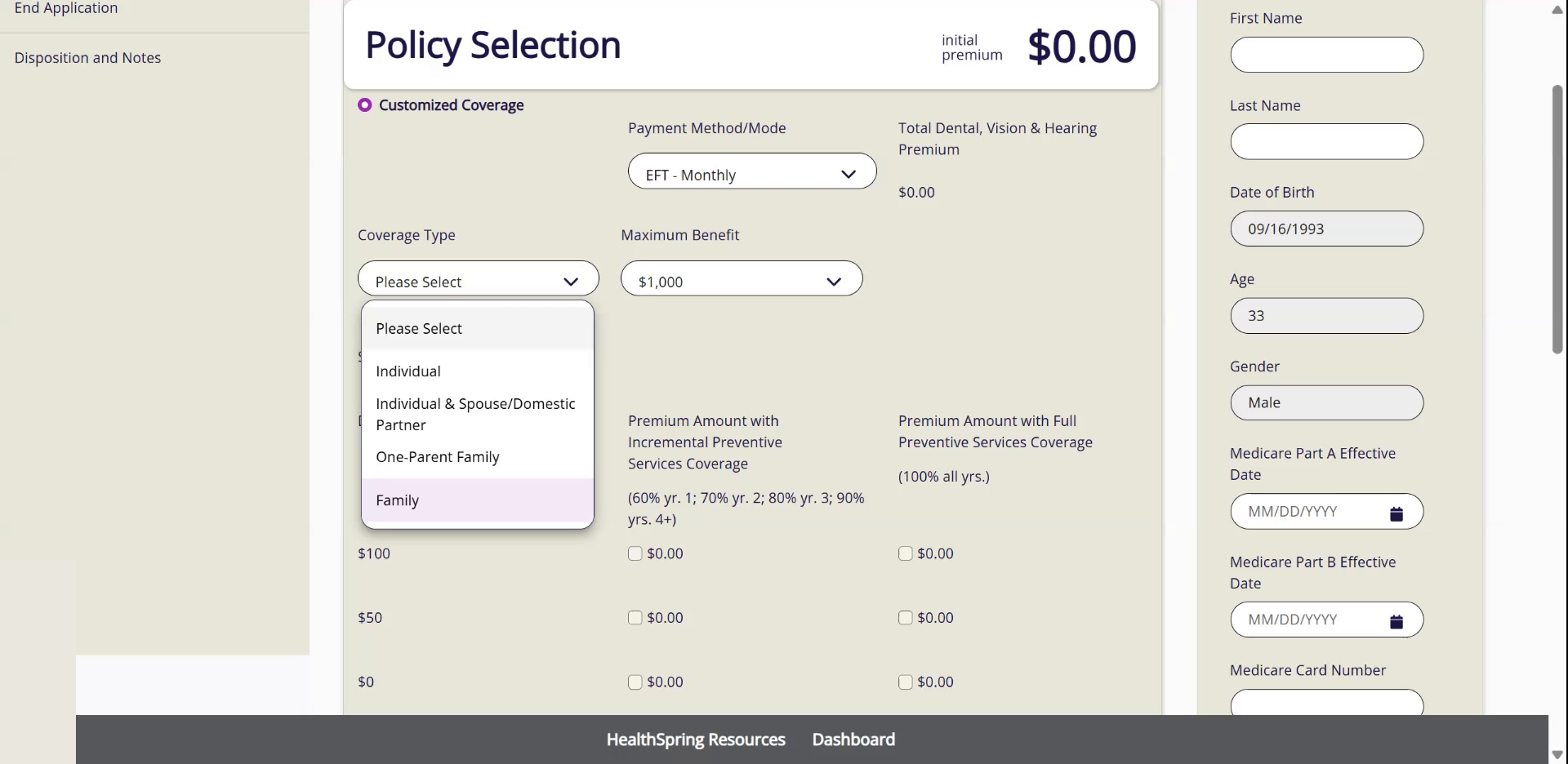
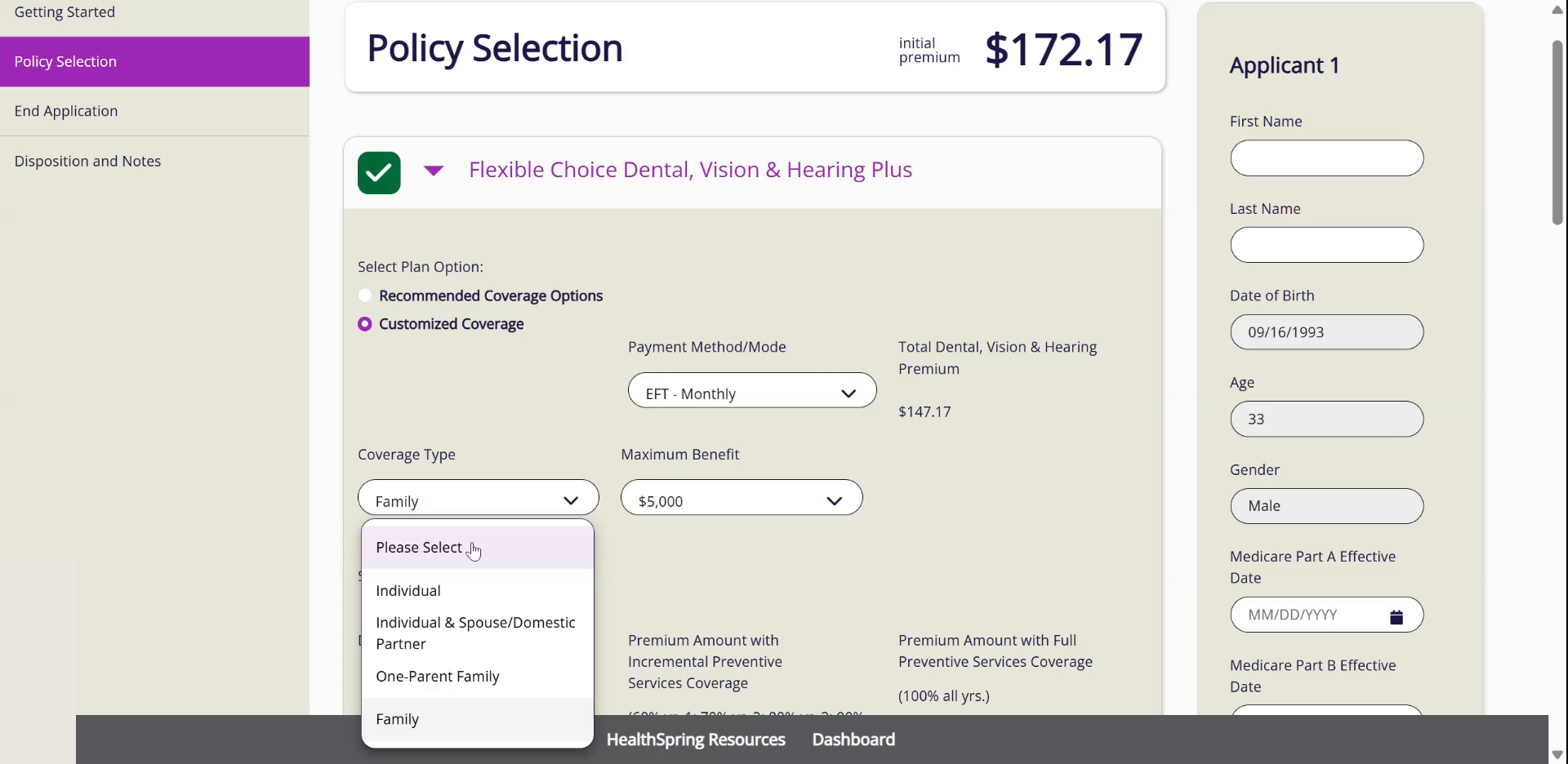
- 2Open Coverage Type and pick one of the four.Individual. Individual & Spouse/Domestic Partner. One-Parent Family. Family.
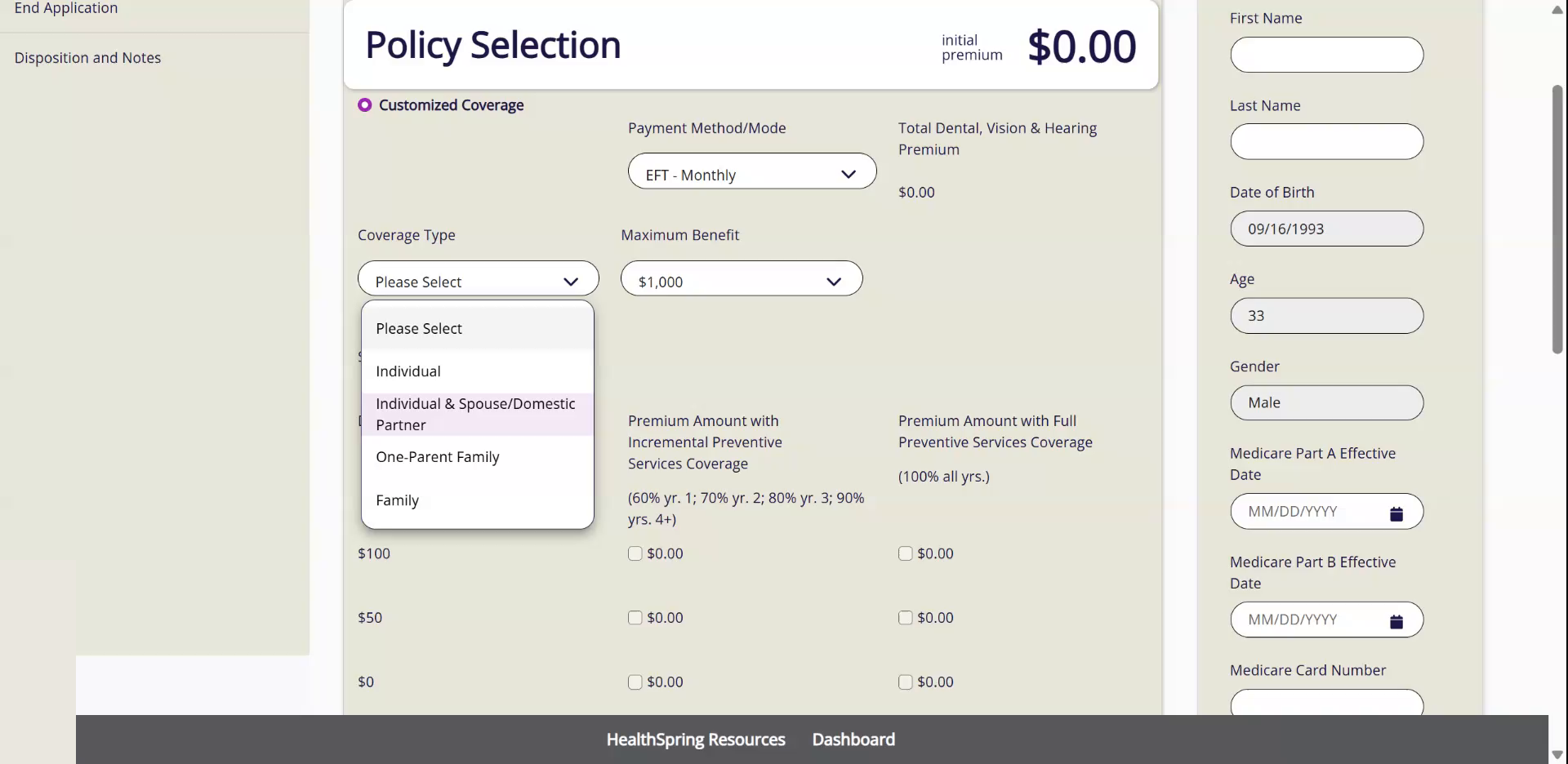
- 3Individual is one person, 18 or older.There is no child-only policy.
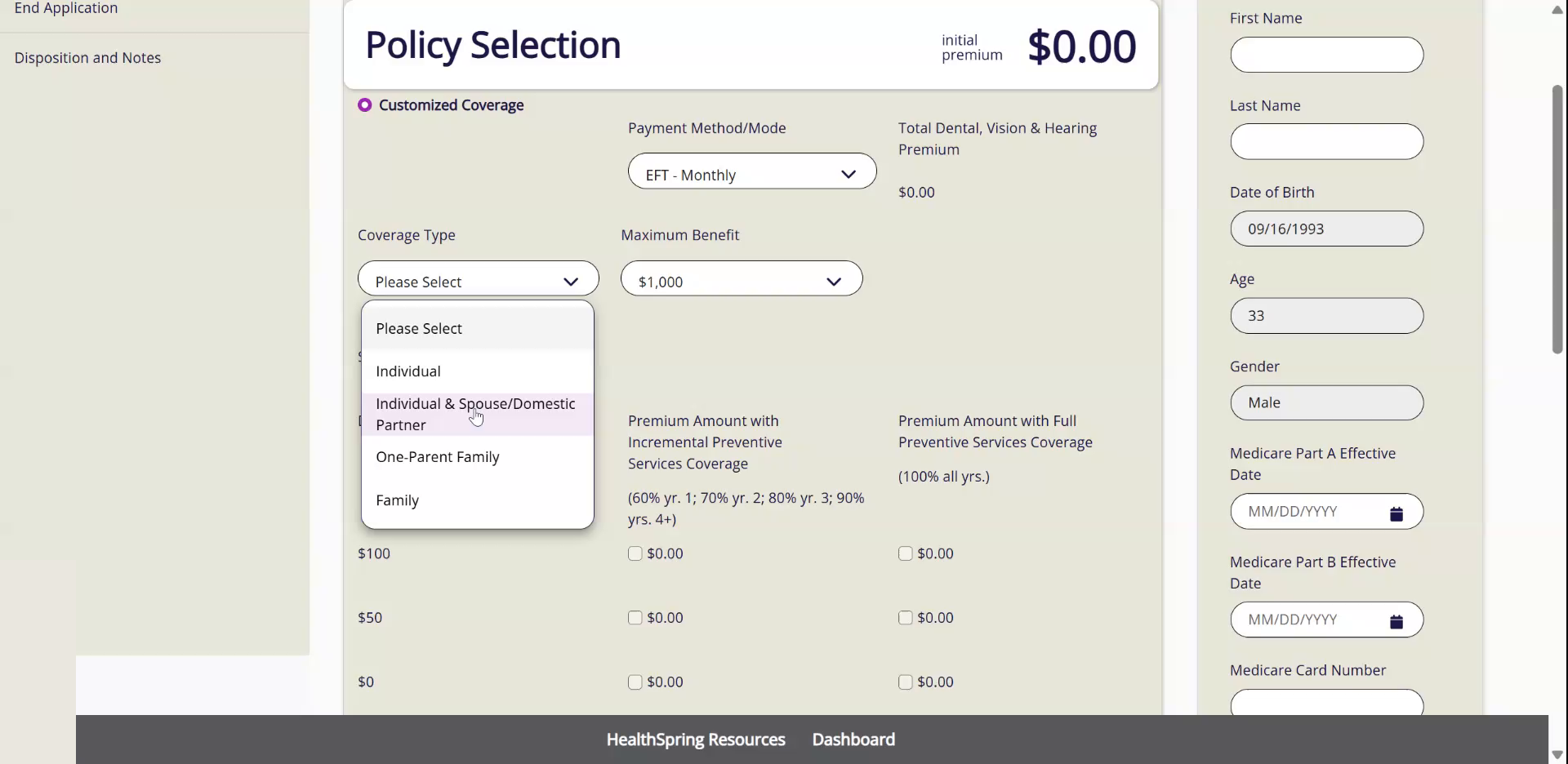
- 4Individual & Spouse/Domestic Partner is two partners.They do not have to be married. Two brothers, or a mom and her daughter, do not fit here.
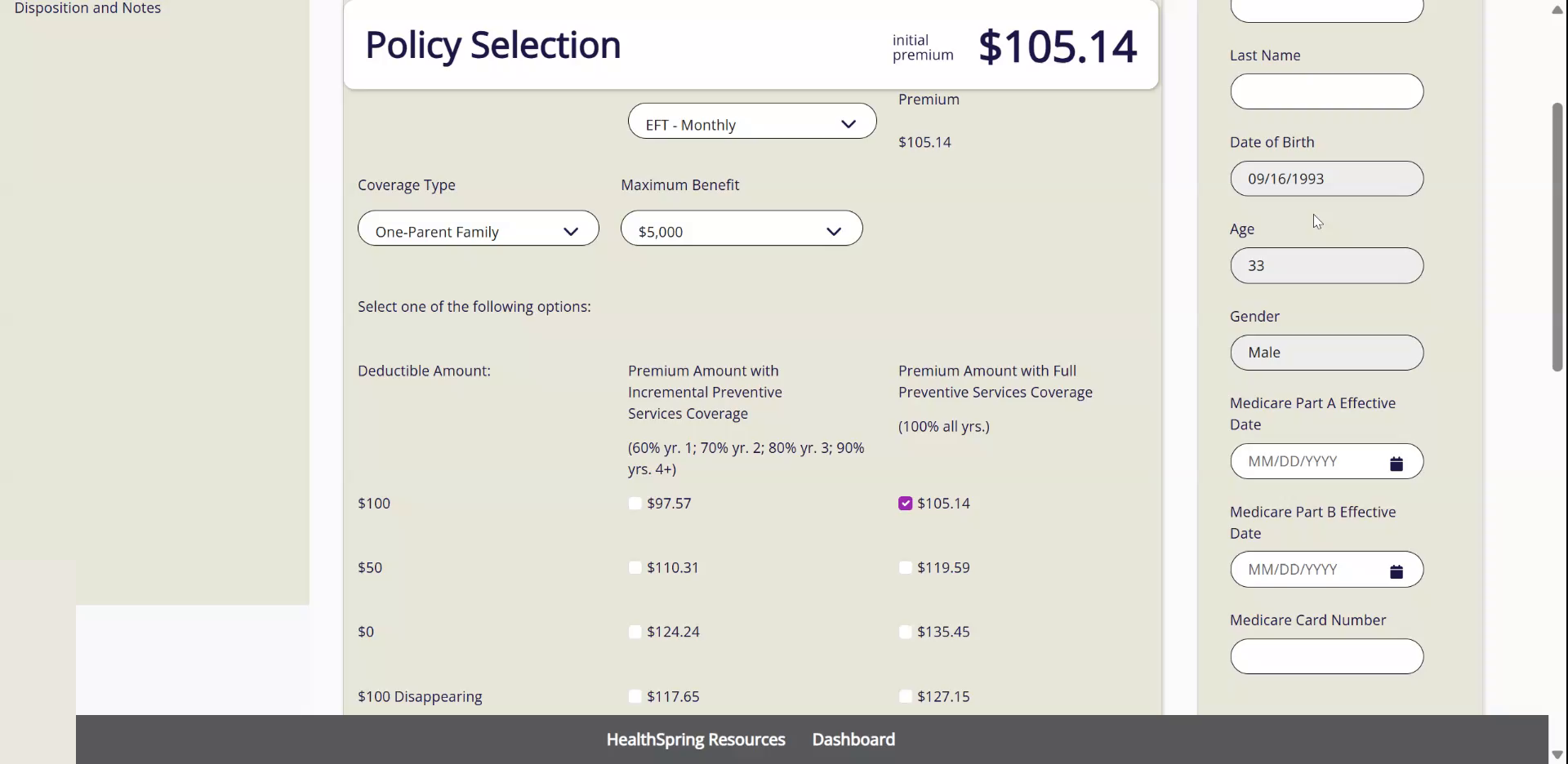
- 5One-Parent Family is one parent plus 1 to 6 children.One child or six, the price is the same.
- 6Family is two parents plus 1 to 6 children.A child is anyone up to 25. At 26 they need their own policy.
Never. put a child alone on a policy, put two brothers or a parent and child on the couple type, or add a cousin or grandparent to a family. Each of them needs their own policy.
4Dental: Set the Benefit and Read the Price
Watch this part in the video (1:33)- 1Set Maximum Benefit to $5,000.We always sell the $5,000.
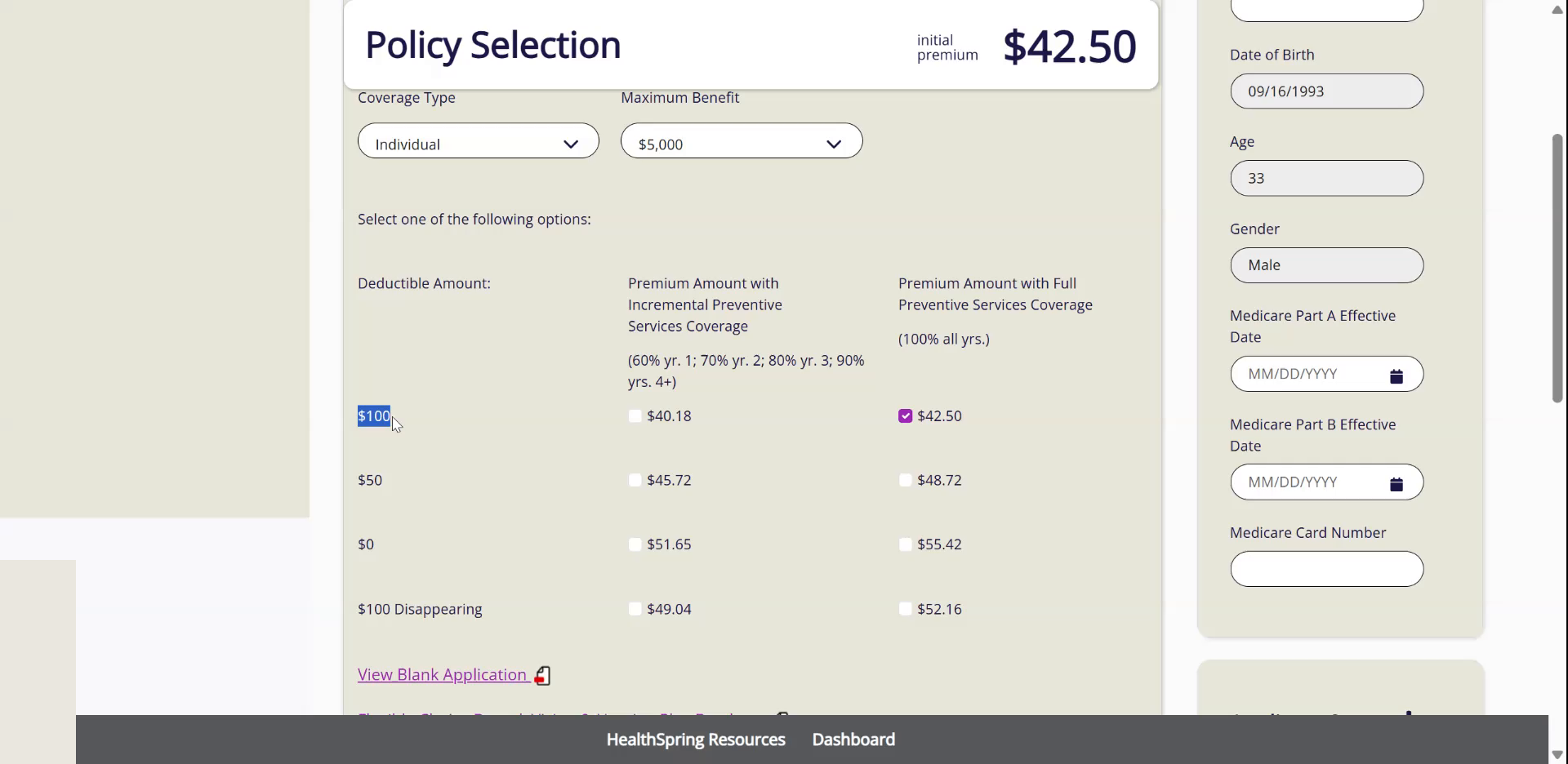
- 2Read the quote at the top right of the price grid.That is the $100 deductible with preventive services covered at 100% from day one. It is the number you give the client.
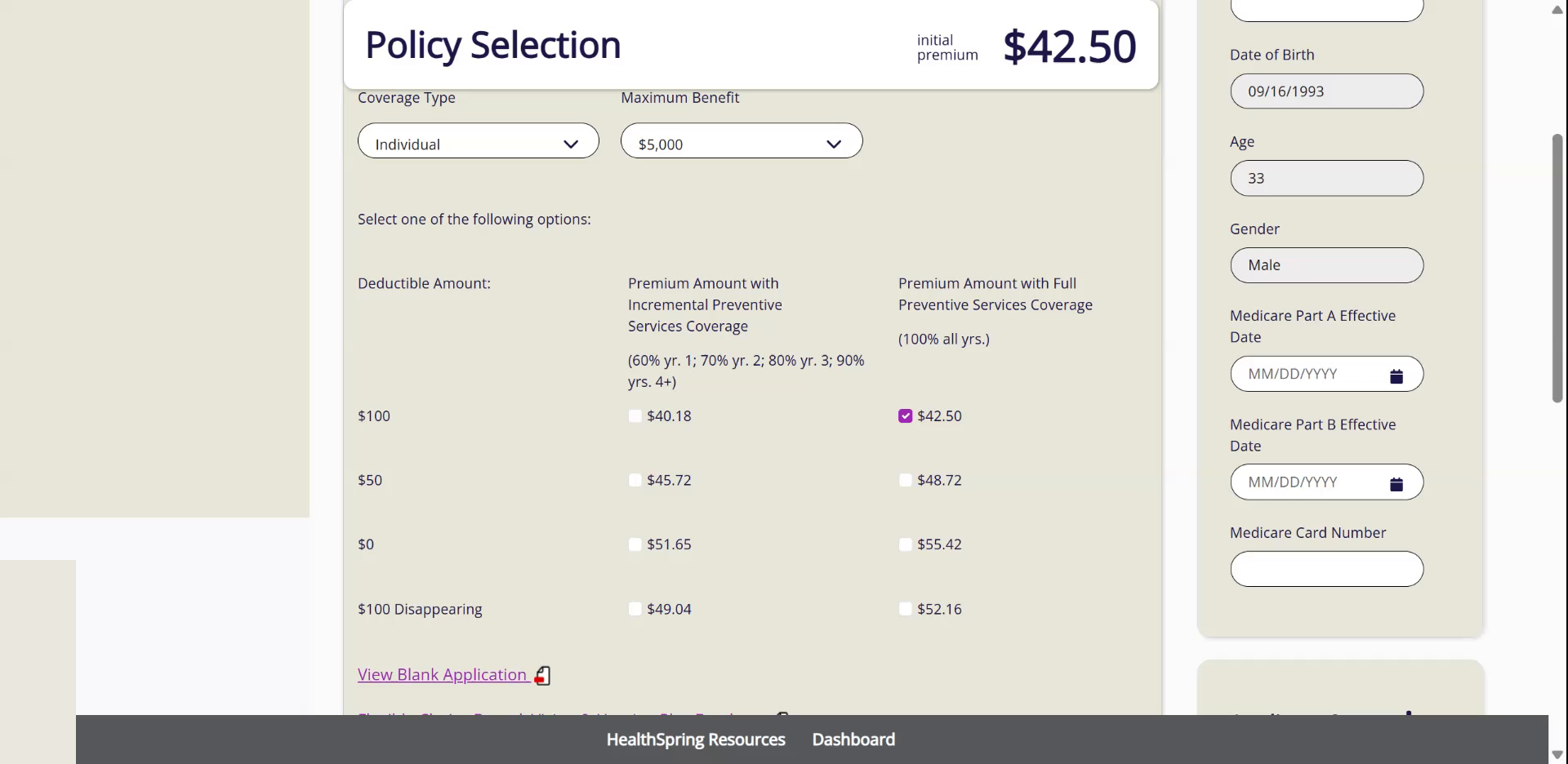
- 3Know what moves the price: state, family type, and the age bucket.The buckets are 49 and under, and 50 and over. The policy prices by the oldest person on it.
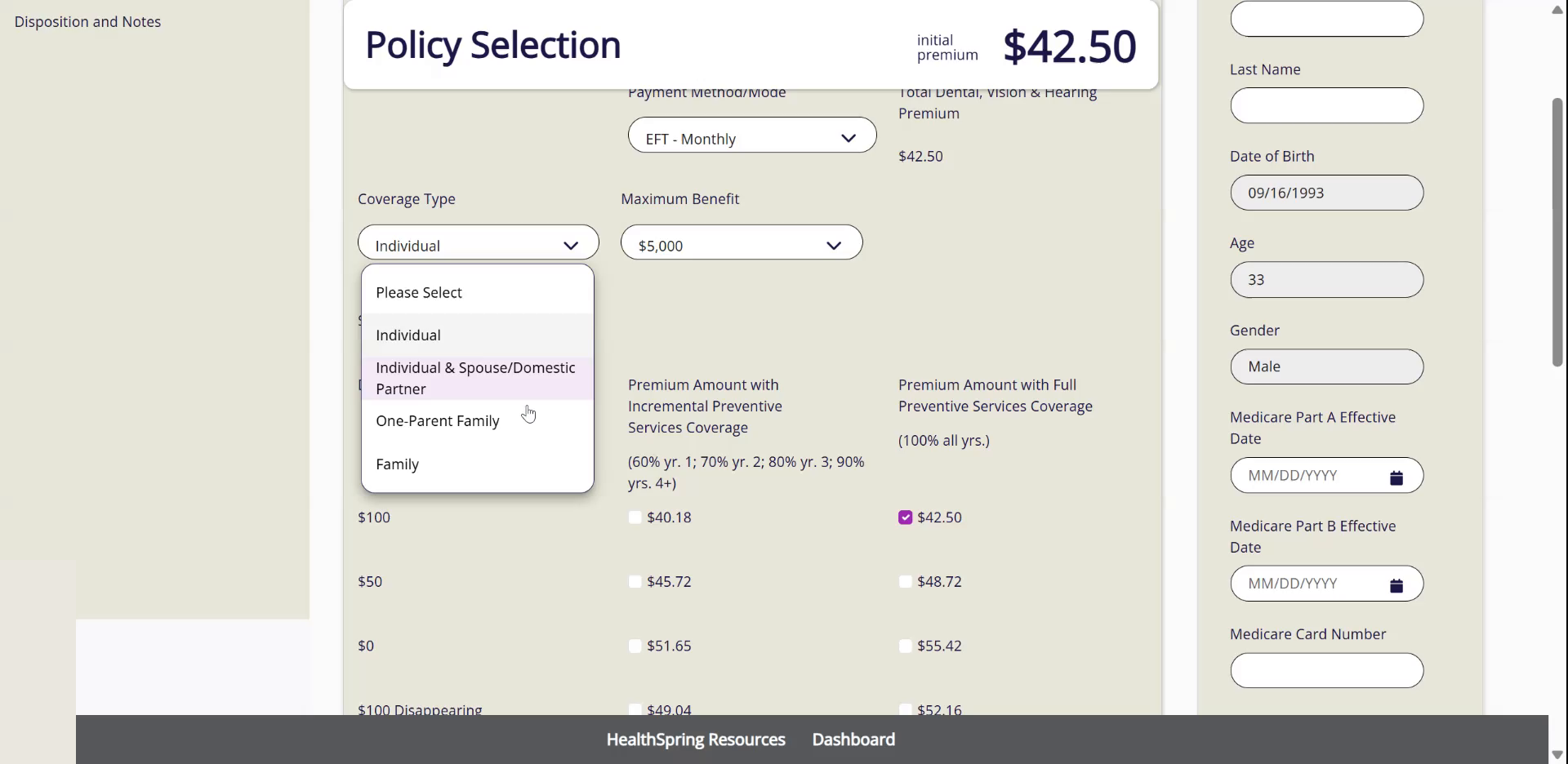
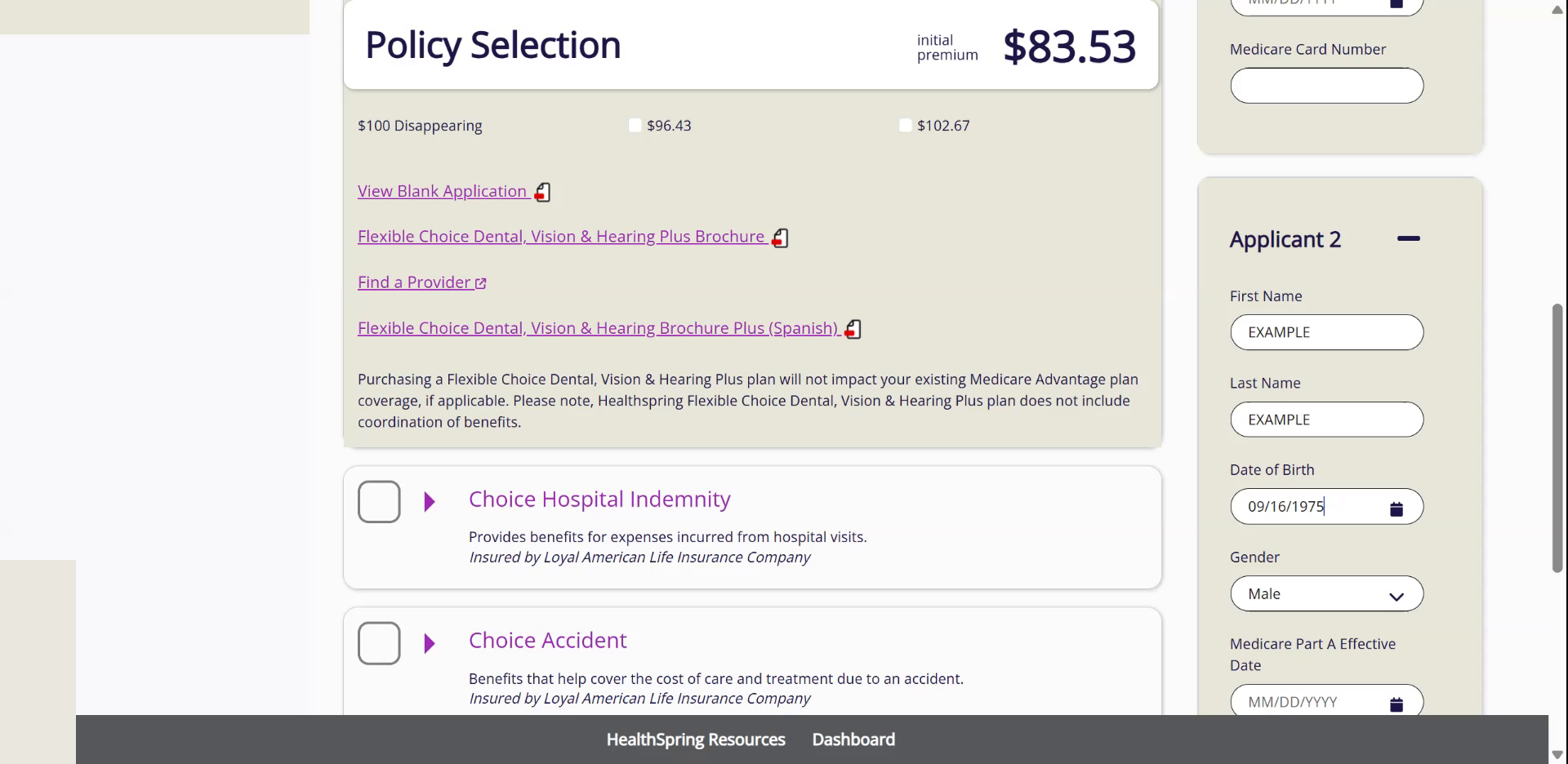
- 4For a couple or a family, click Applicant 2 on the right and fill it in through Gender.First Name, Last Name, Date of Birth, Gender. The premium recalculates on its own.
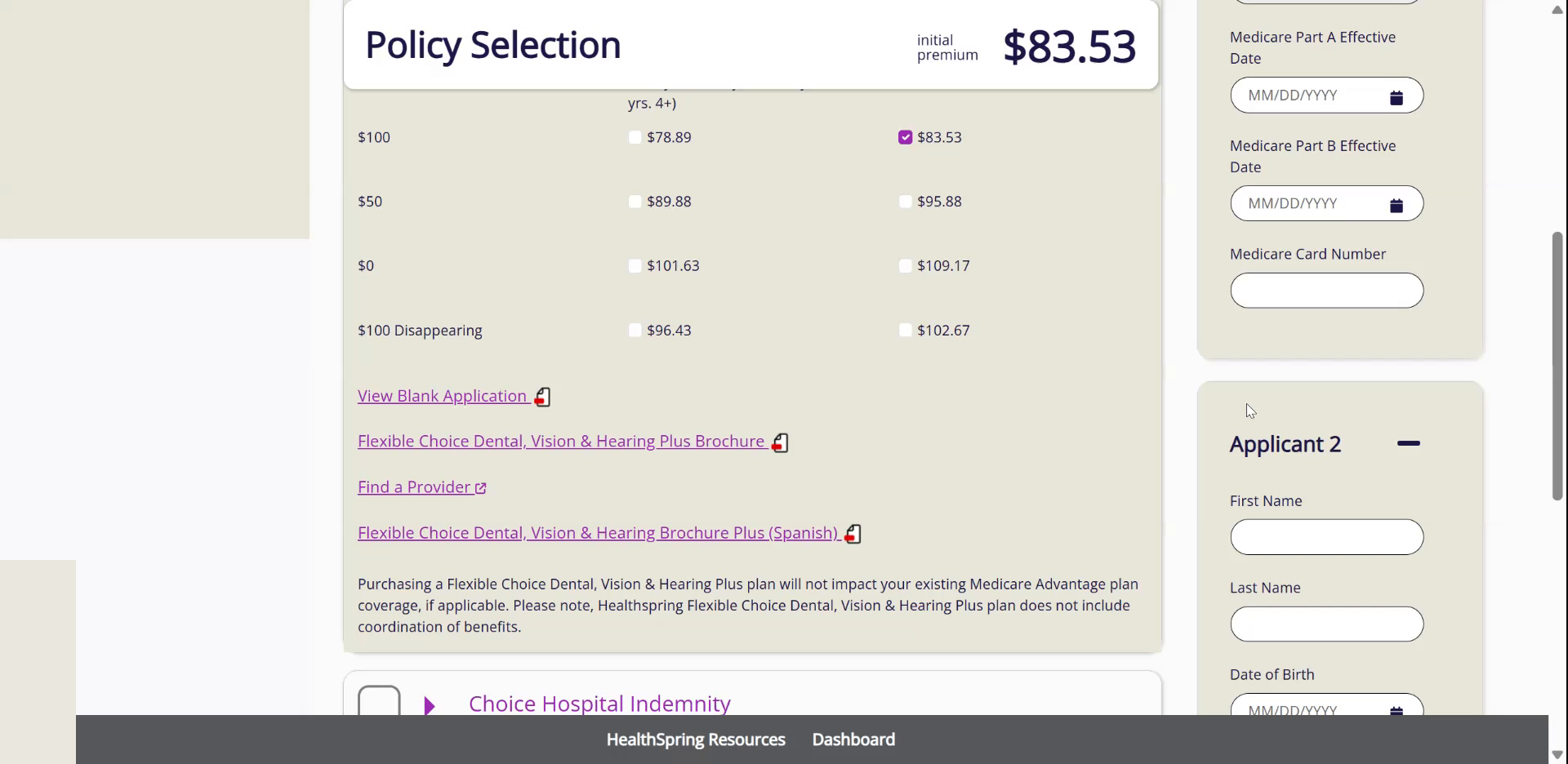
- 5Watch the premium when the second person is 50 or over.It jumps to the over-50 price even if the first person is younger.
- 6To quote another age or state, go back to the first screen.Change the Date of Birth or the Zip Code there. The total premium at the top adds up every product you have picked.
Never. quote a couple or a family with one birth date. The price follows the oldest person. Get both birth dates before you say a number.
5Choice Accident
Watch this part in the video (2:32)- 1Click Choice Accident and select Customized Coverage.
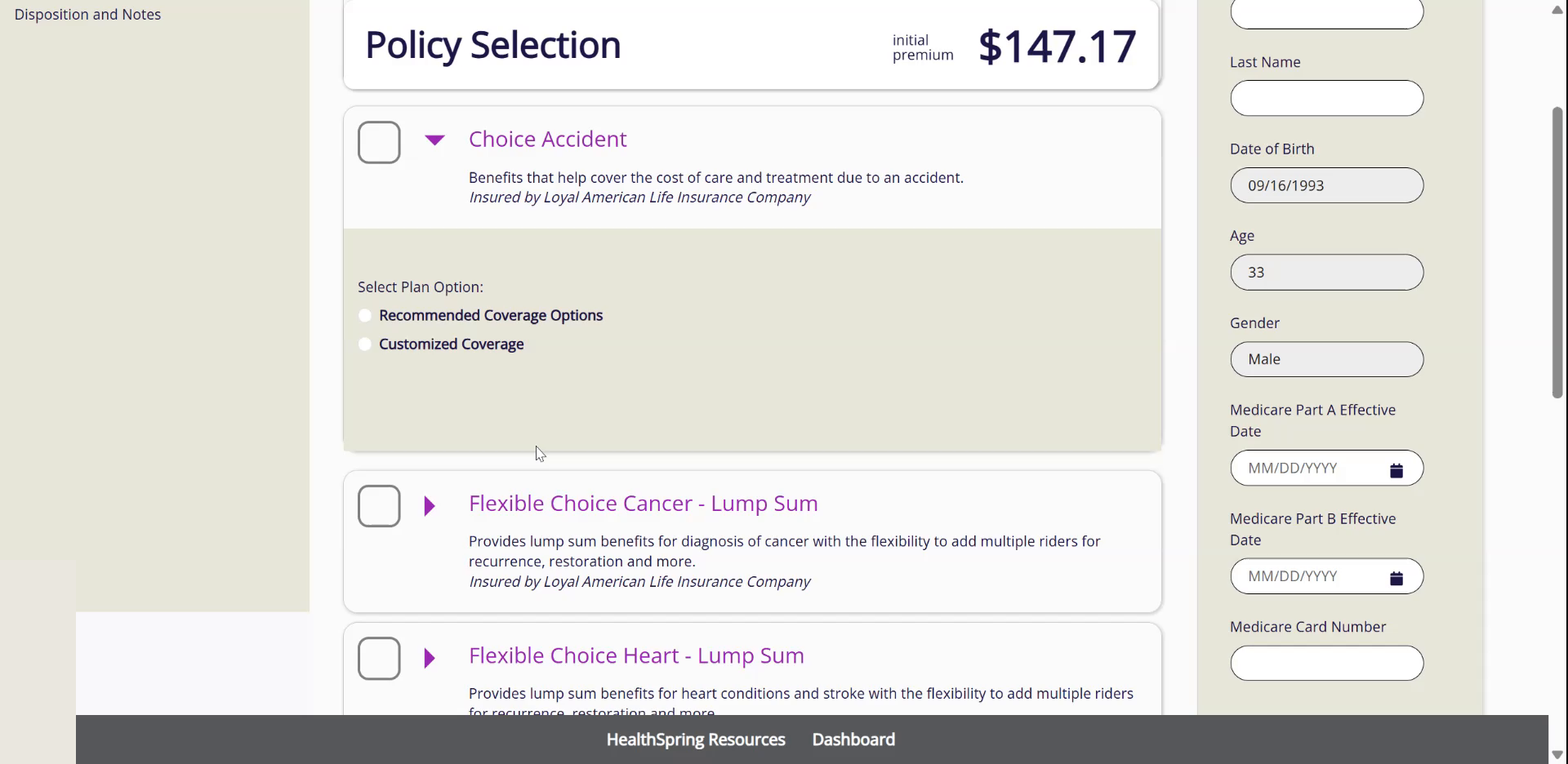
- 2Pick the Coverage Type.Individual, couple, one-parent family or family, same four as dental.
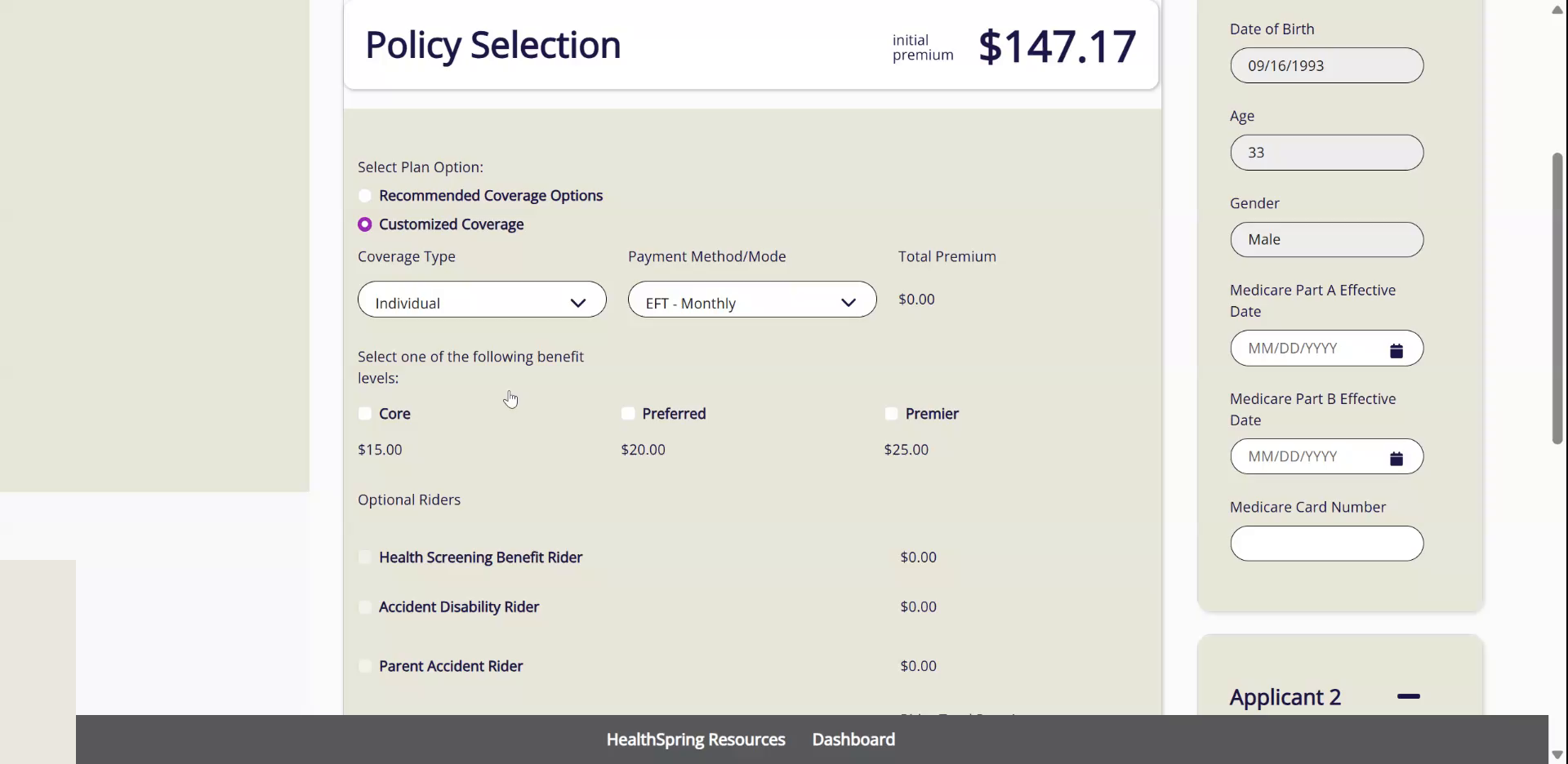
- 3Under the benefit levels, click Premier.$25 a month in most states. A few states are a little less.
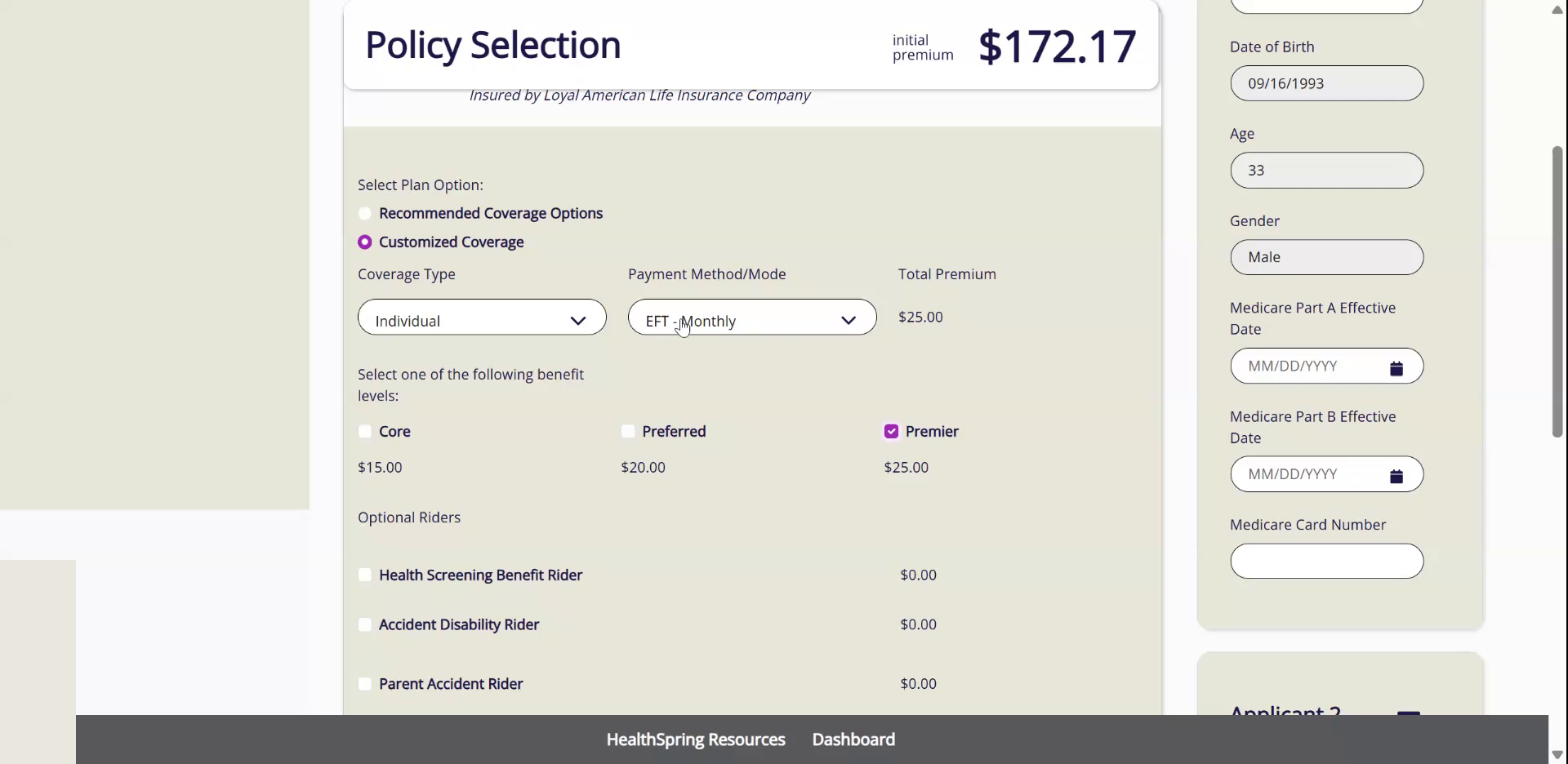
- 4Leave every Optional Rider unchecked.Only the state and the family type change this price. Age and gender do not.
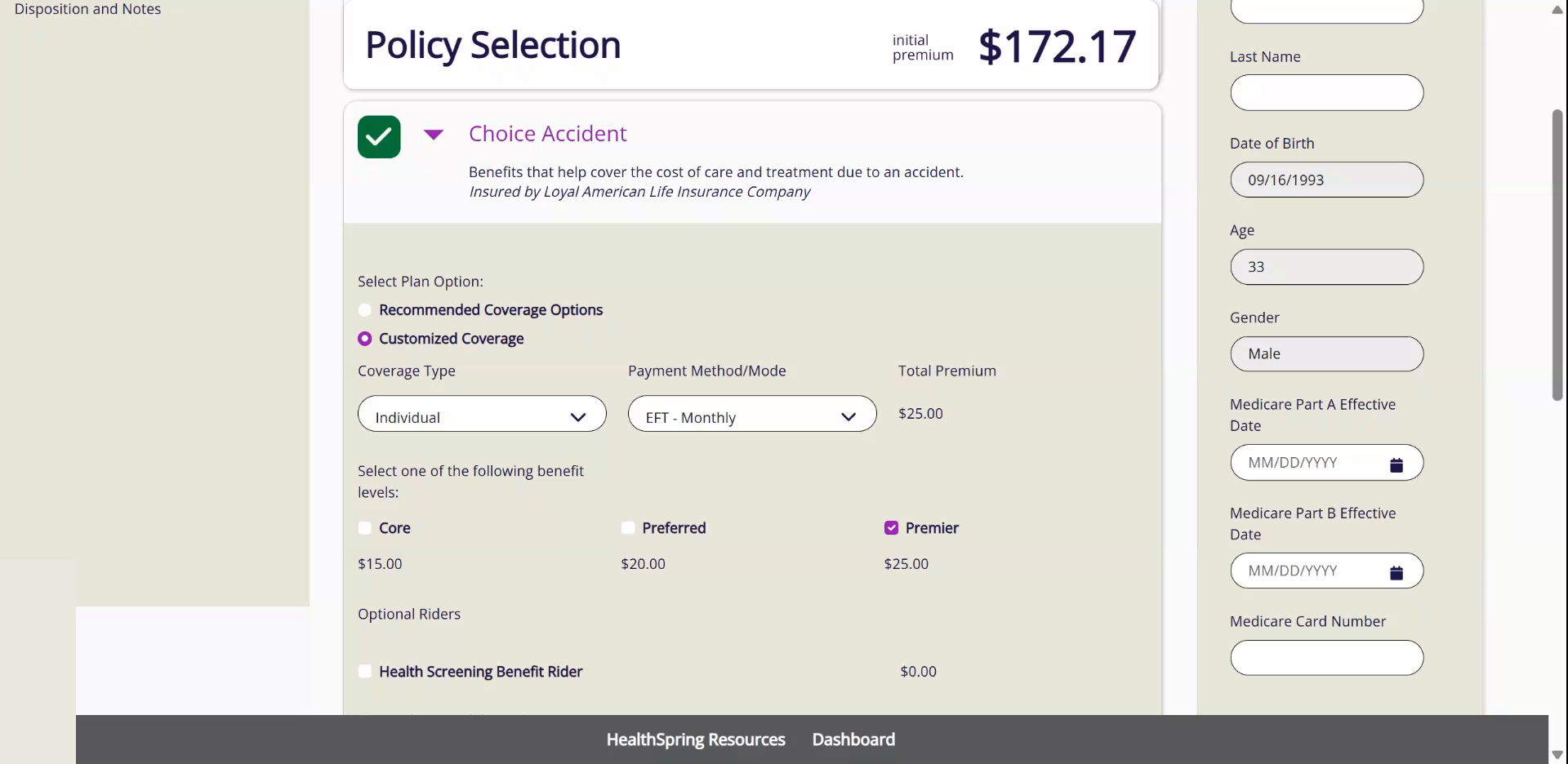
- 5To see one product's total on its own, set the other product's Coverage Type back to Please Select.That takes it out of the total at the top.
6Flexible Choice Cancer: Our Critical Illness Plan
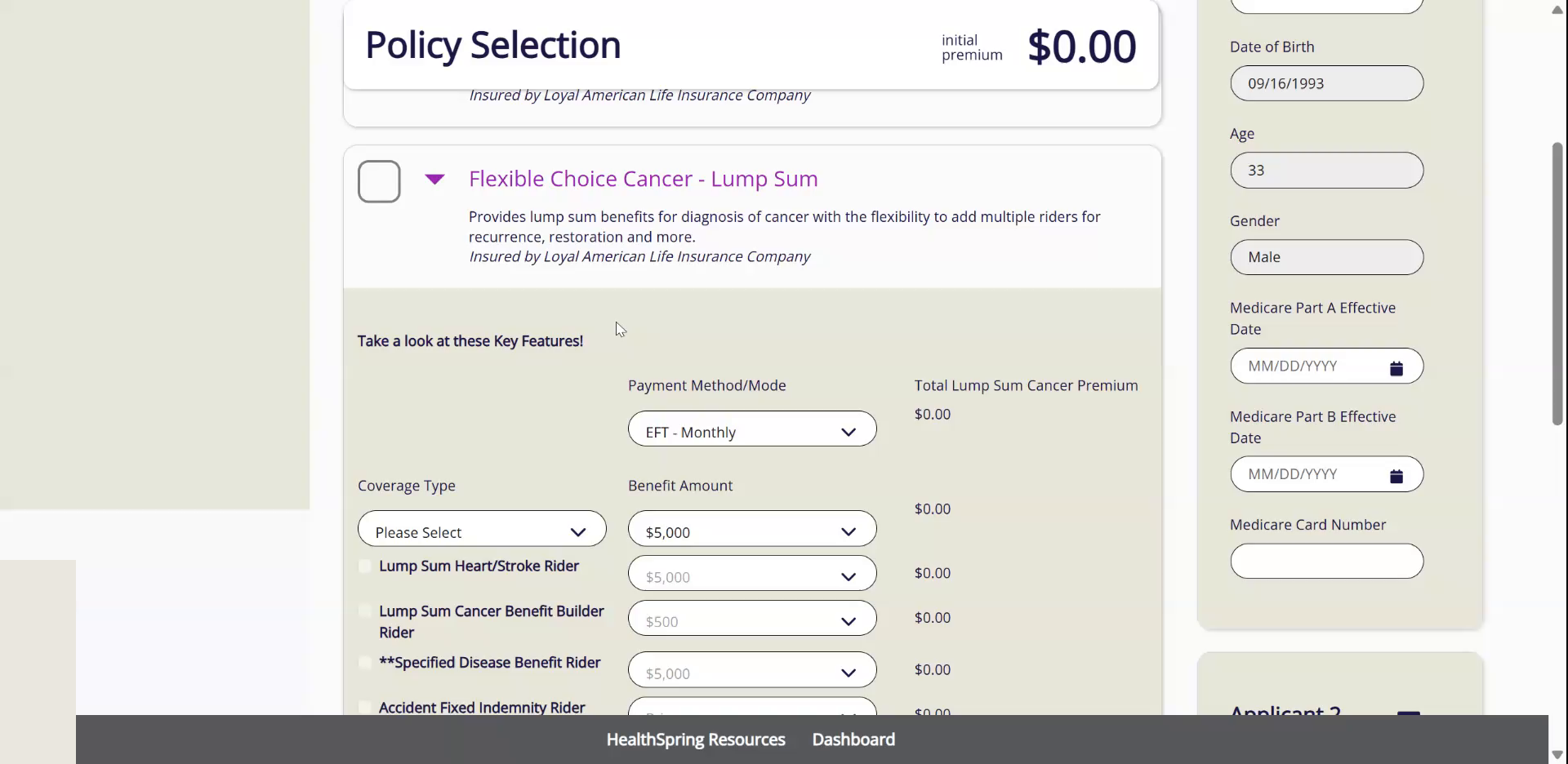
Watch this part in the video (3:01)- 1Click Flexible Choice Cancer - Lump Sum and pick the Coverage Type.
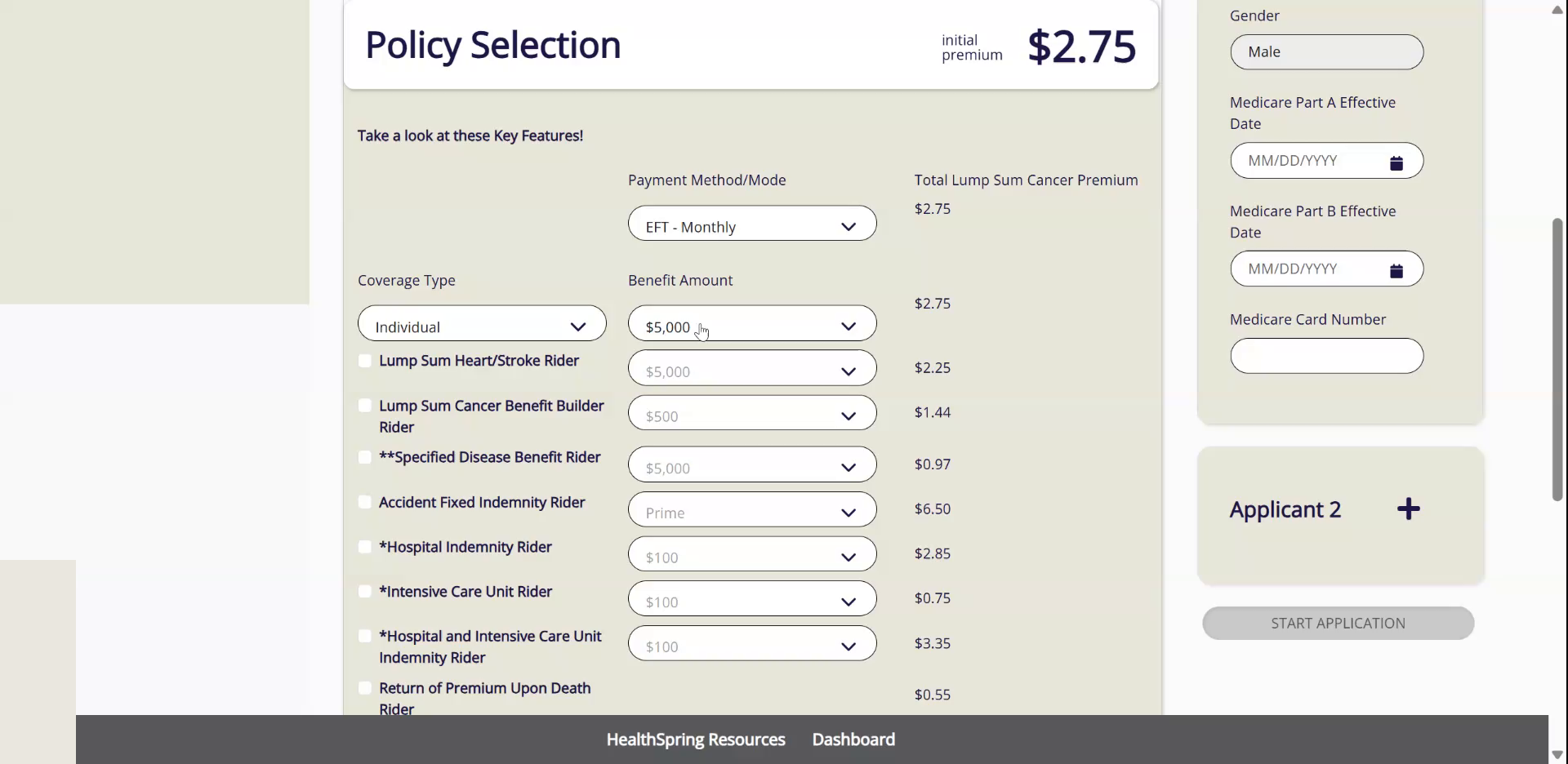
- 2Set Benefit Amount to $10,000.
- 3Check Lump Sum Heart/Stroke Rider and set it to $10,000.That is a separate $10,000 for heart attack and stroke.
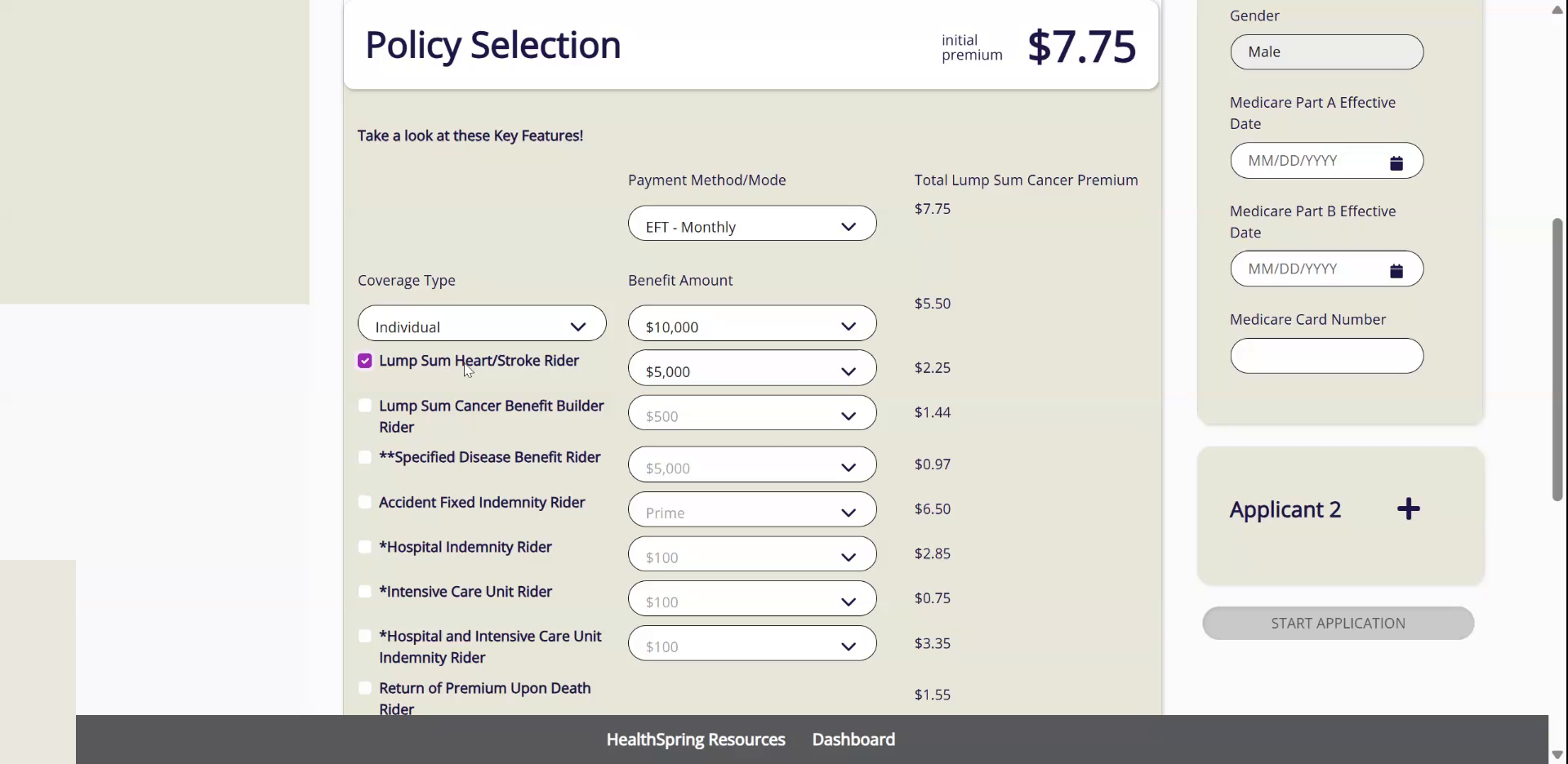
- 4Skip Lump Sum Cancer Benefit Builder Rider.
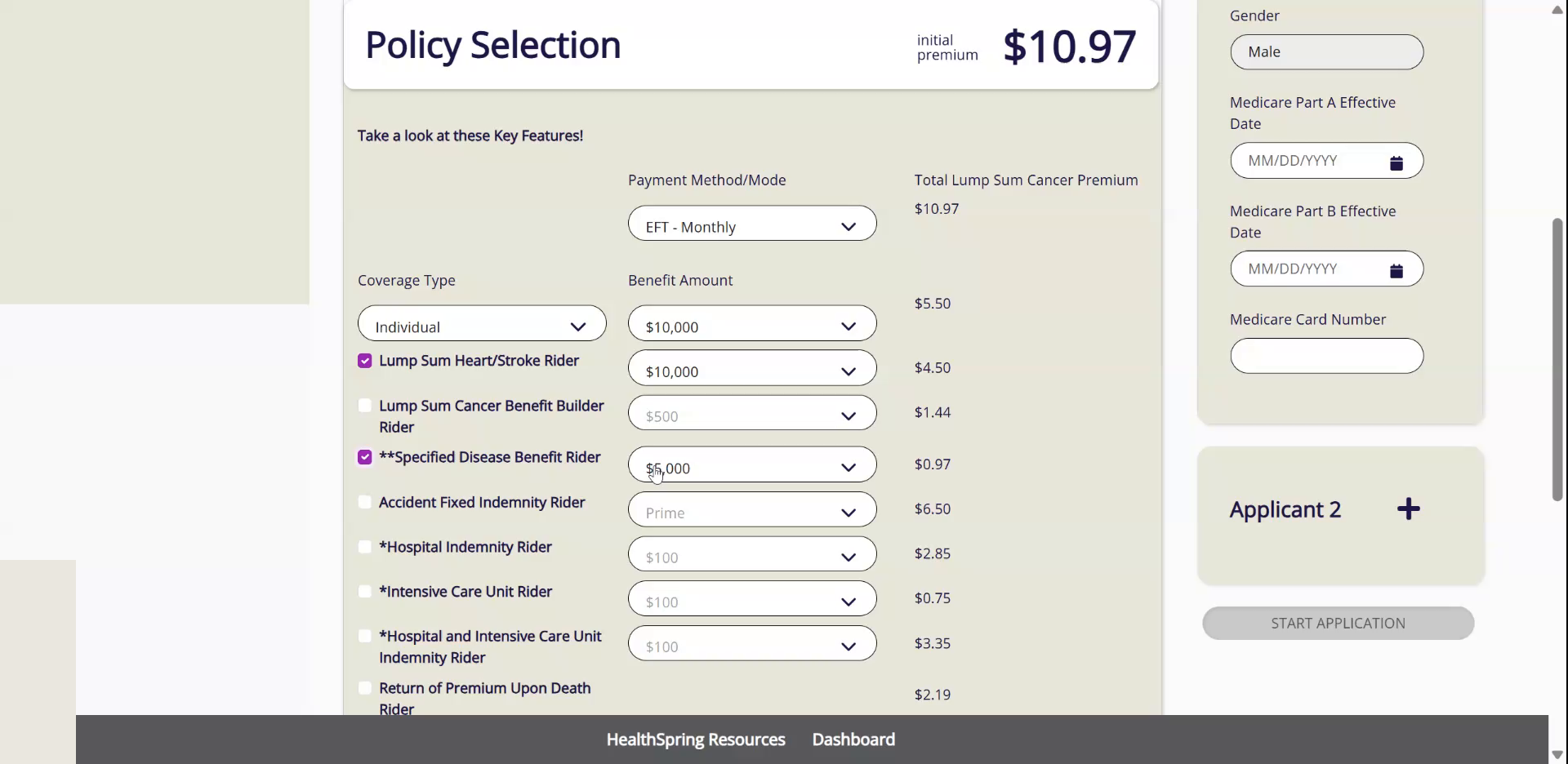
- 5Check Specified Disease Benefit Rider and set it to $10,000.That is the plan: the base, the first rider, the third rider. Nothing else.
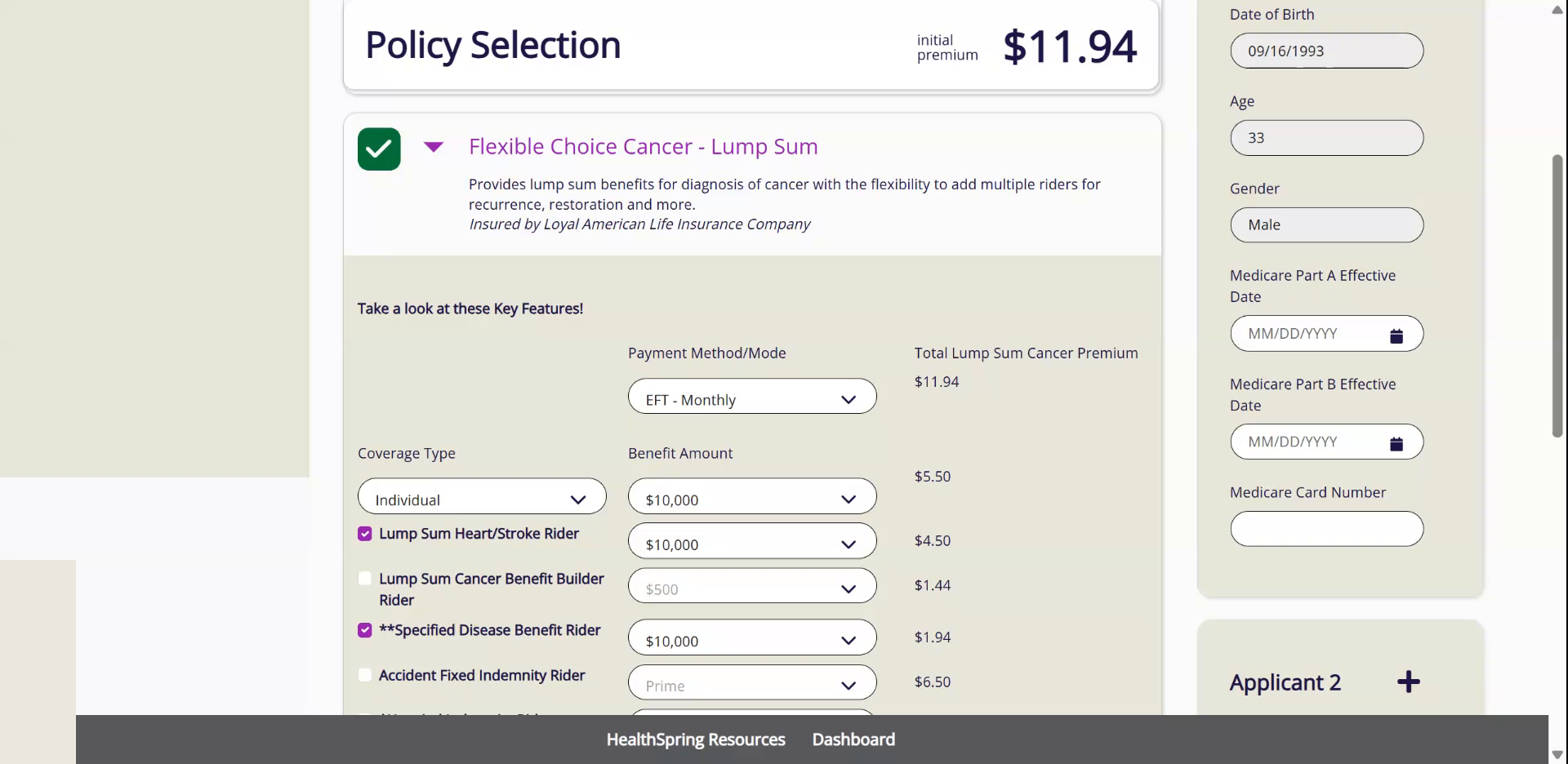
- 6For a couple, enter both birth dates.This product has many age buckets and prices by the oldest person. We offer it to clients 40 and over on ACA calls.
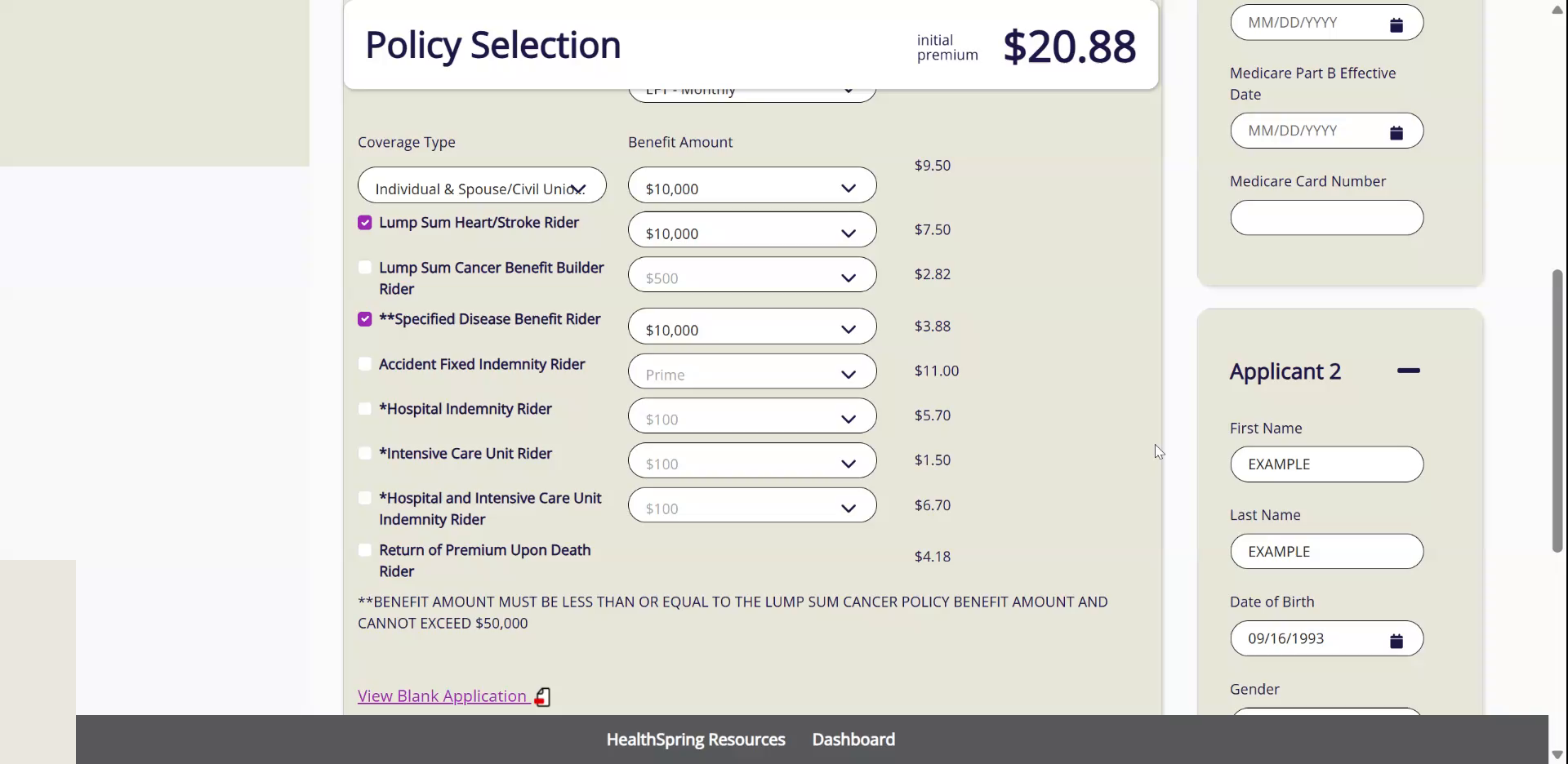
Never. add a rider we do not sell. The plan is the $10,000 base, the Heart/Stroke rider and the Specified Disease rider.
7Start the Application
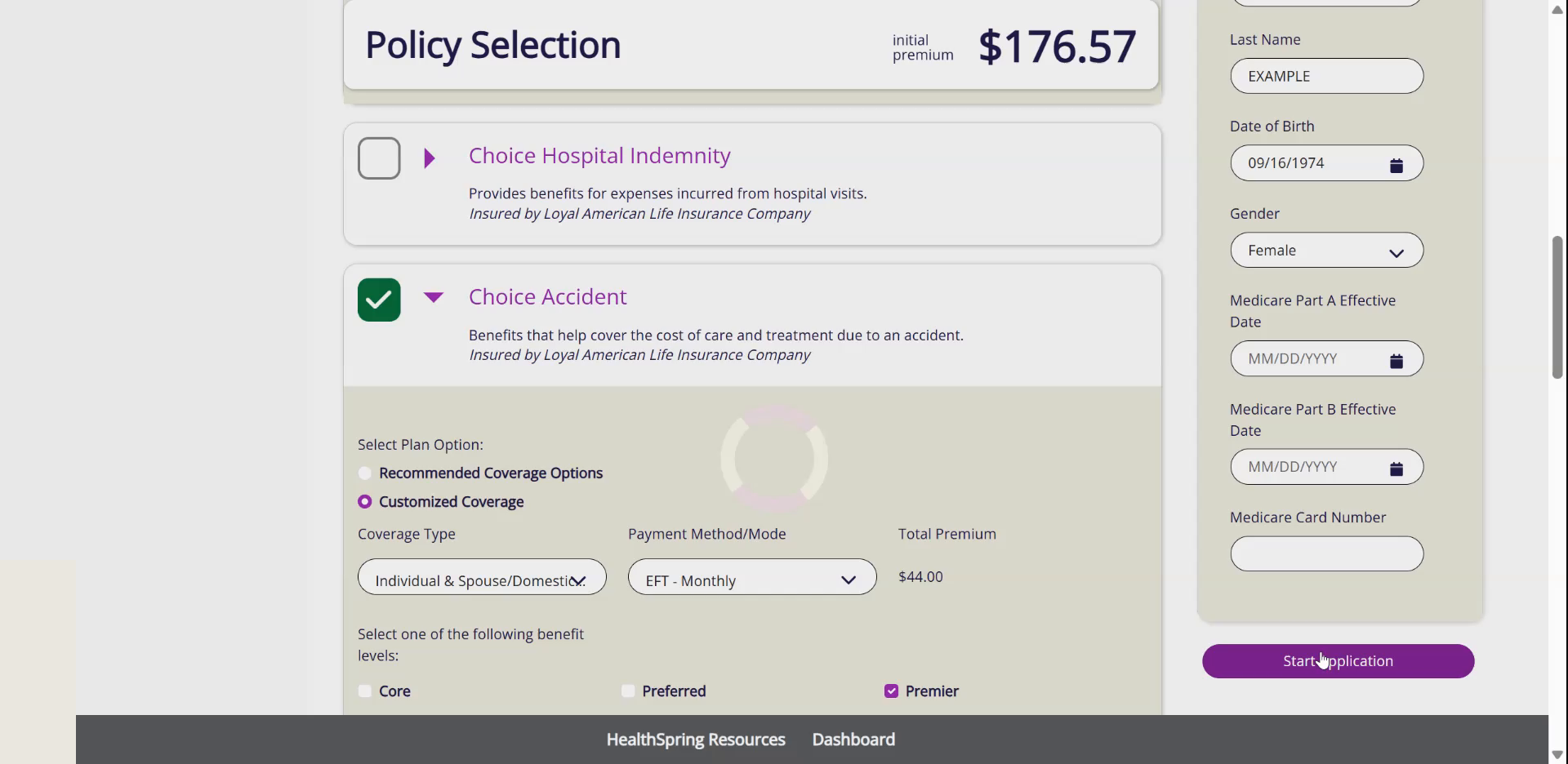
Watch this part in the video (3:44)- 1Keep every product the client is buying checked.Each product can have its own Coverage Type. A couple on dental and an individual on accident is fine.
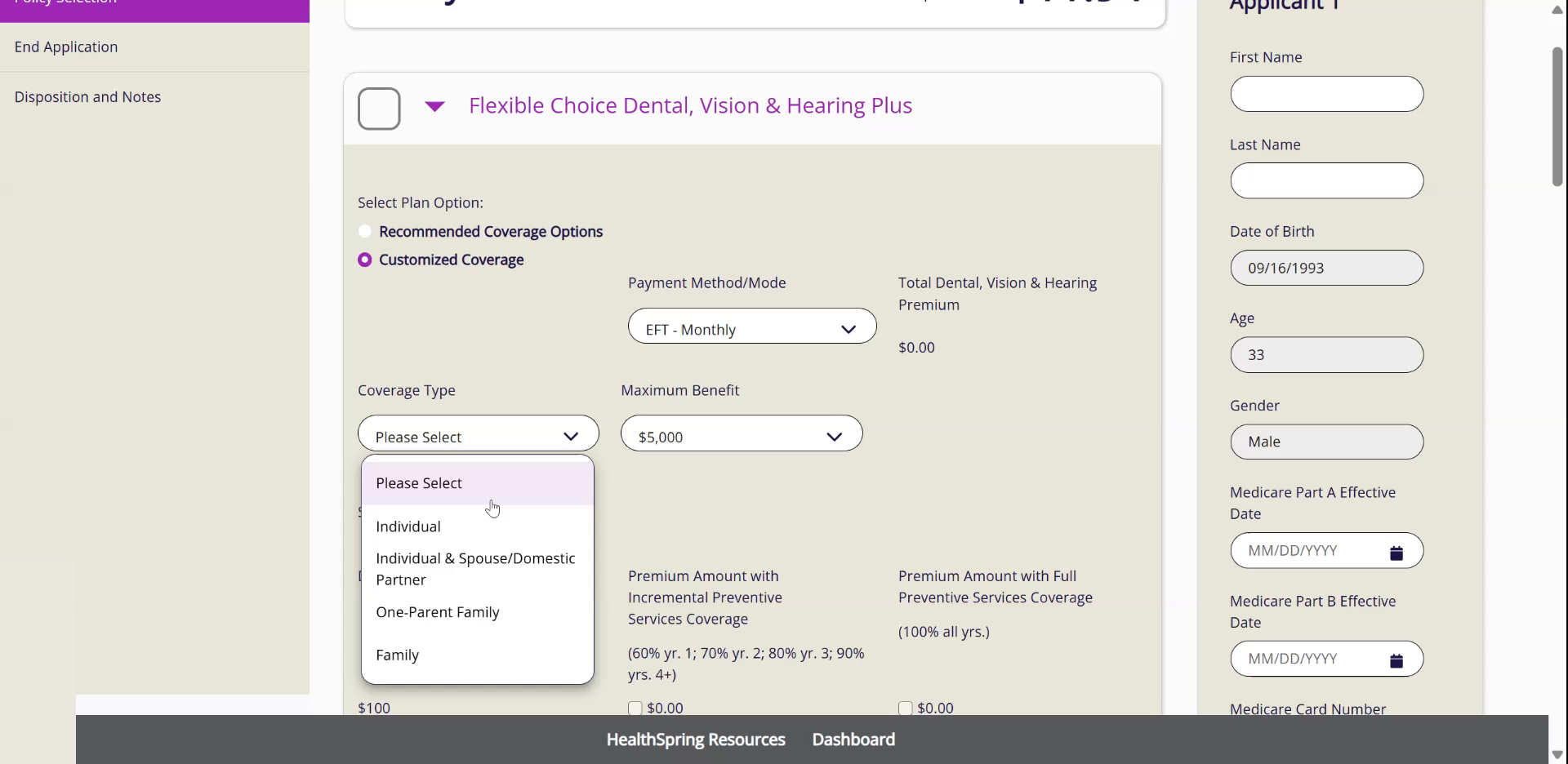
- 2Type the First Name and Last Name of every applicant on the right.Start Application stays grey until the names are in.
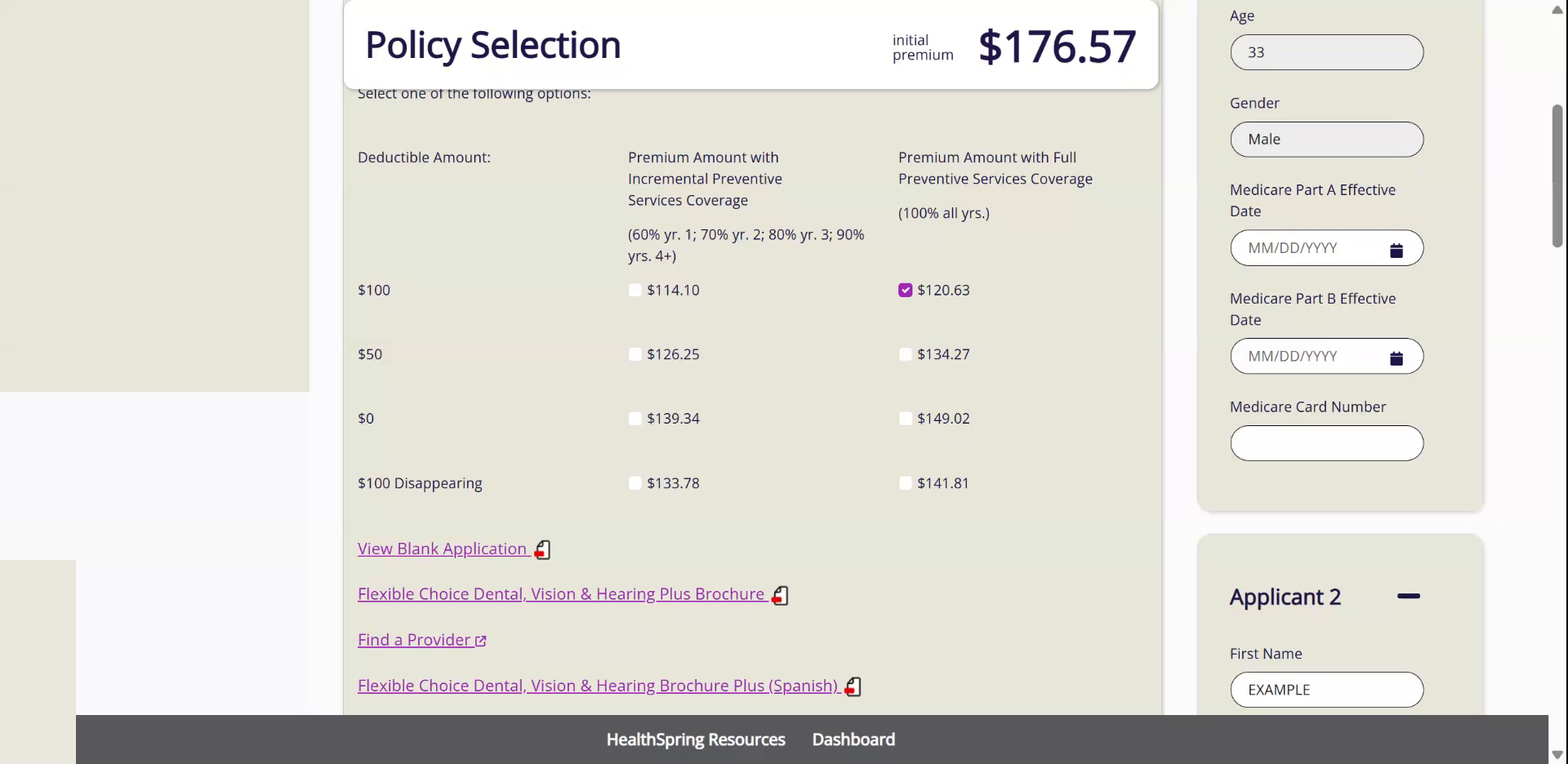
- 3Click Start Application.HealthSpring runs one application per product, one after the other, and carries your answers forward.
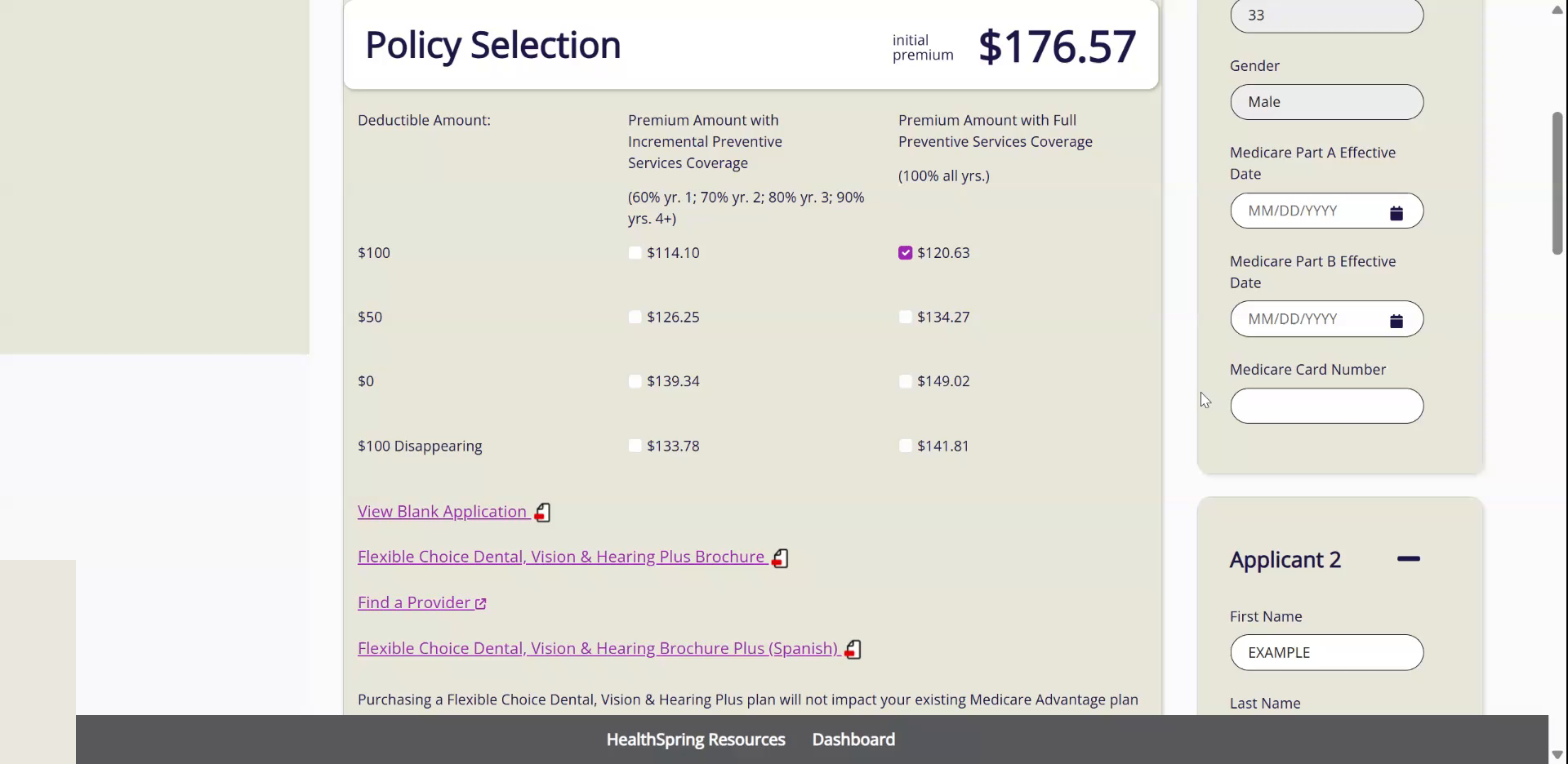
- 4Children are added later, on their own tab inside the application.
8Applicant Information
Watch this part in the video (4:16)- 1Fill in Applicant 1.First Name, Last Name, Date of Birth, Gender, Phone, Email, SSN or ITIN, Street Address, City, State, ZIP.
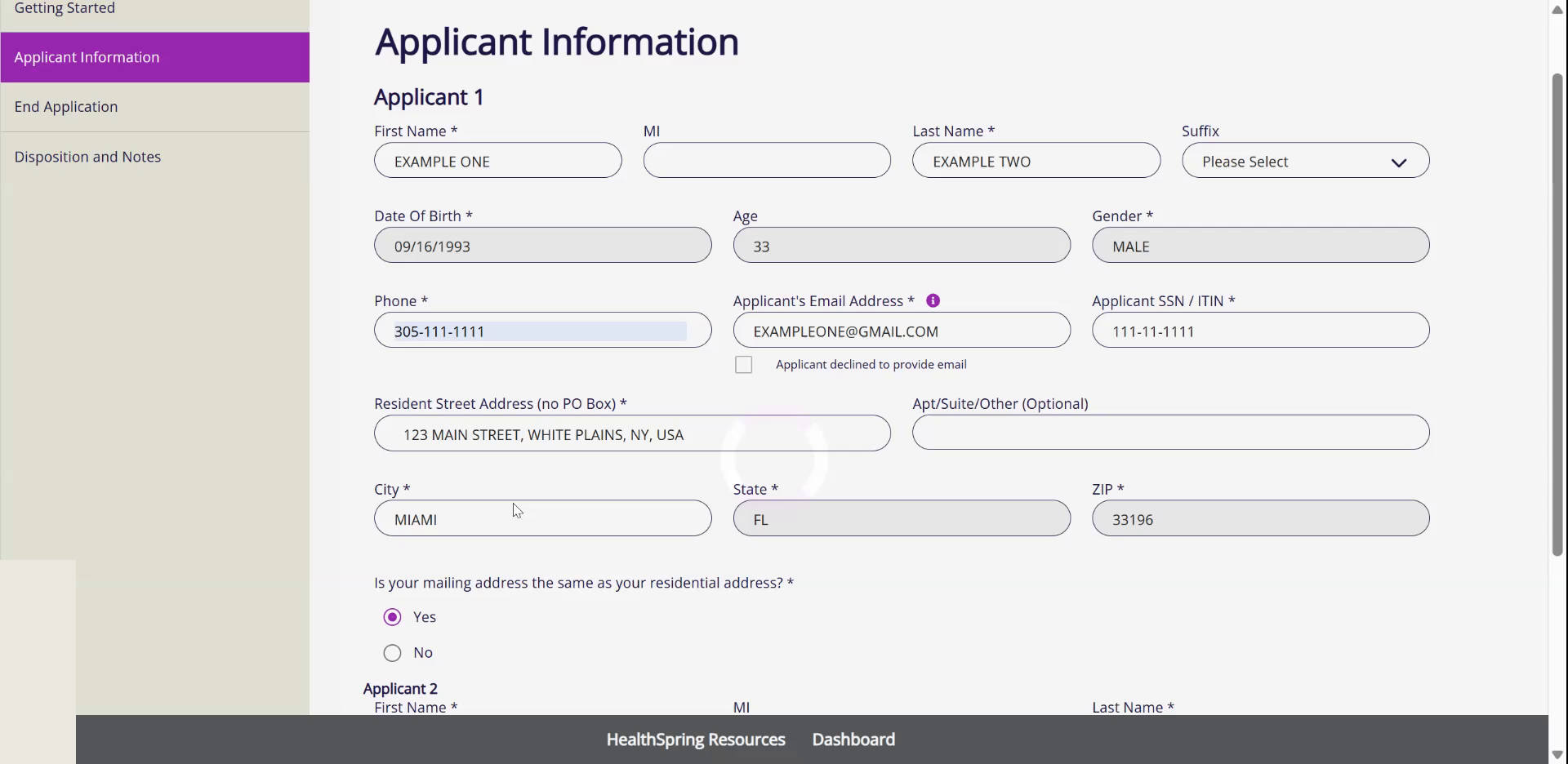
- 2Answer Is your mailing address the same as your residential address.Yes for most clients.
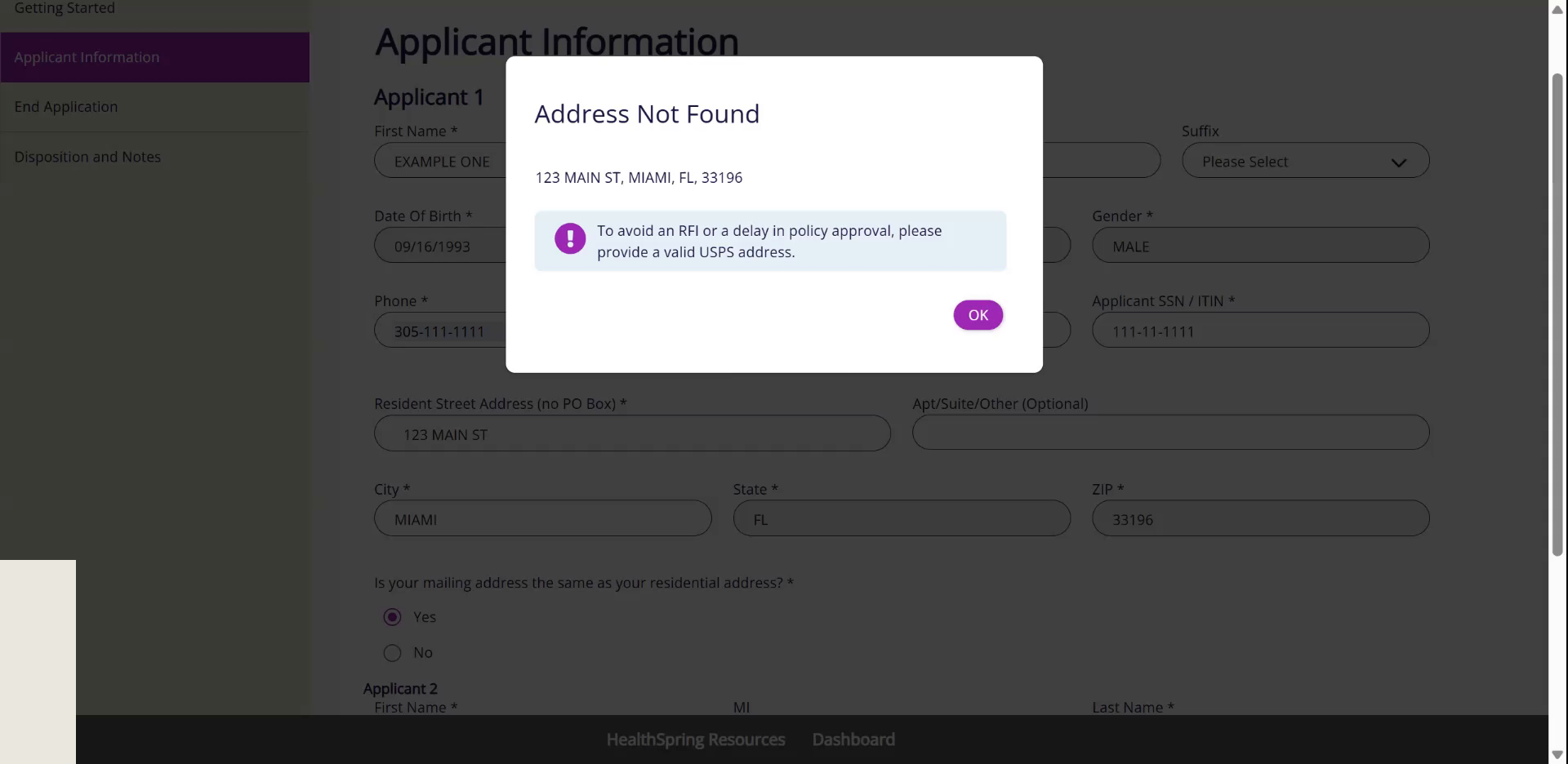
- 3Fill in Applicant 2 the same way if there is one, then click Next.
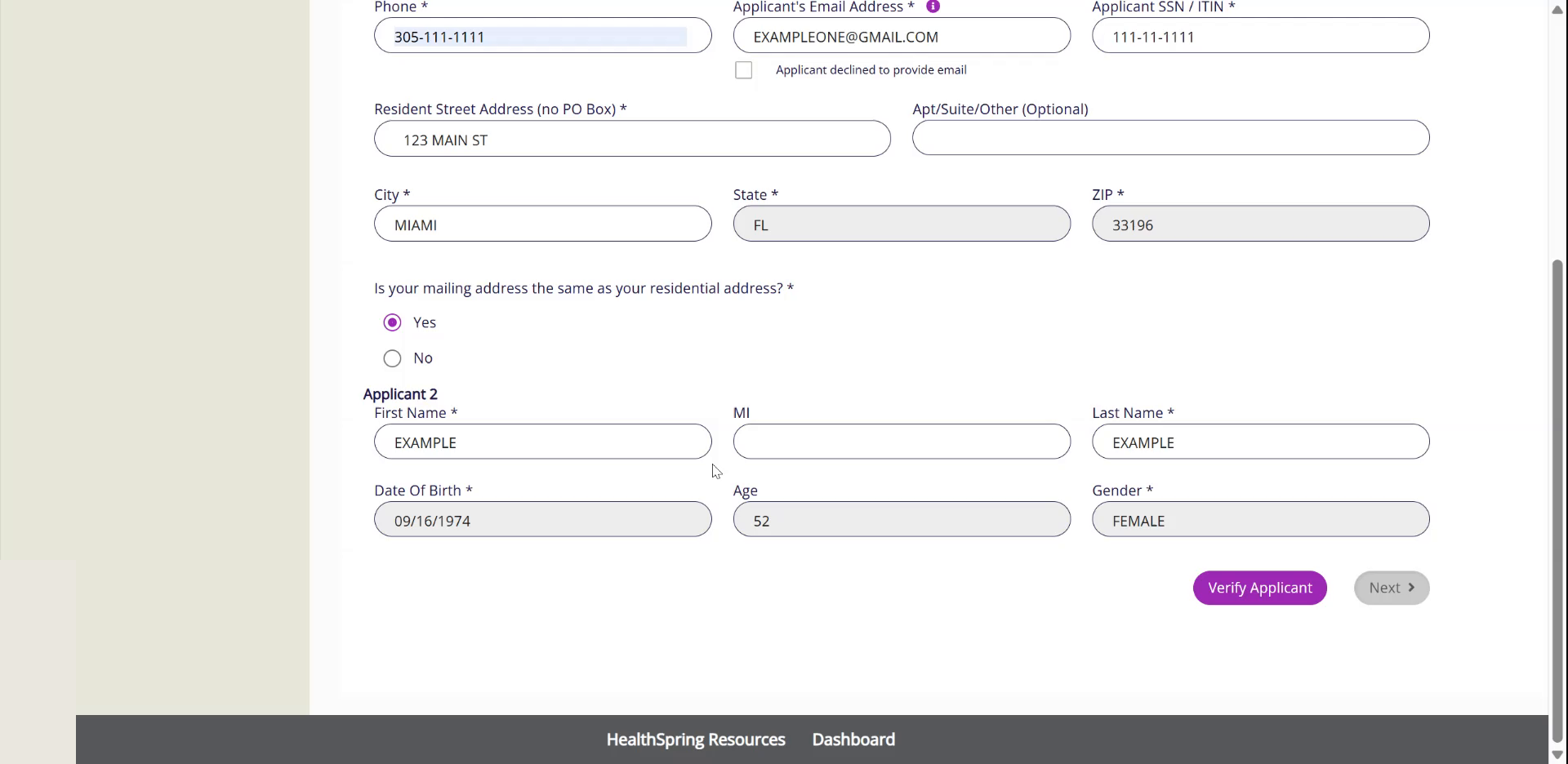
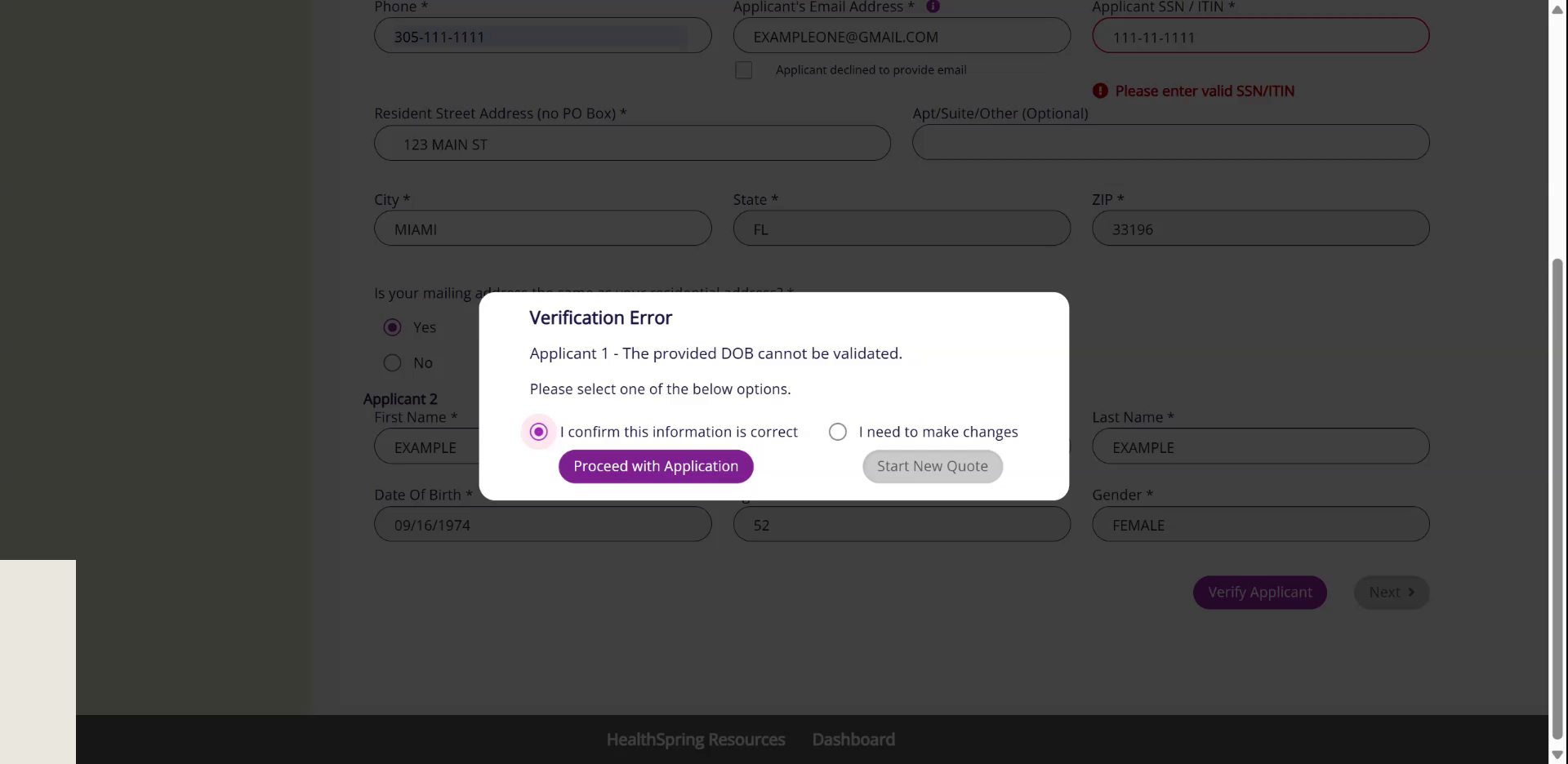
- 4If you get a Verification Error, check three things with the client.Name, date of birth and Social Security number must match. Confirm the full address, then click Proceed with Application.
9Additional Information and Beneficiaries
Watch this part in the video (4:37)- 1Enter the primary applicant's Height and Weight.
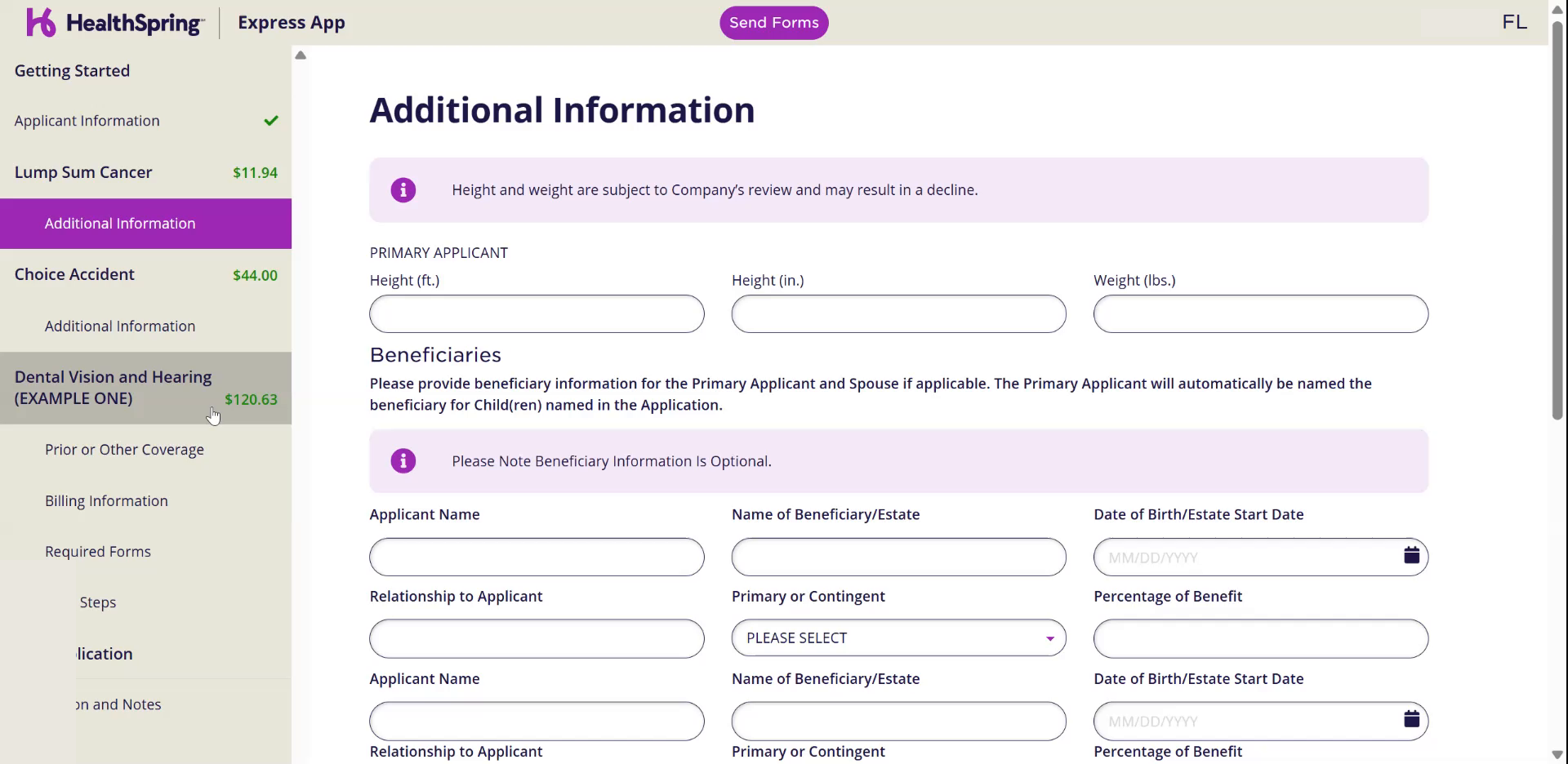
- 2Fill in the beneficiaries.Applicant Name, Name of Beneficiary/Estate, Date of Birth, Relationship to Applicant, Primary or Contingent, Percentage of Benefit.
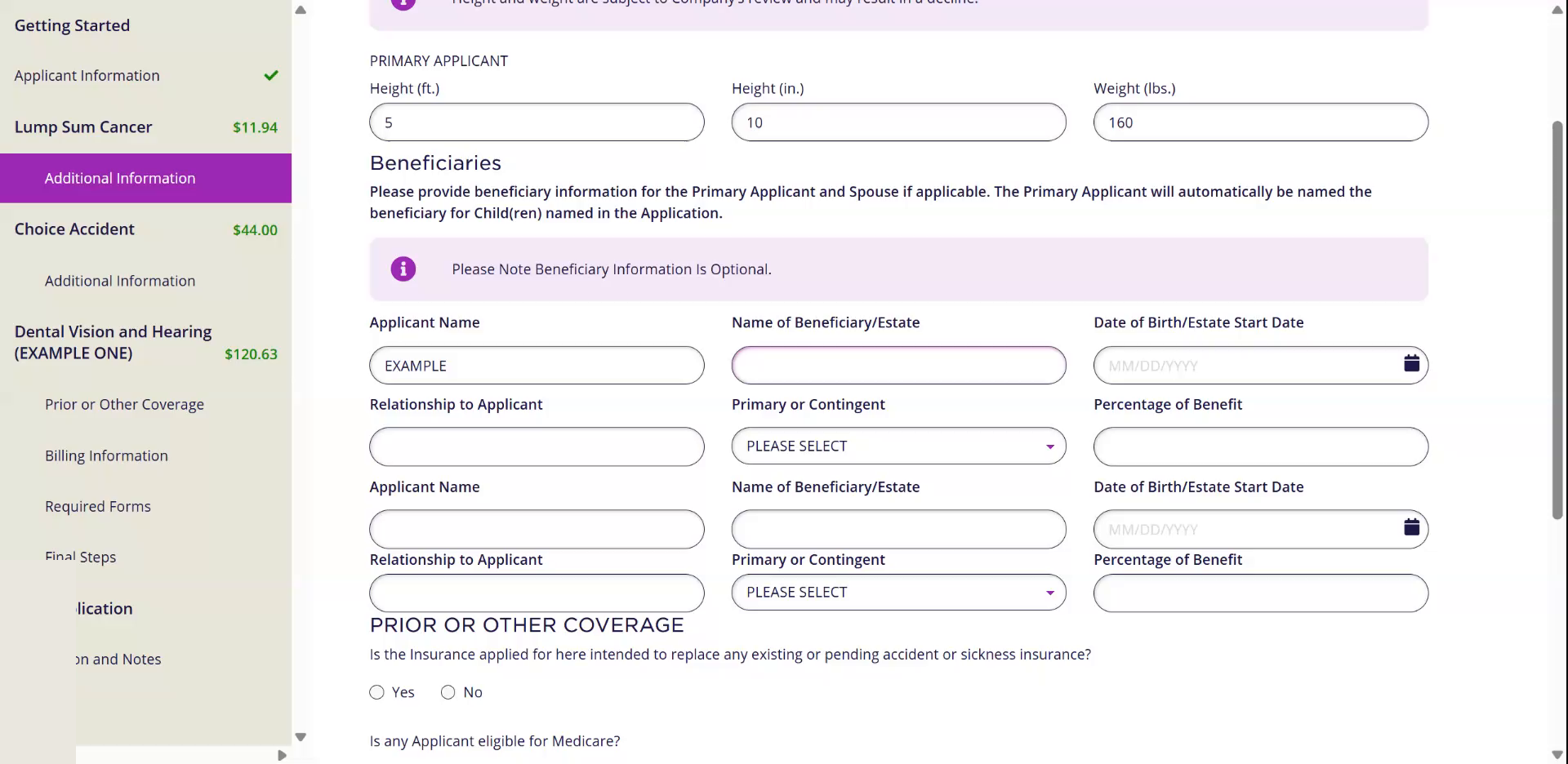
- 3Let each applicant pick their own beneficiary.Couples usually pick each other. They do not have to.
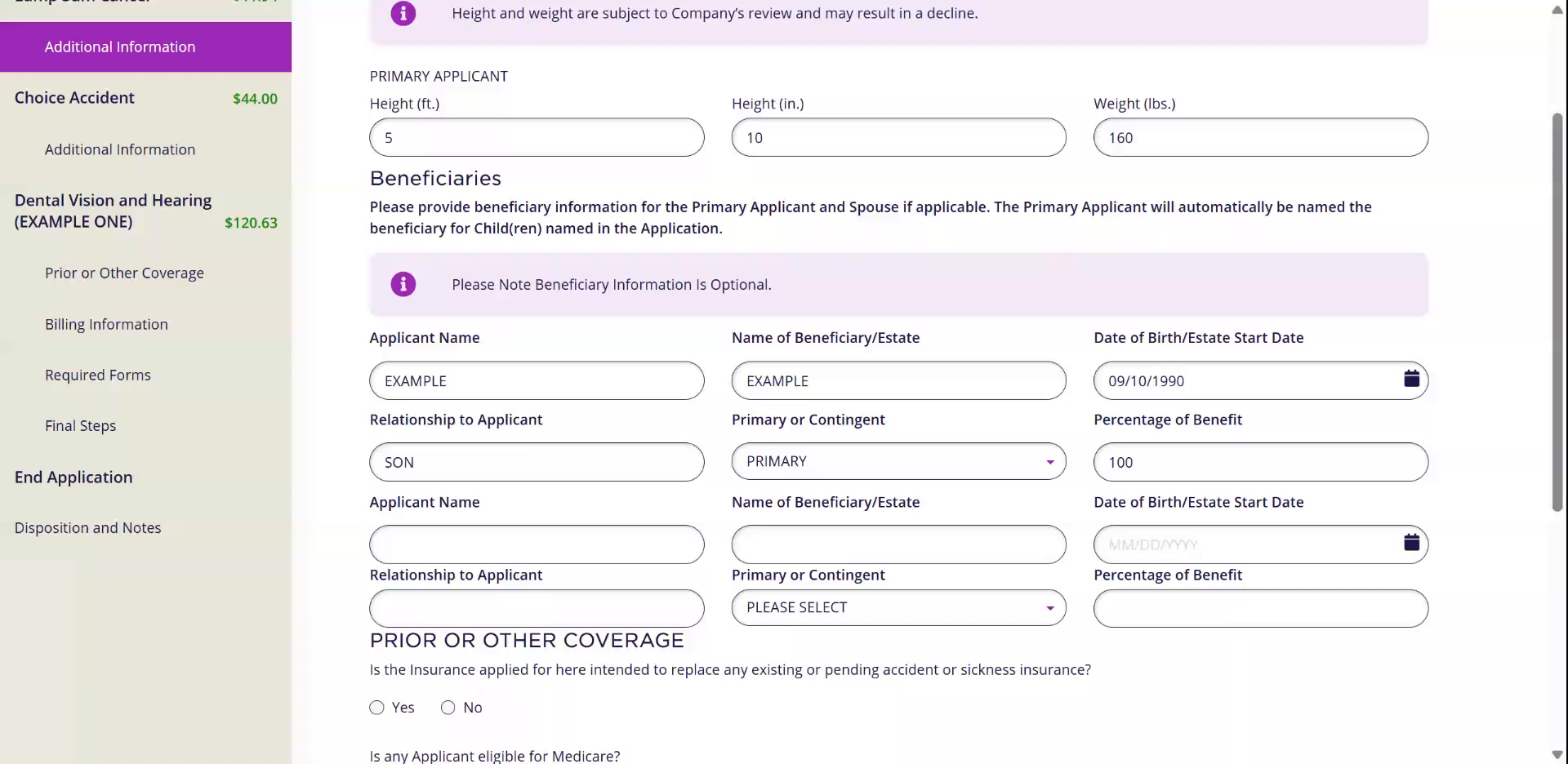
- 4If one person has two beneficiaries, make the percentages add up to 100.
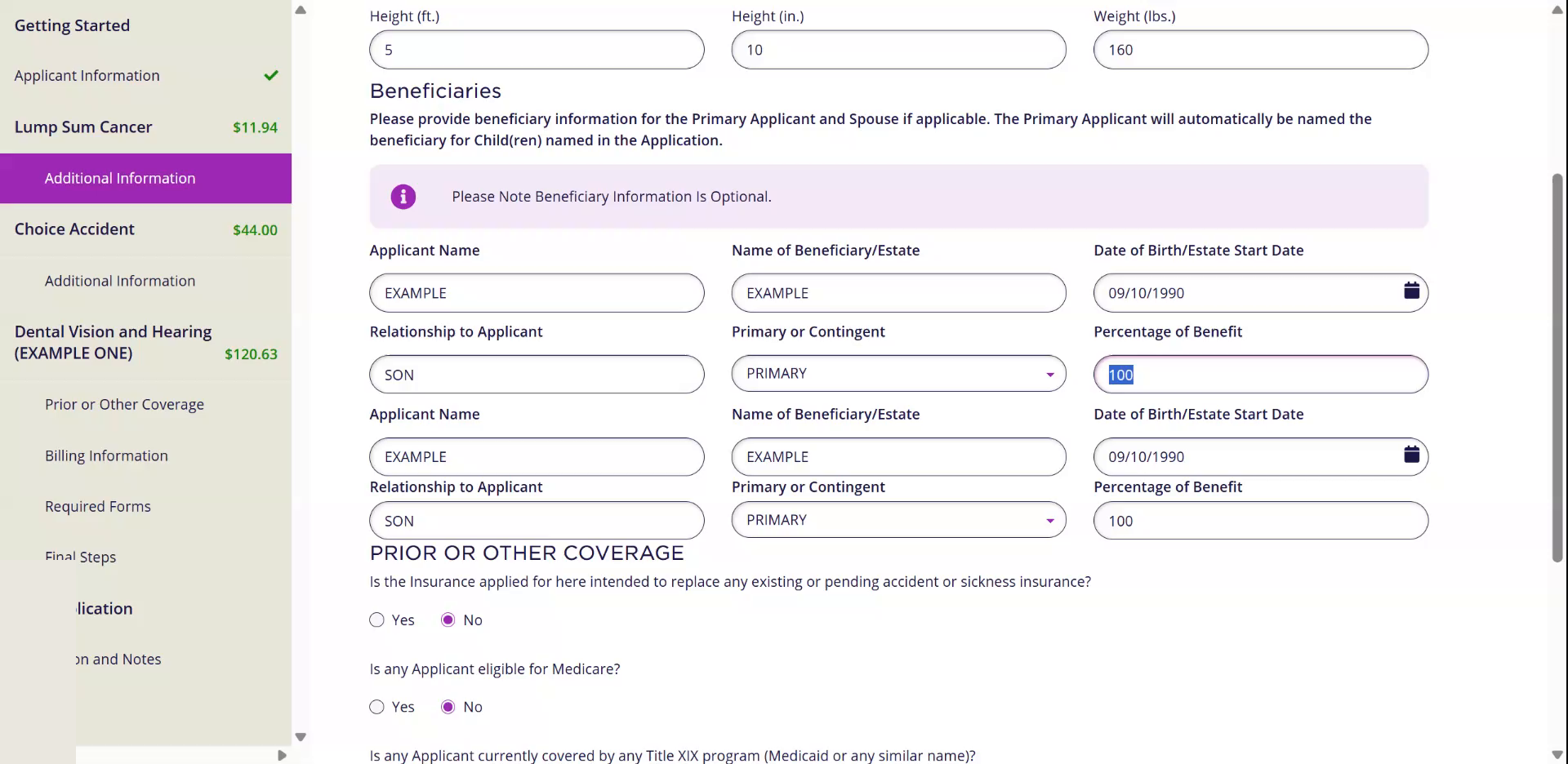
- 5Prior or Other Coverage: answer No, No, No.Unless the client is replacing a plan.
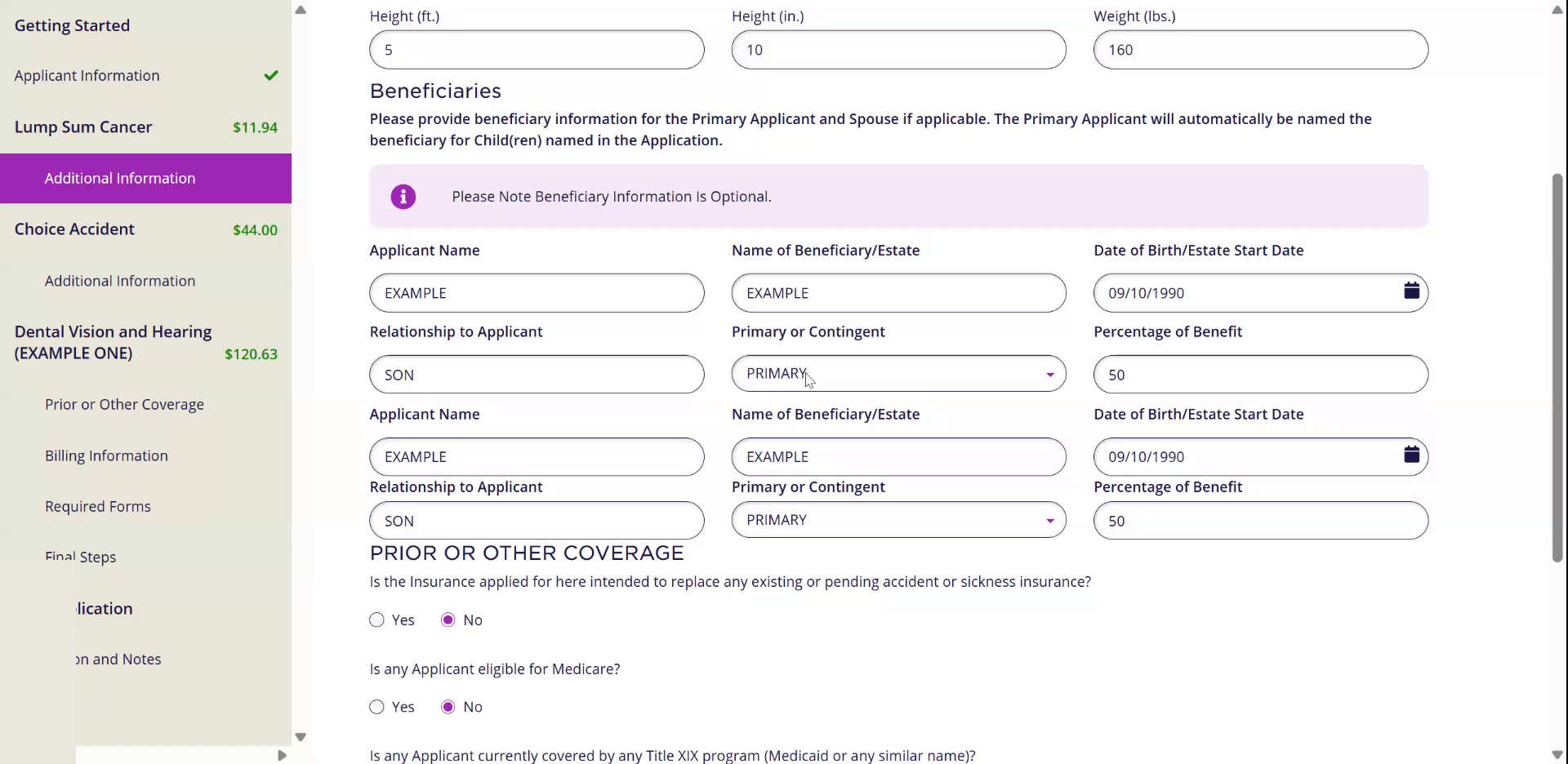
- 6Read each health question to the client and mark the answer they give. Click Next.
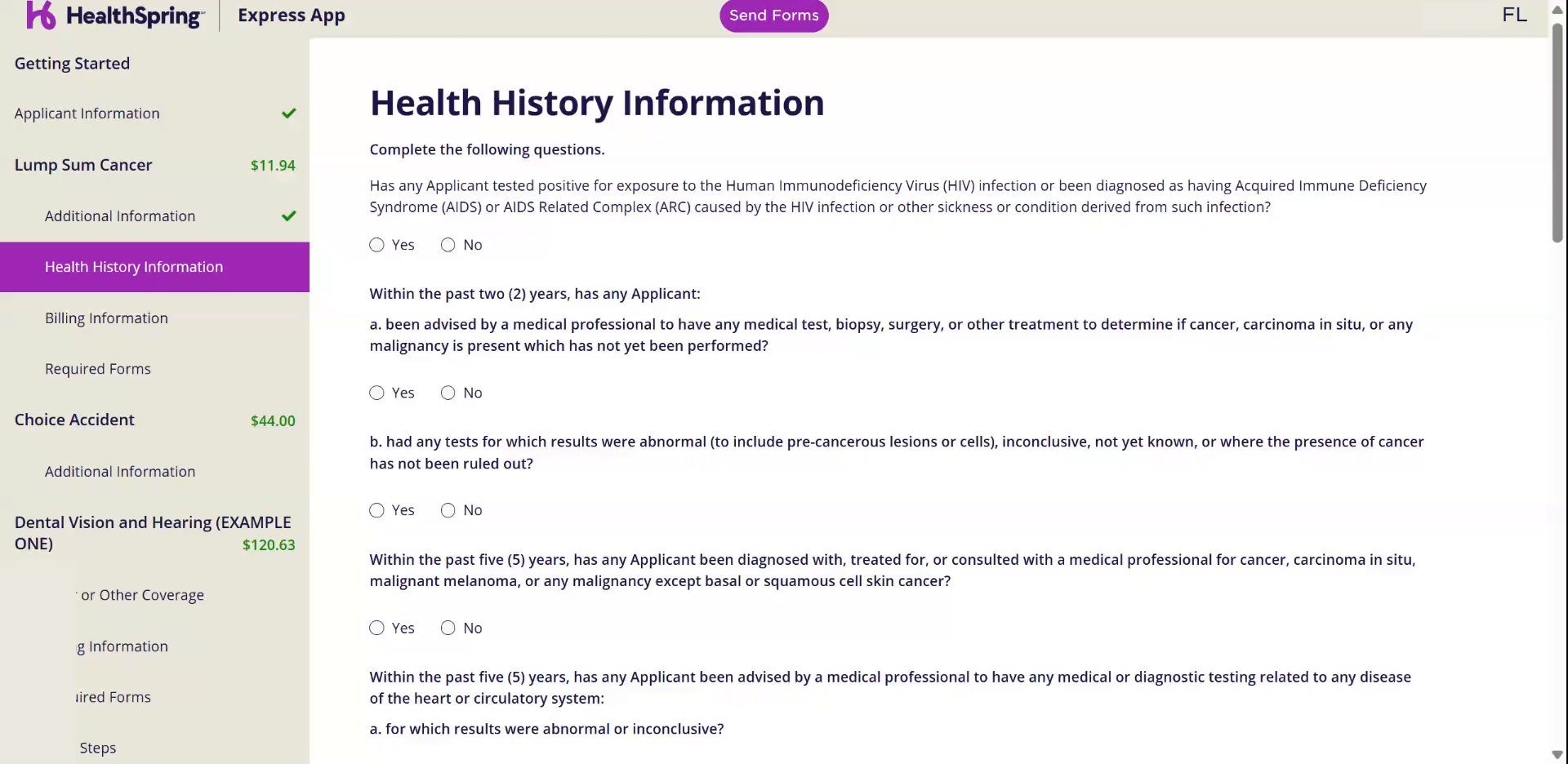
10Billing Information
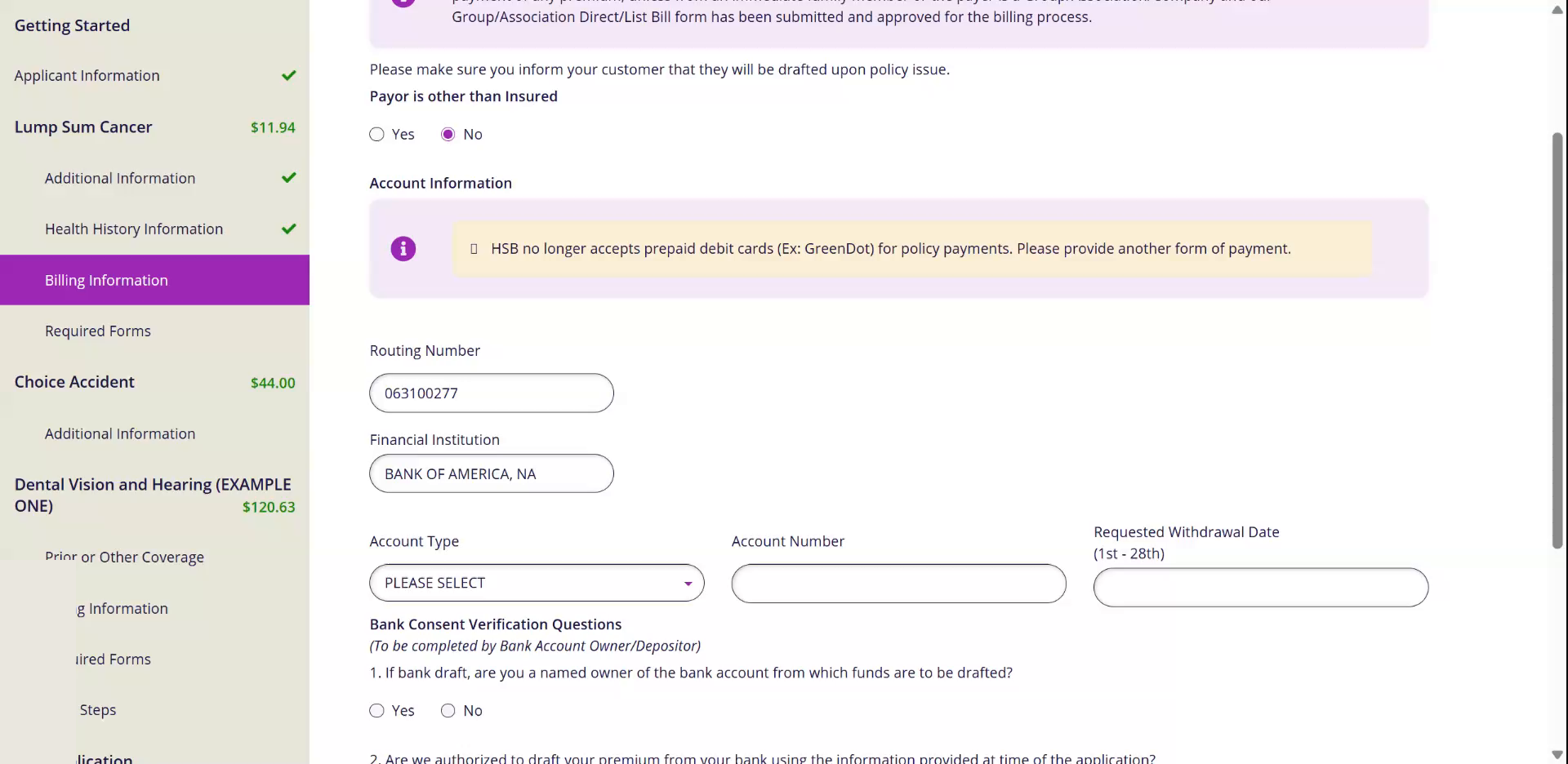
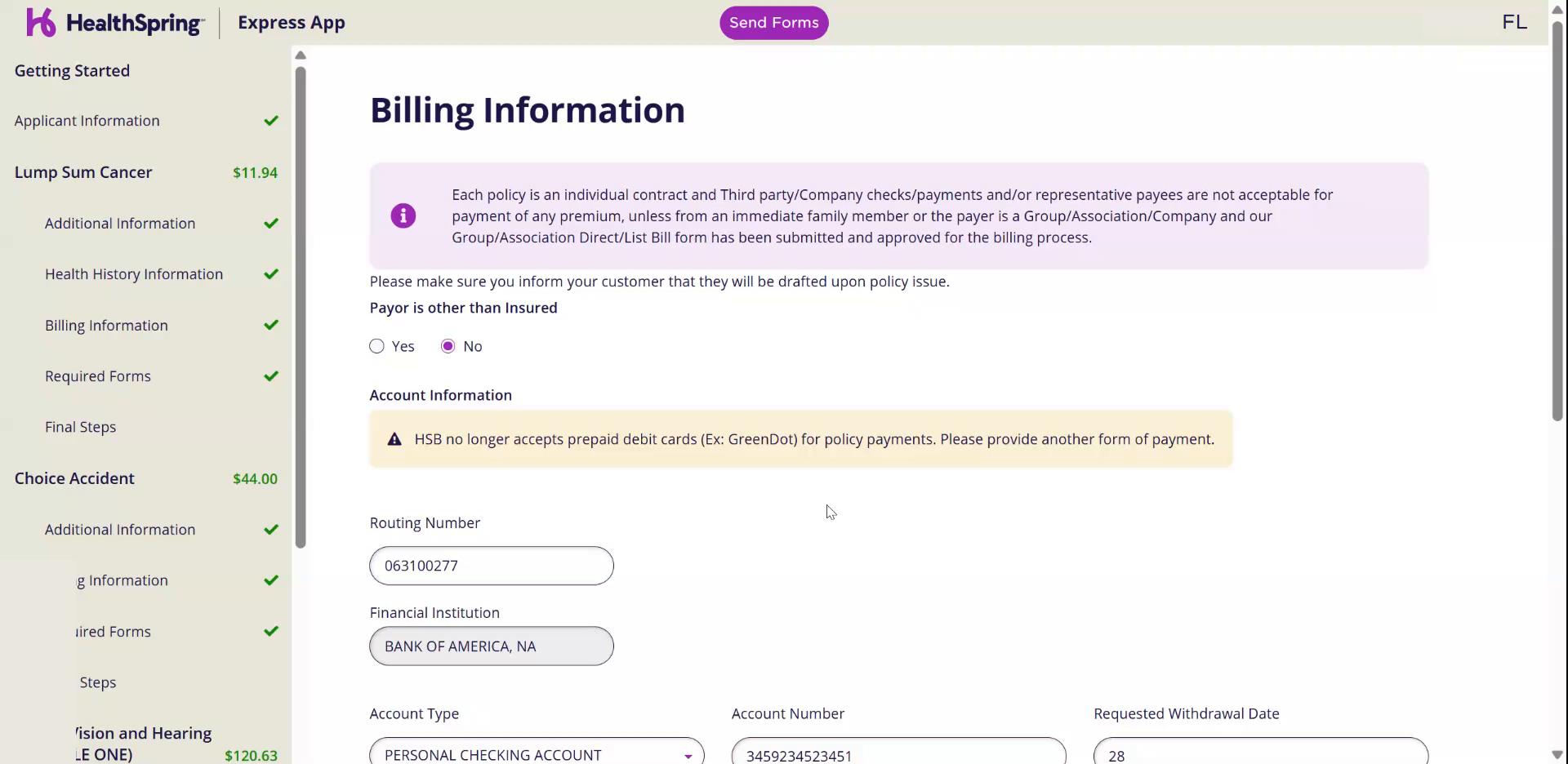
Watch this part in the video (5:05)- 1Payer is other than Insured: No.Yes only when someone else pays. Then fill in the payer's details.
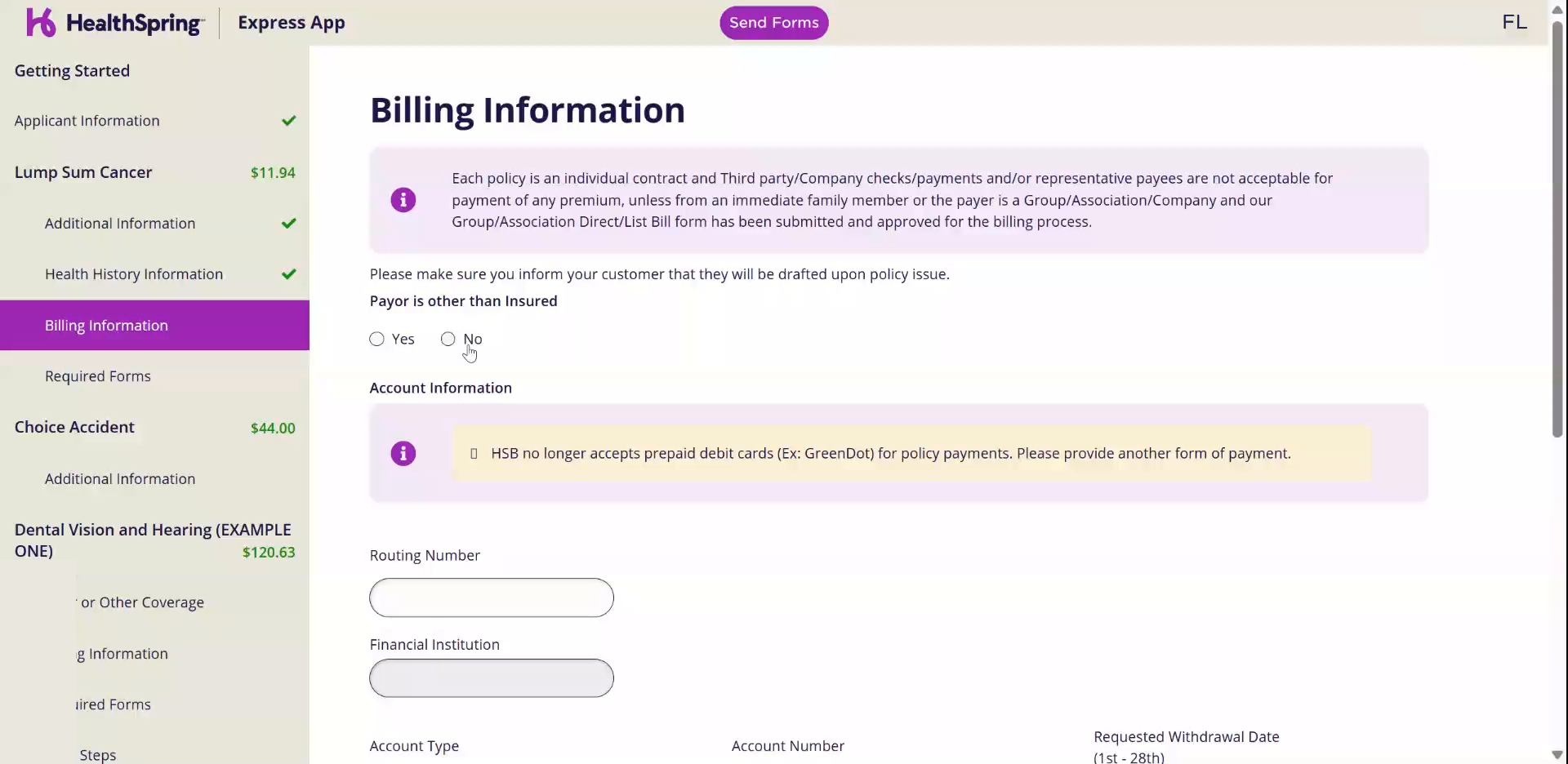
- 2Type the Routing Number.The Financial Institution fills in on its own.
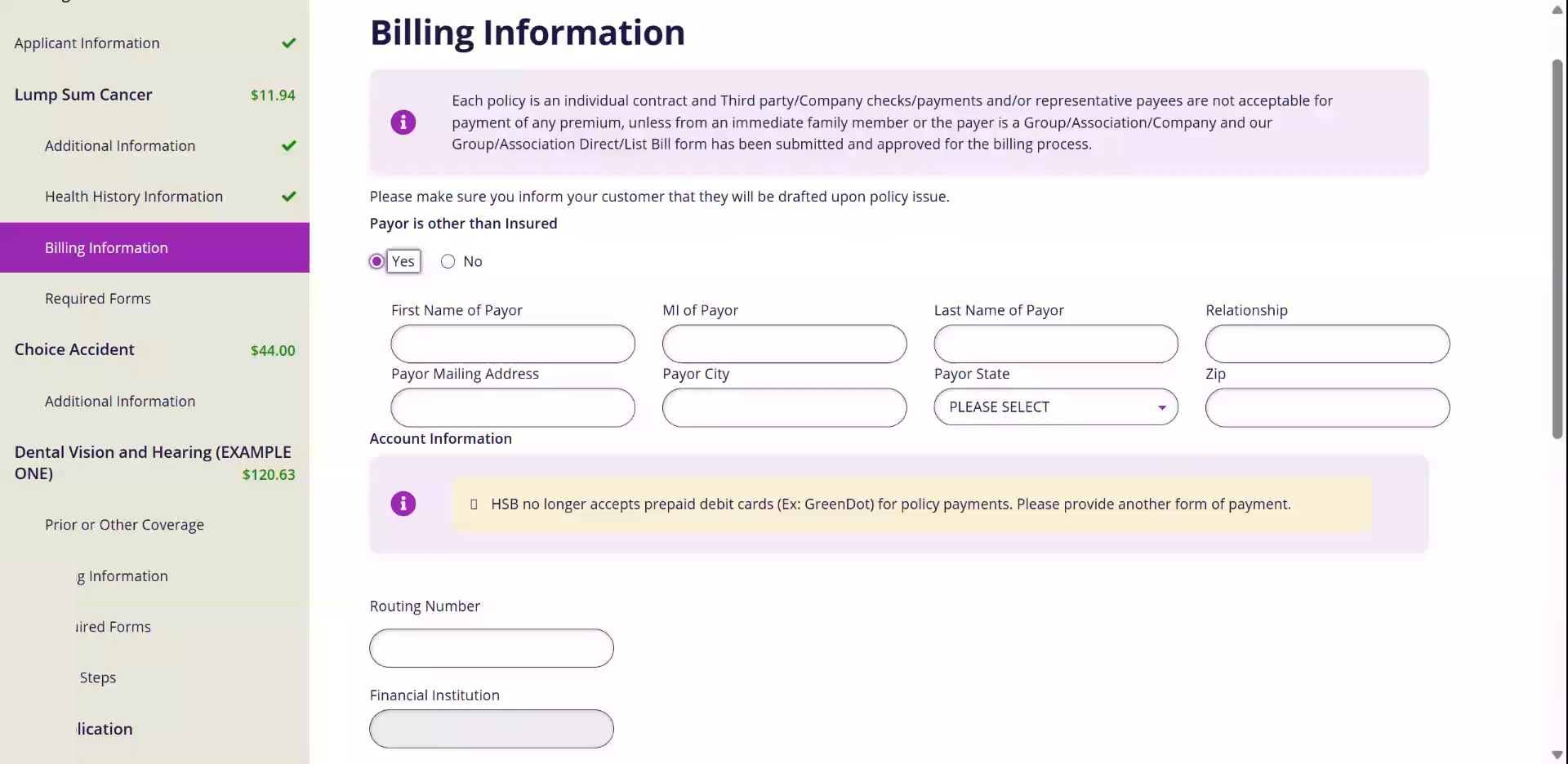
- 3Pick the Account Type and type the Account Number.
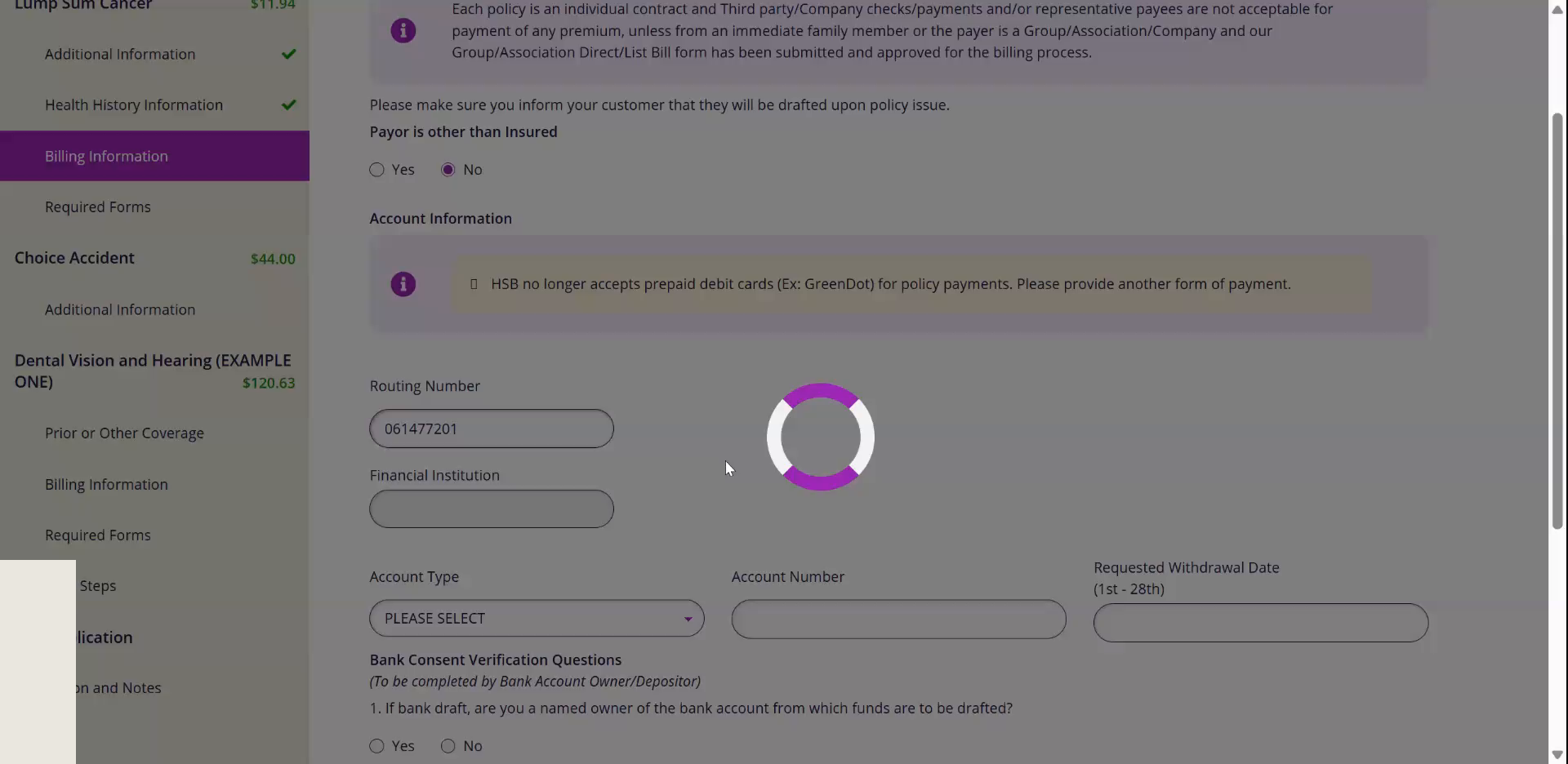
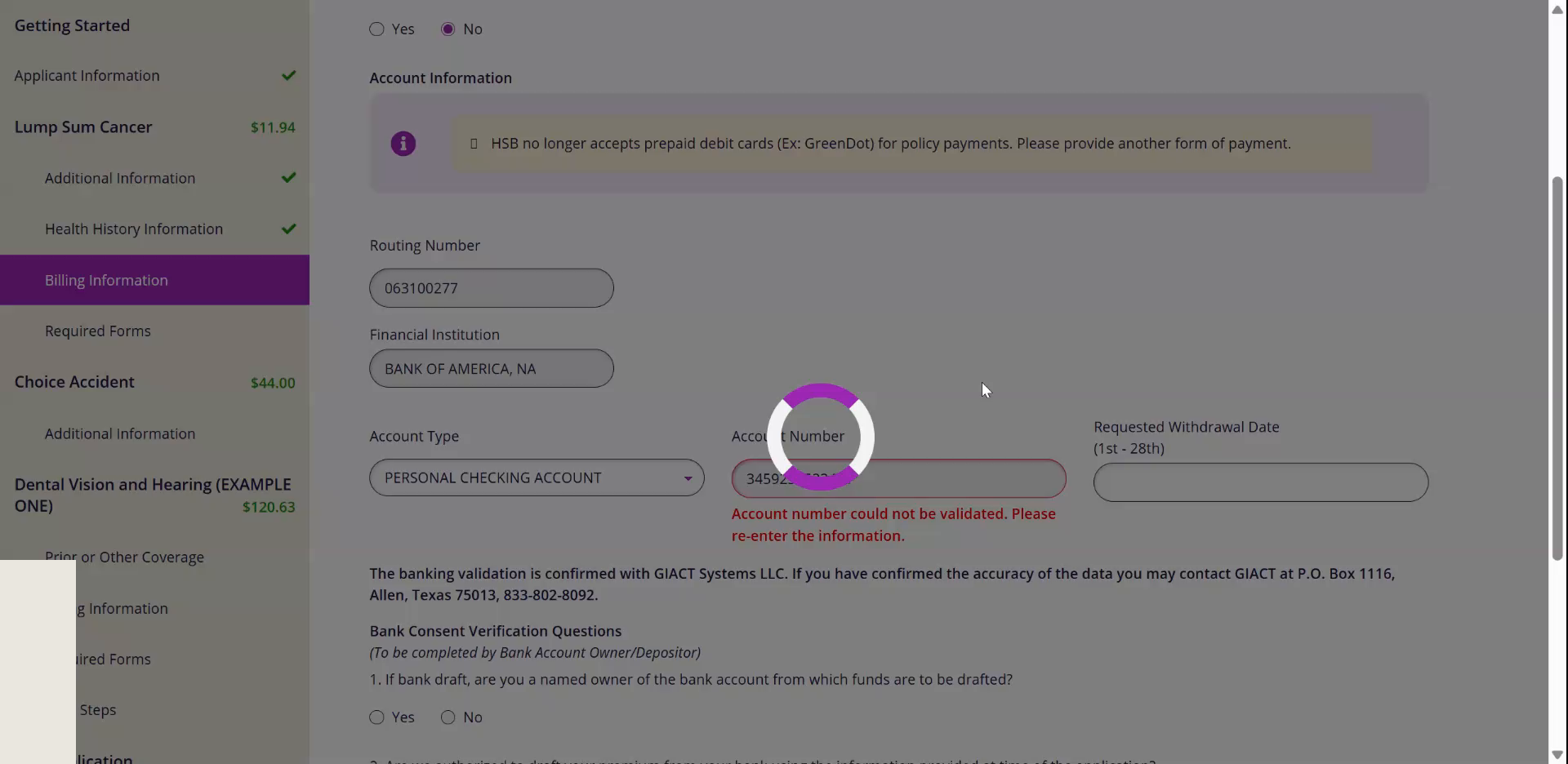
- 4If it says the account number could not be validated, read the number back with the client and try again.After a few tries it lets you proceed anyway.
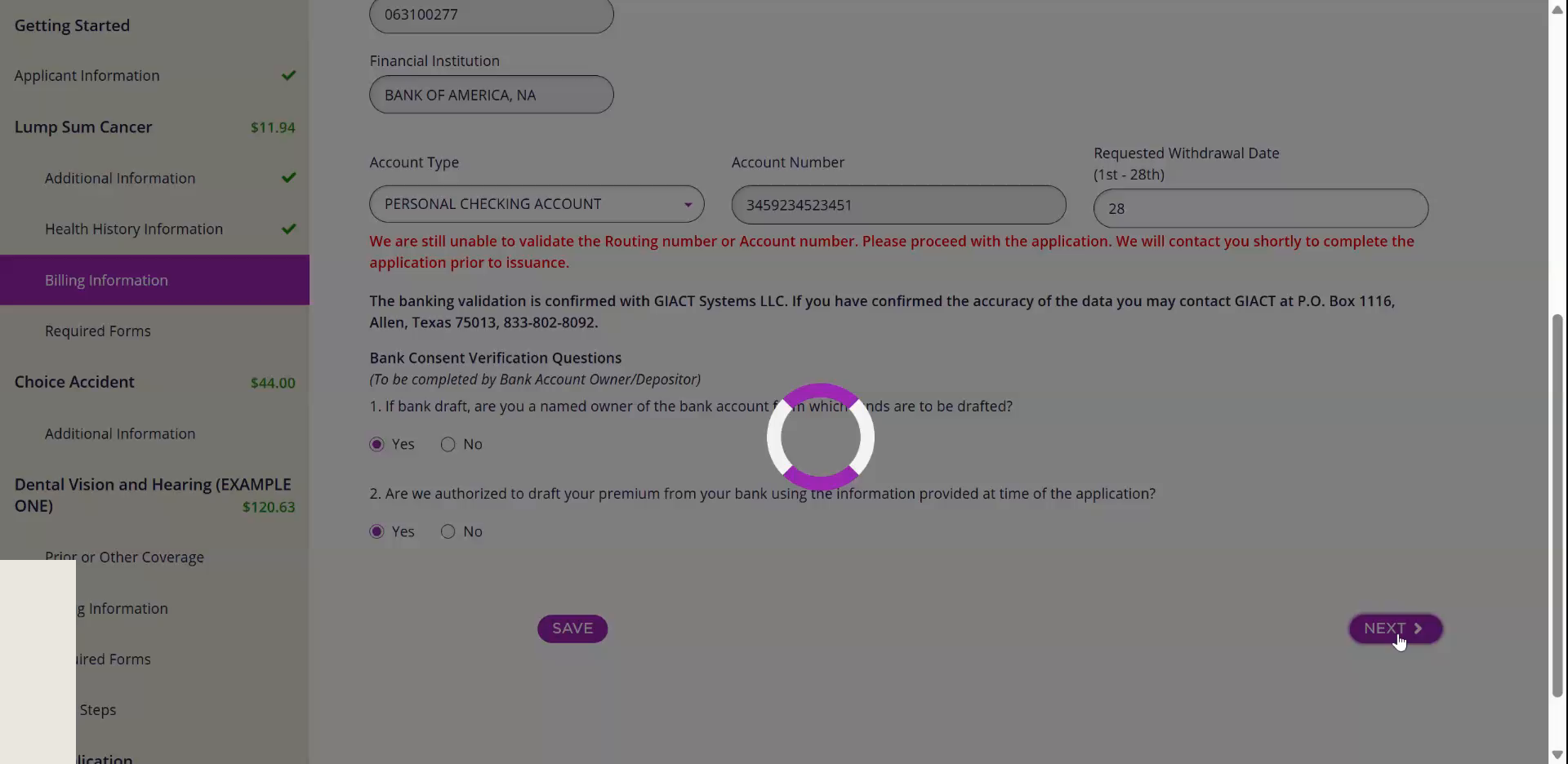
- 5Requested Withdrawal Date: 28.If the client asks, any day from the 1st to the 28th.
- 6Bank Consent Verification Questions: Yes and Yes. Click Next.
11Final Steps and Submit
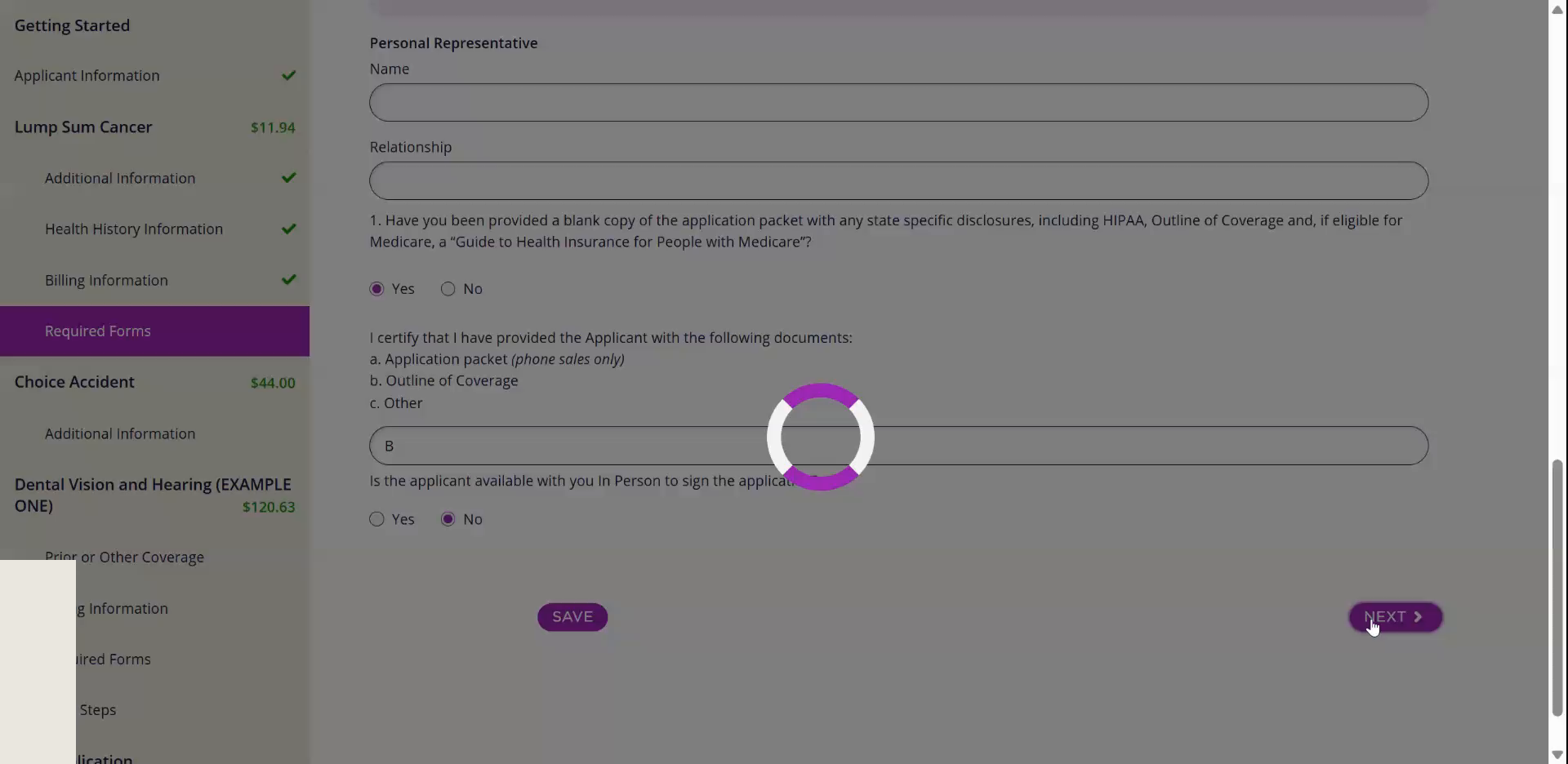
Watch this part in the video (5:38)- 1Required Forms: Yes, then B, then No.Yes, the blank packet was provided. B, Outline of Coverage. No, the applicant is not with you in person. Click Next.
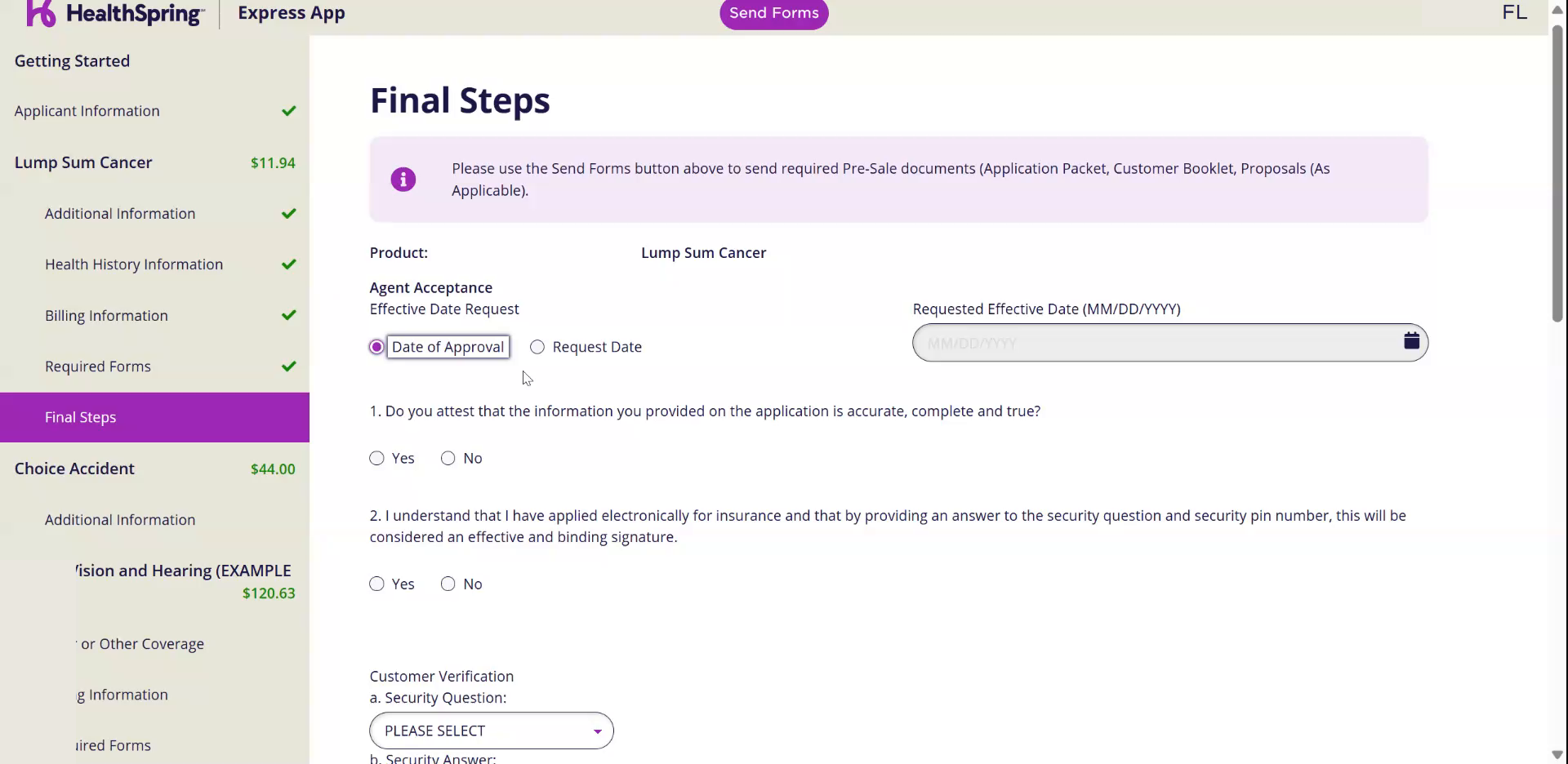
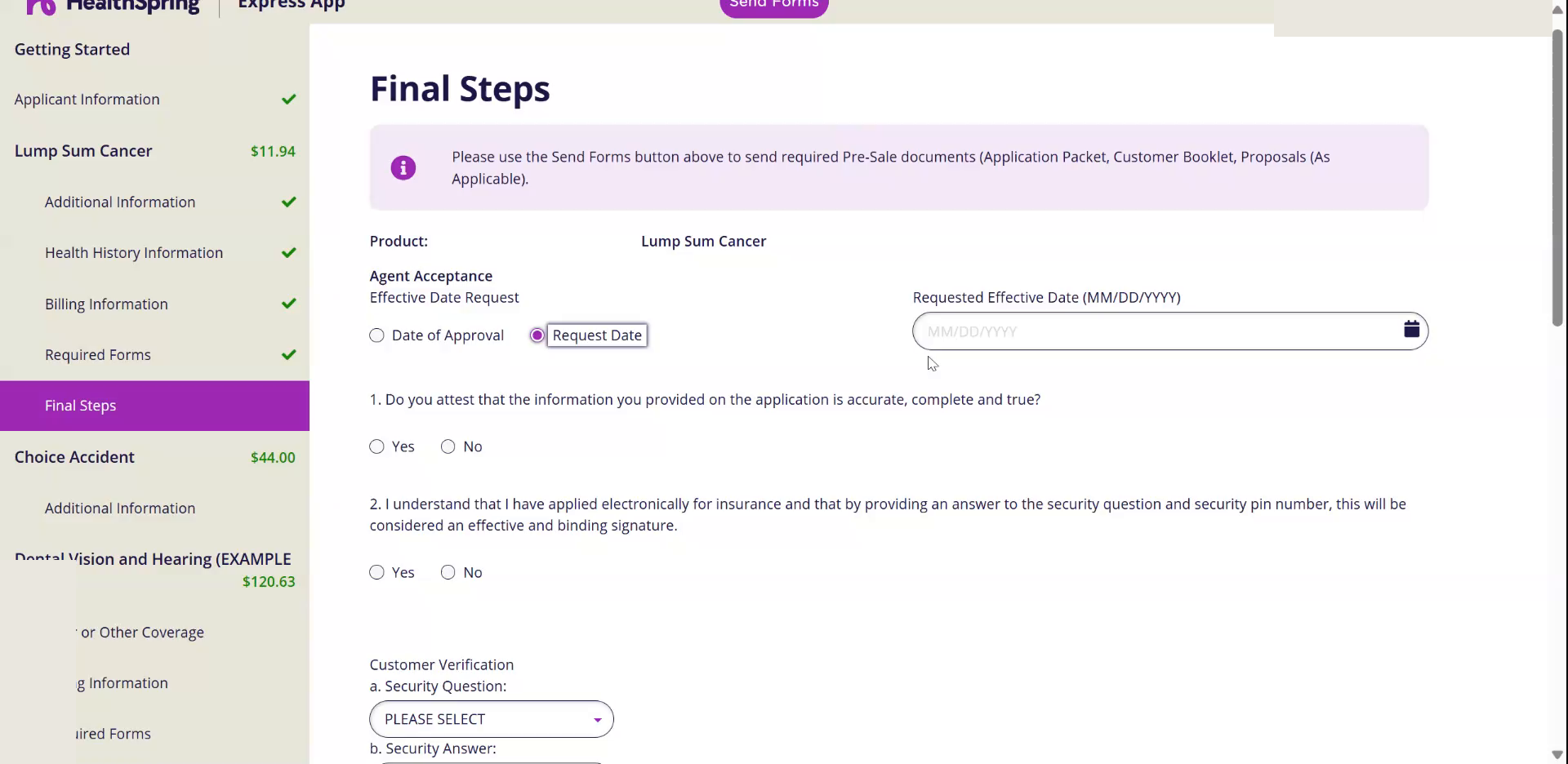
- 2Effective Date Request: leave Date of Approval.Coverage starts as soon as it is approved. Pick Request Date only when the client asks for a specific date.
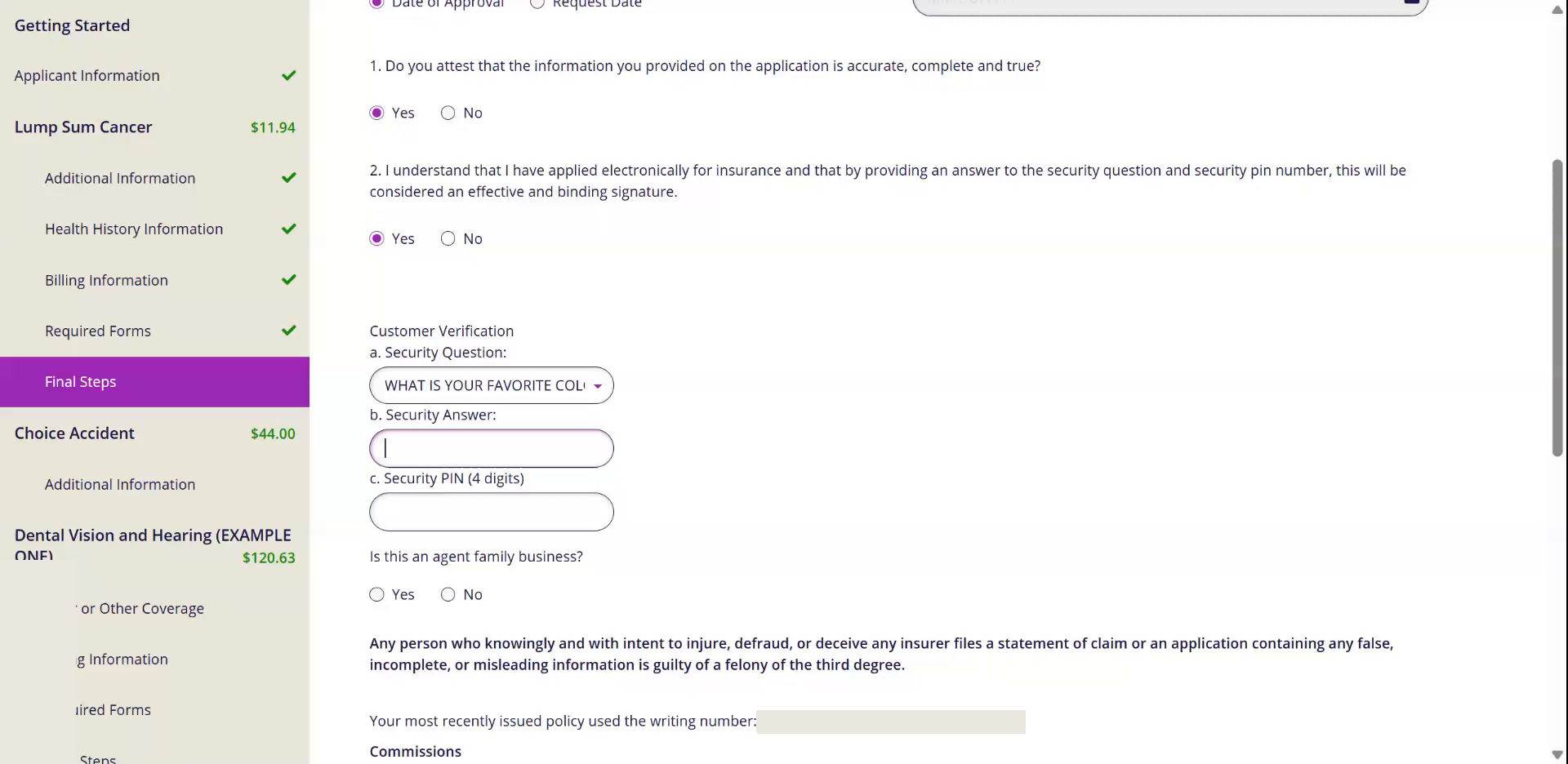
- 3Attest Yes and Yes.
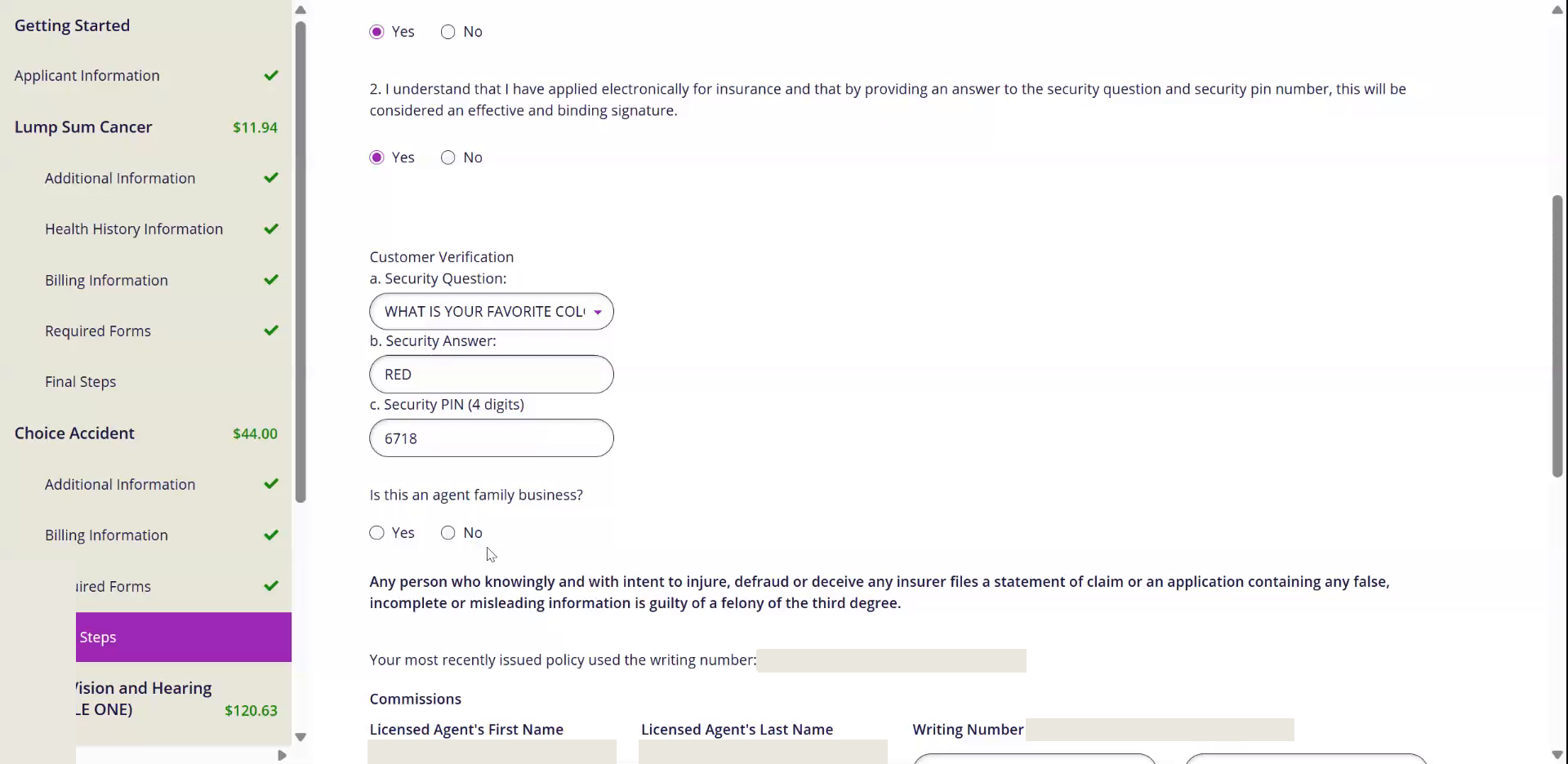
- 4Ask the client for a Security Question, a Security Answer and a 4-digit Security PIN.Write them down for the client.
- 5Is this an agent family business: No.
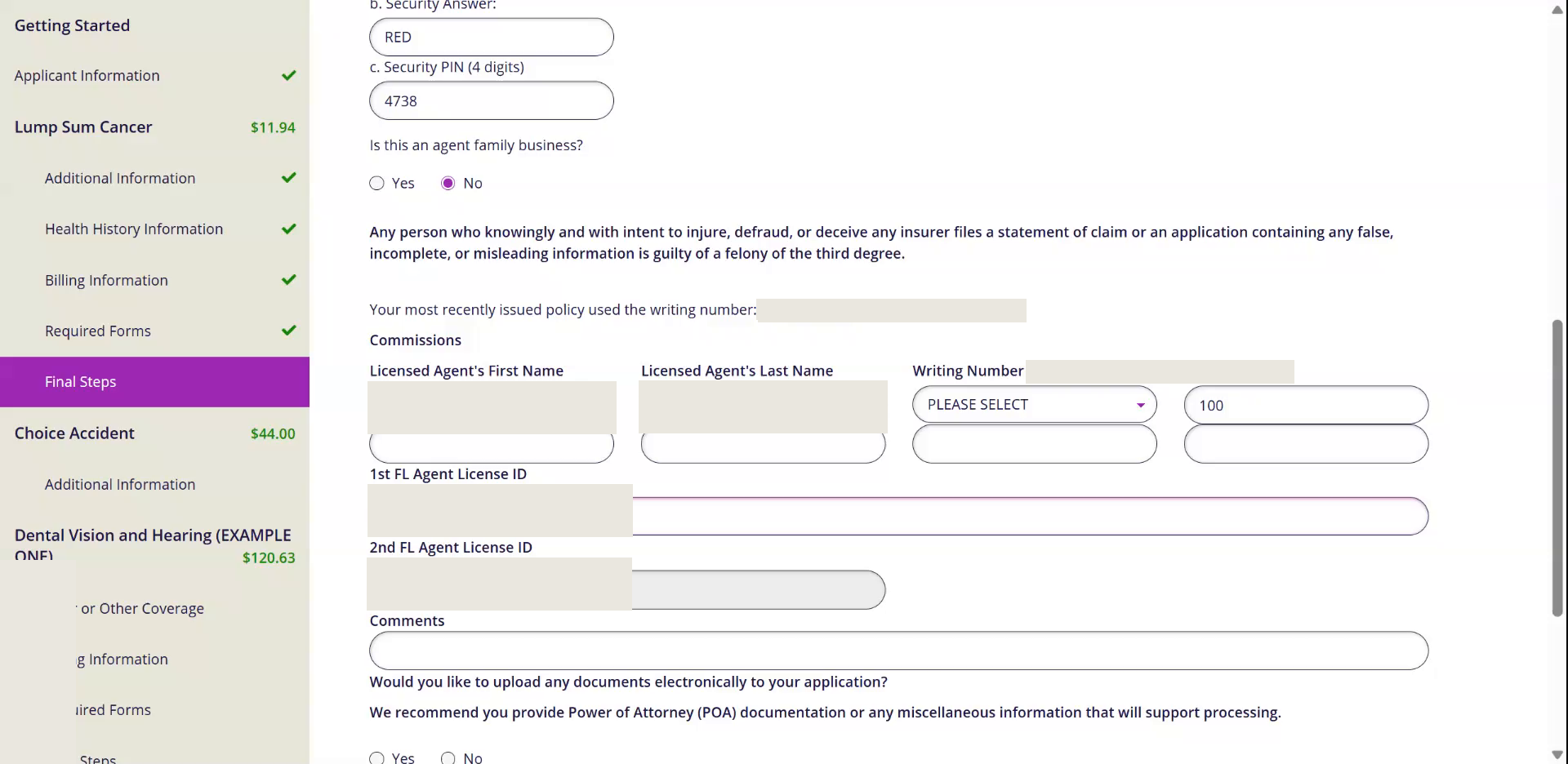
- 6In Florida, type your agent license number. Click Submit.The next product's application opens right away.
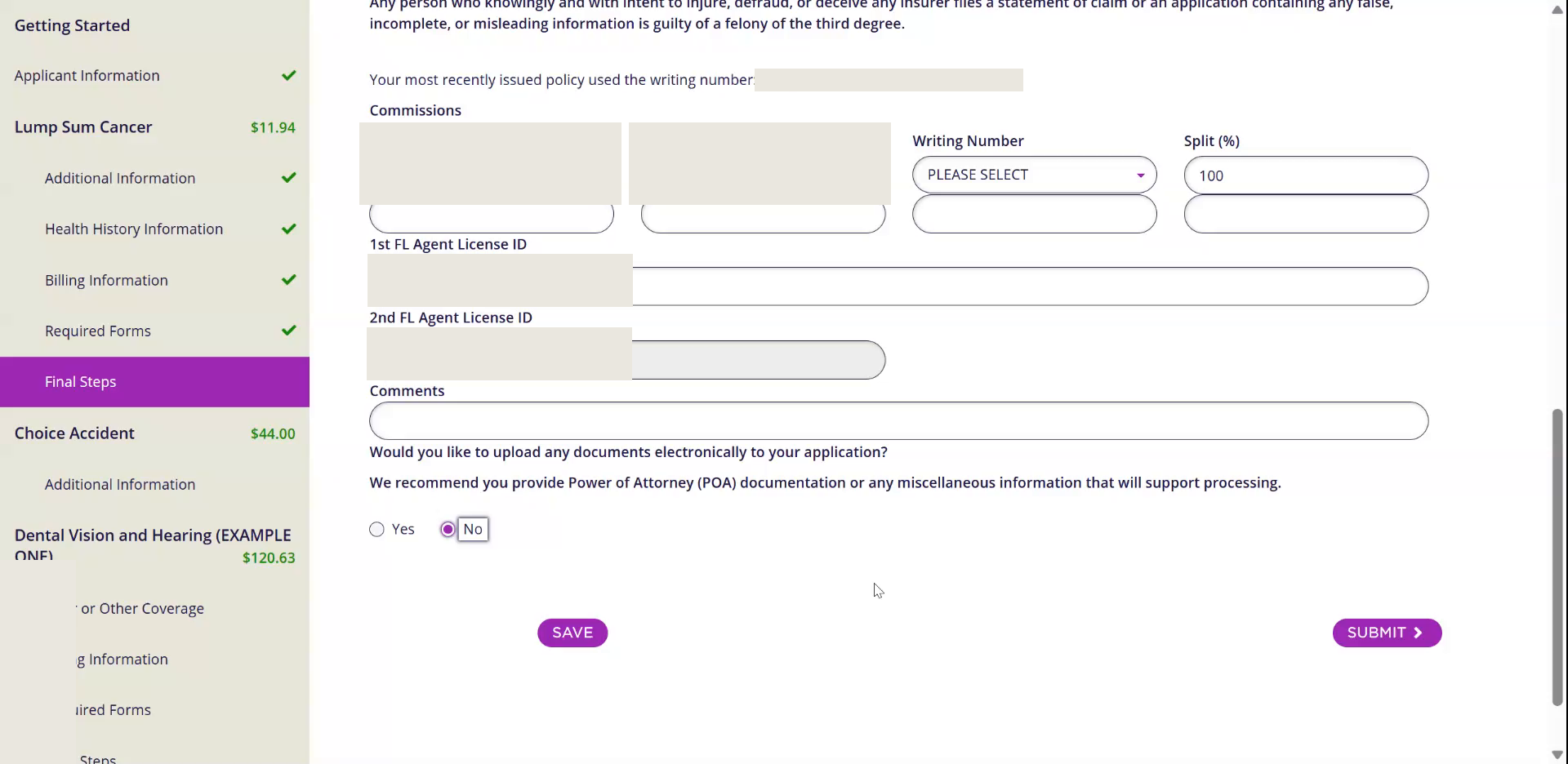
12Choice Accident Application
Watch this part in the video (6:13)- 1Beneficiaries: one per person.Leave it blank and the benefit goes to the estate.
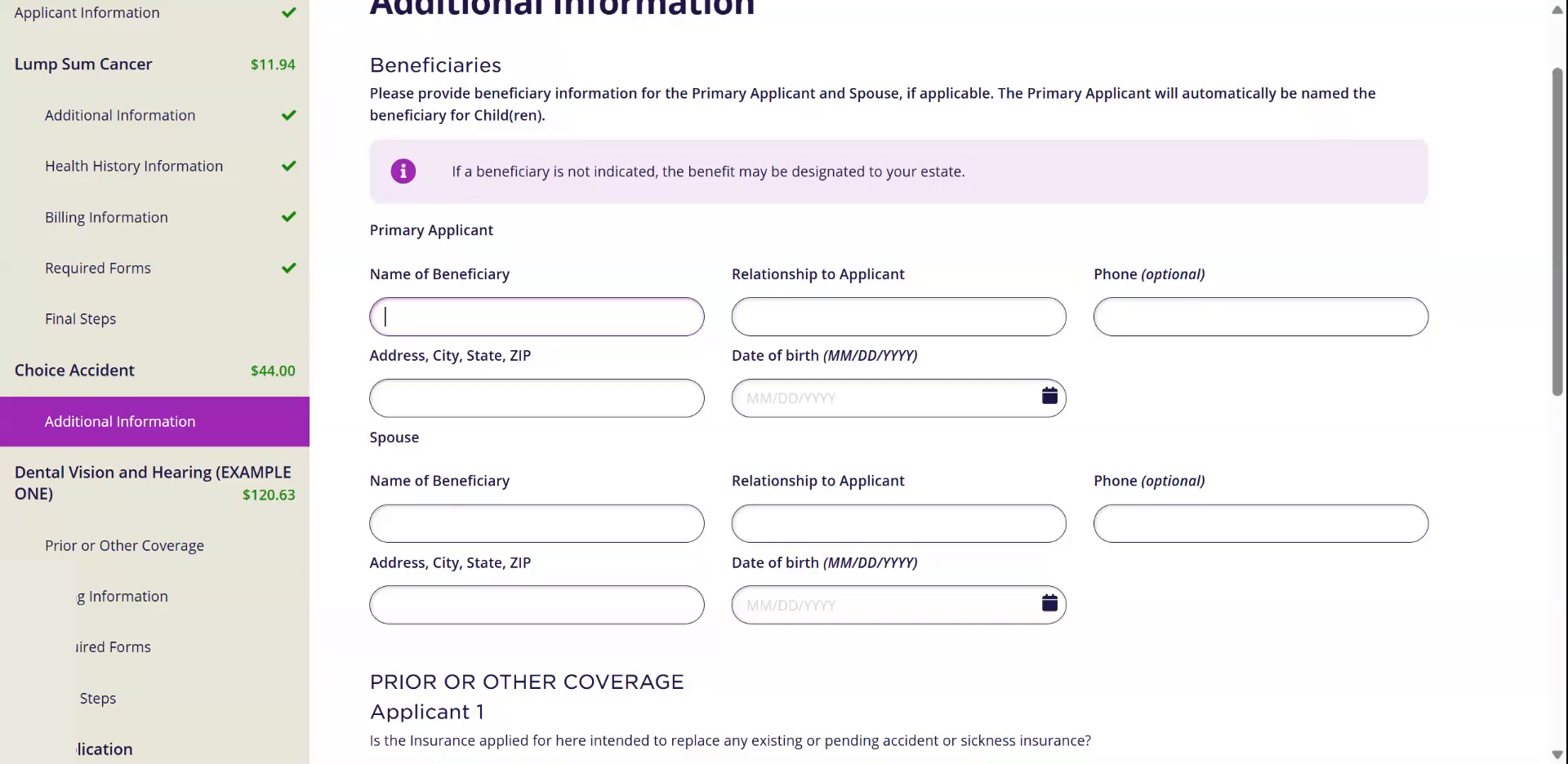
- 2Prior or Other Coverage: No for Applicant 1 and Applicant 2.
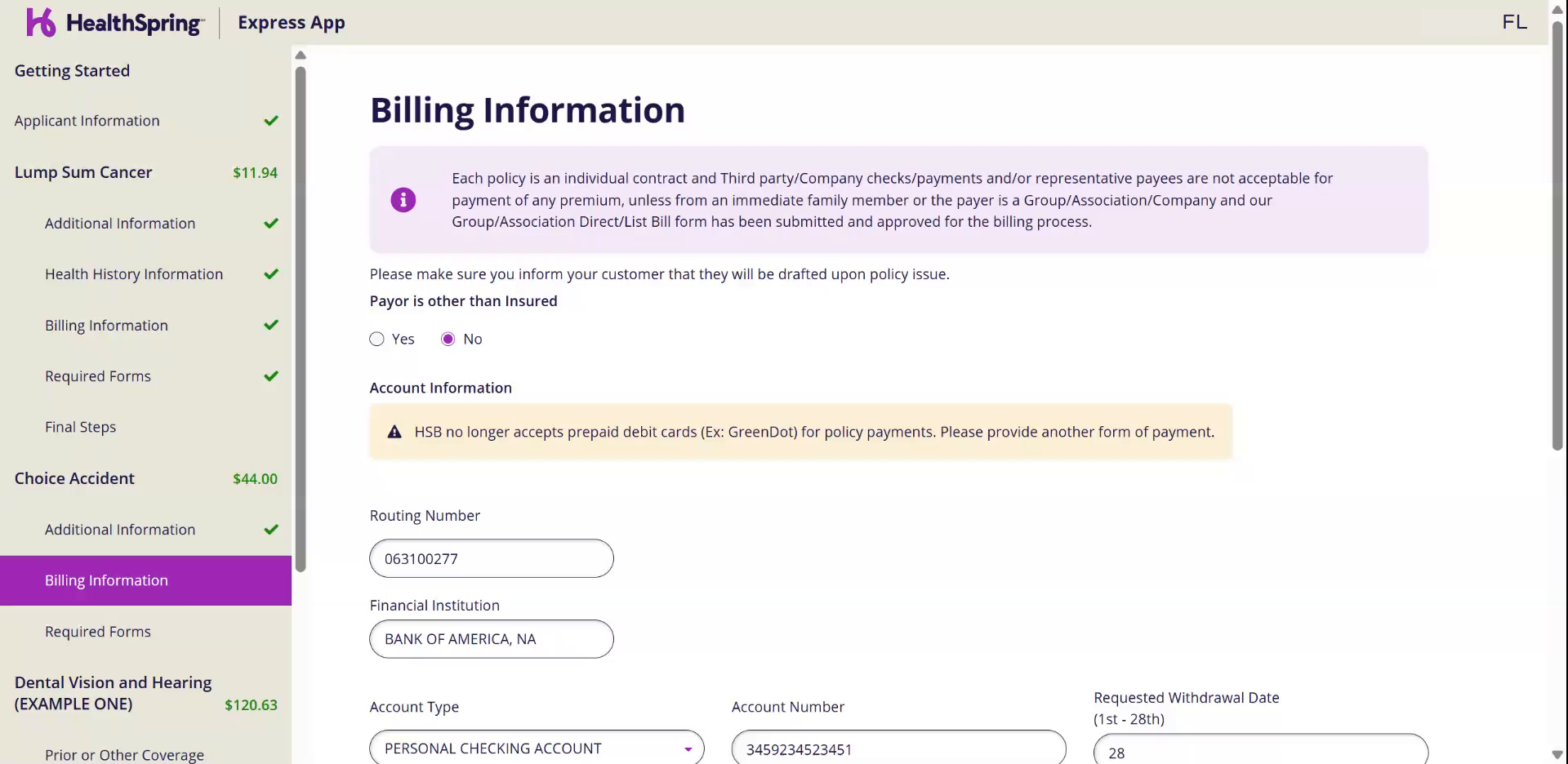
- 3Required Forms: Yes, B, No. Click Next.The forms go to the client on their own once you submit.
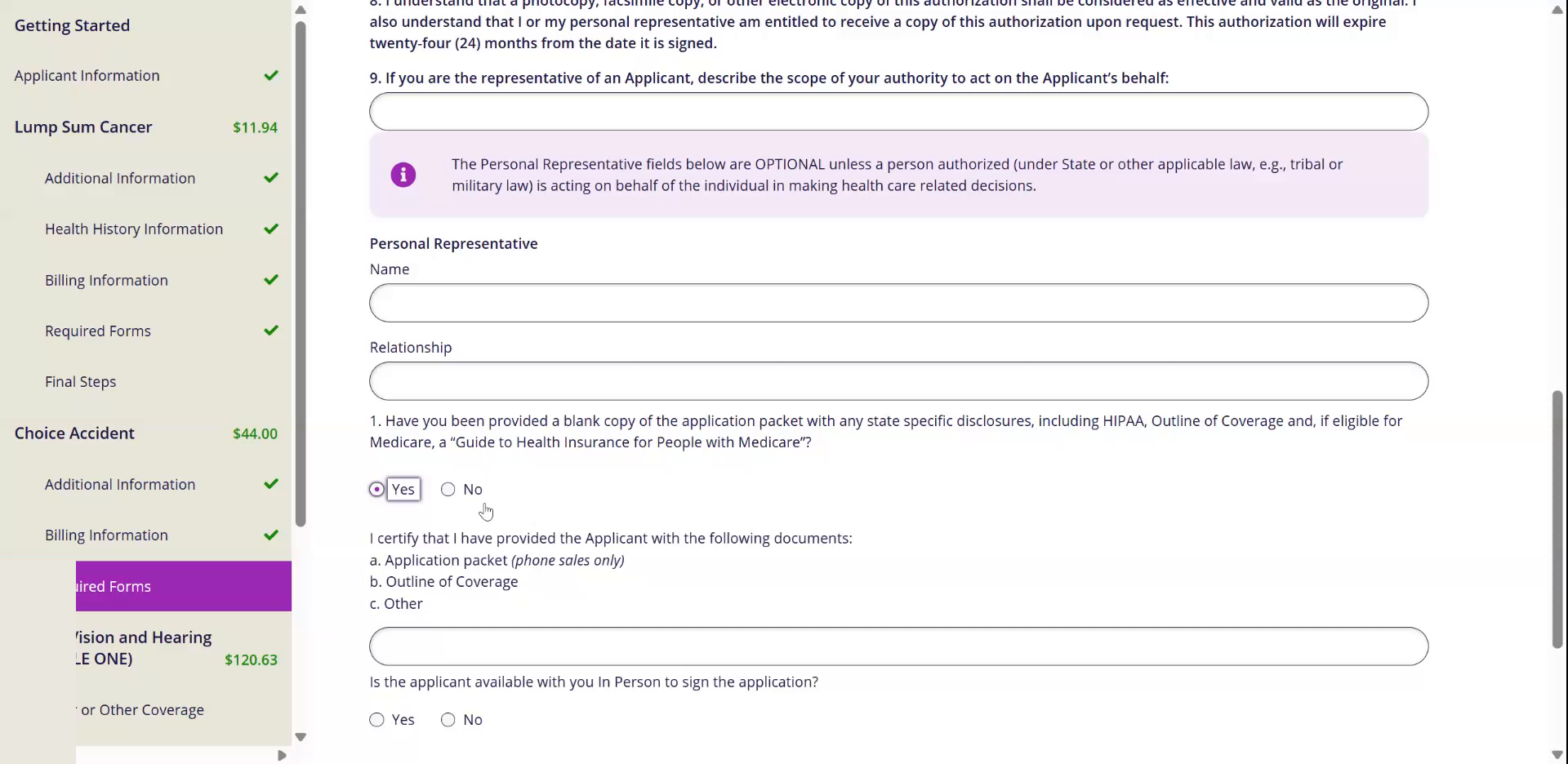
- 4Effective date: Date of Approval. Attest Yes and Yes.
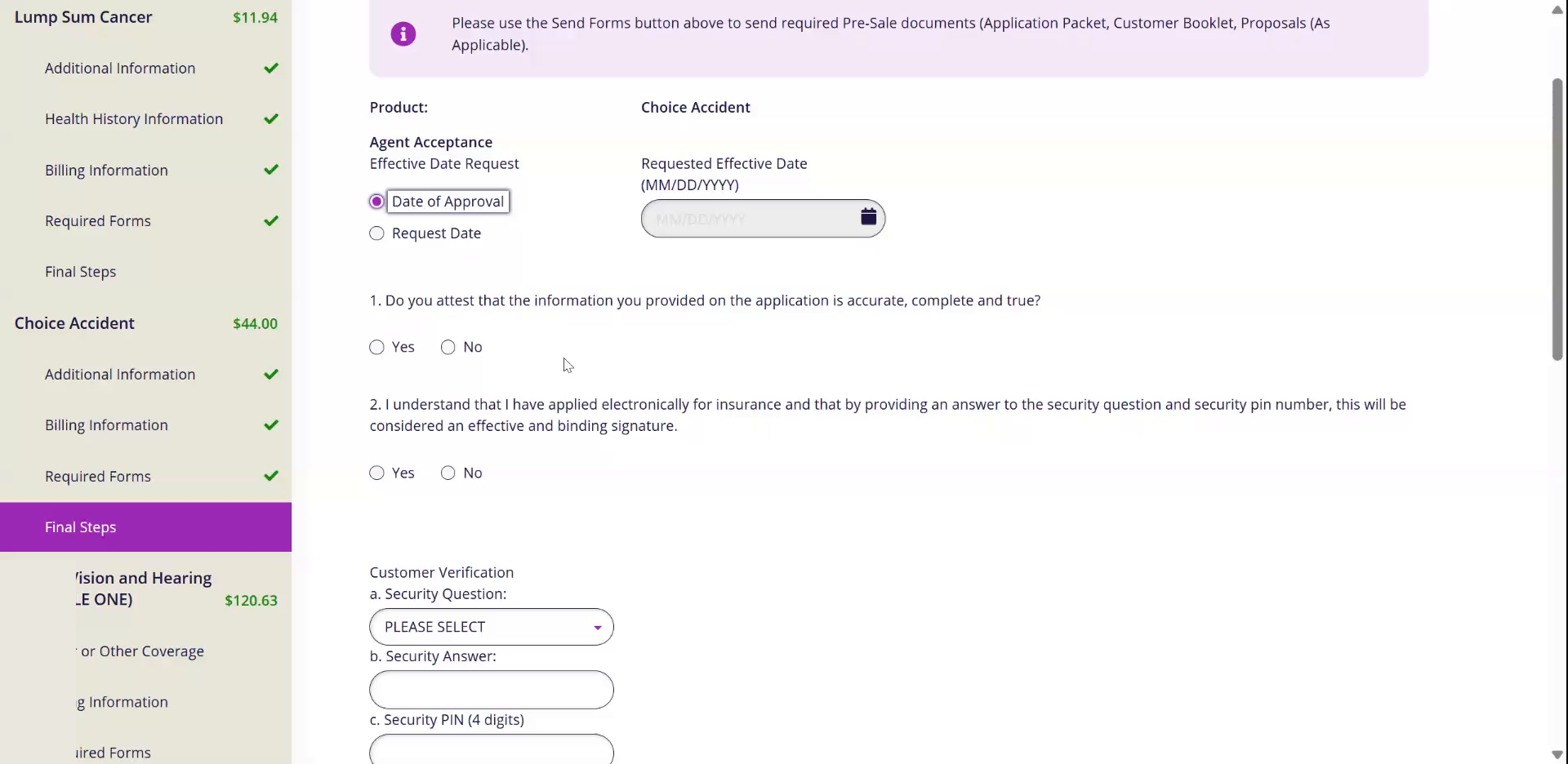
- 5Reuse the same security question, answer and PIN. Agent family business: No. Click Submit.
13Dental Application
Watch this part in the video (6:41)- 1Answer the same questions as before. Billing is the same.
- 2Effective Start Date: leave the 1st of next month.Dental always starts on the first of the next month.
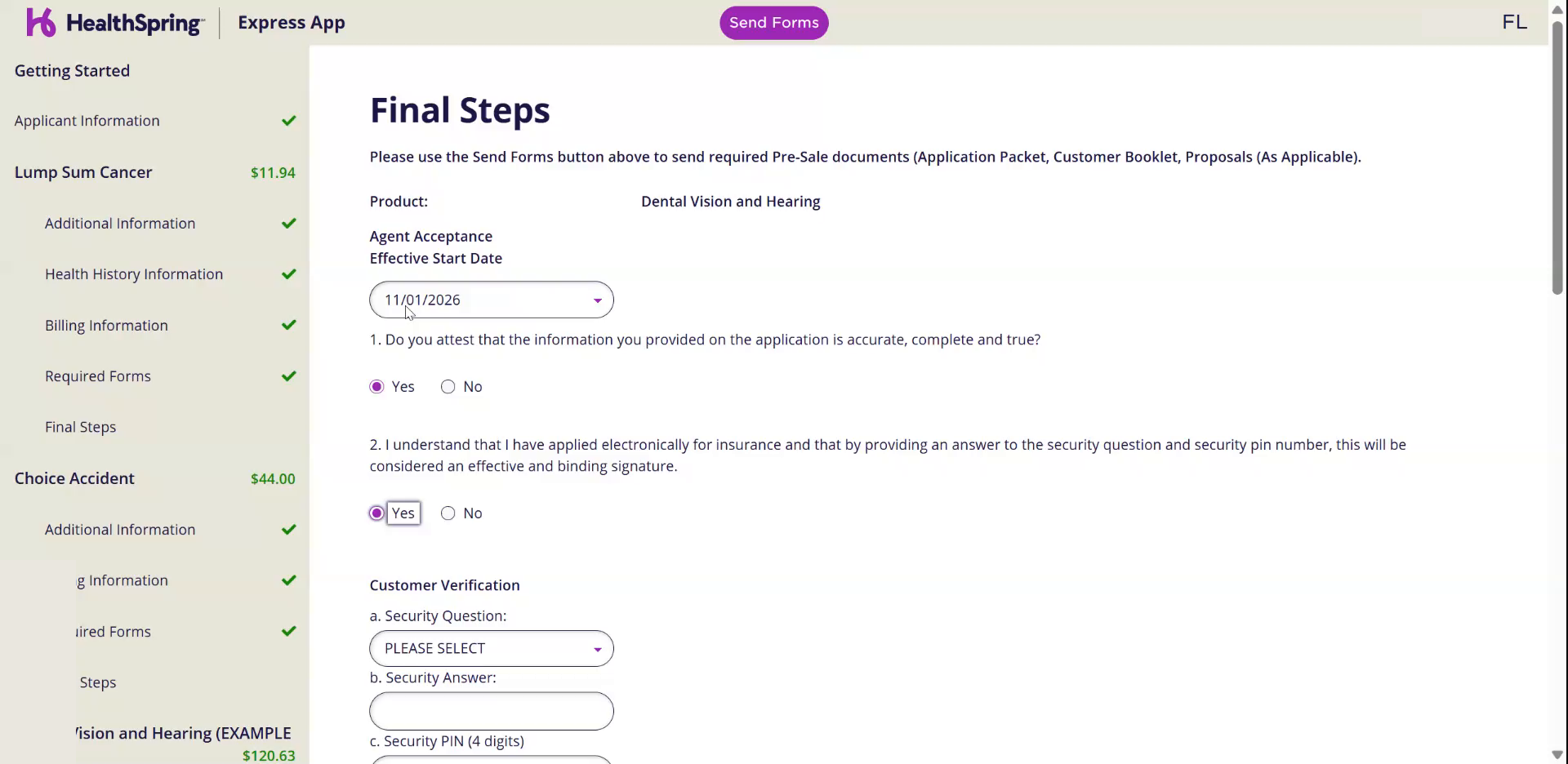
- 3Same security question, answer and PIN. Agent family business: No. Click Submit.
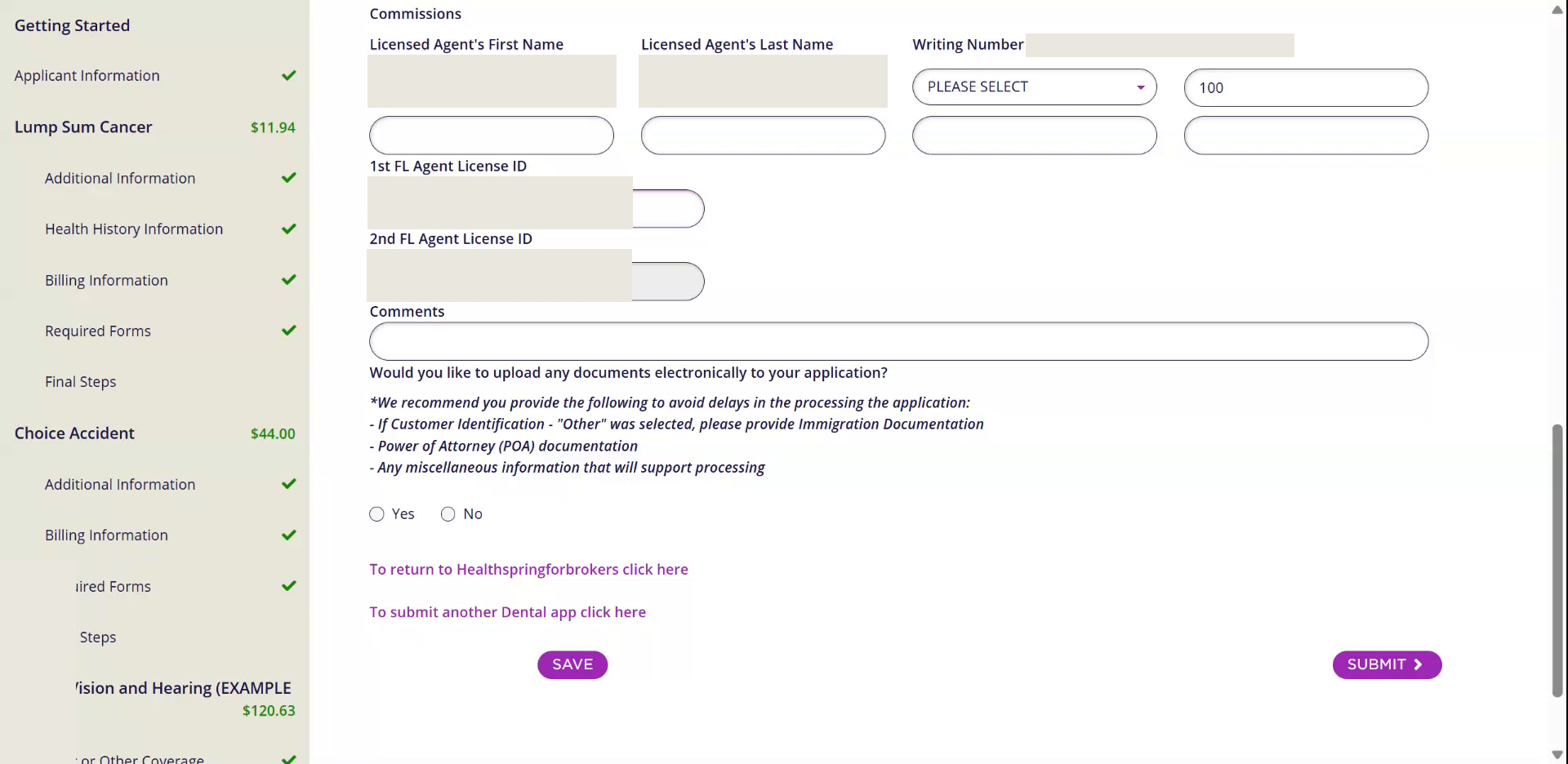
14Before You Close
Watch this part in the video (6:54)- 1Each policy is submitted on its own, even though they share your answers.
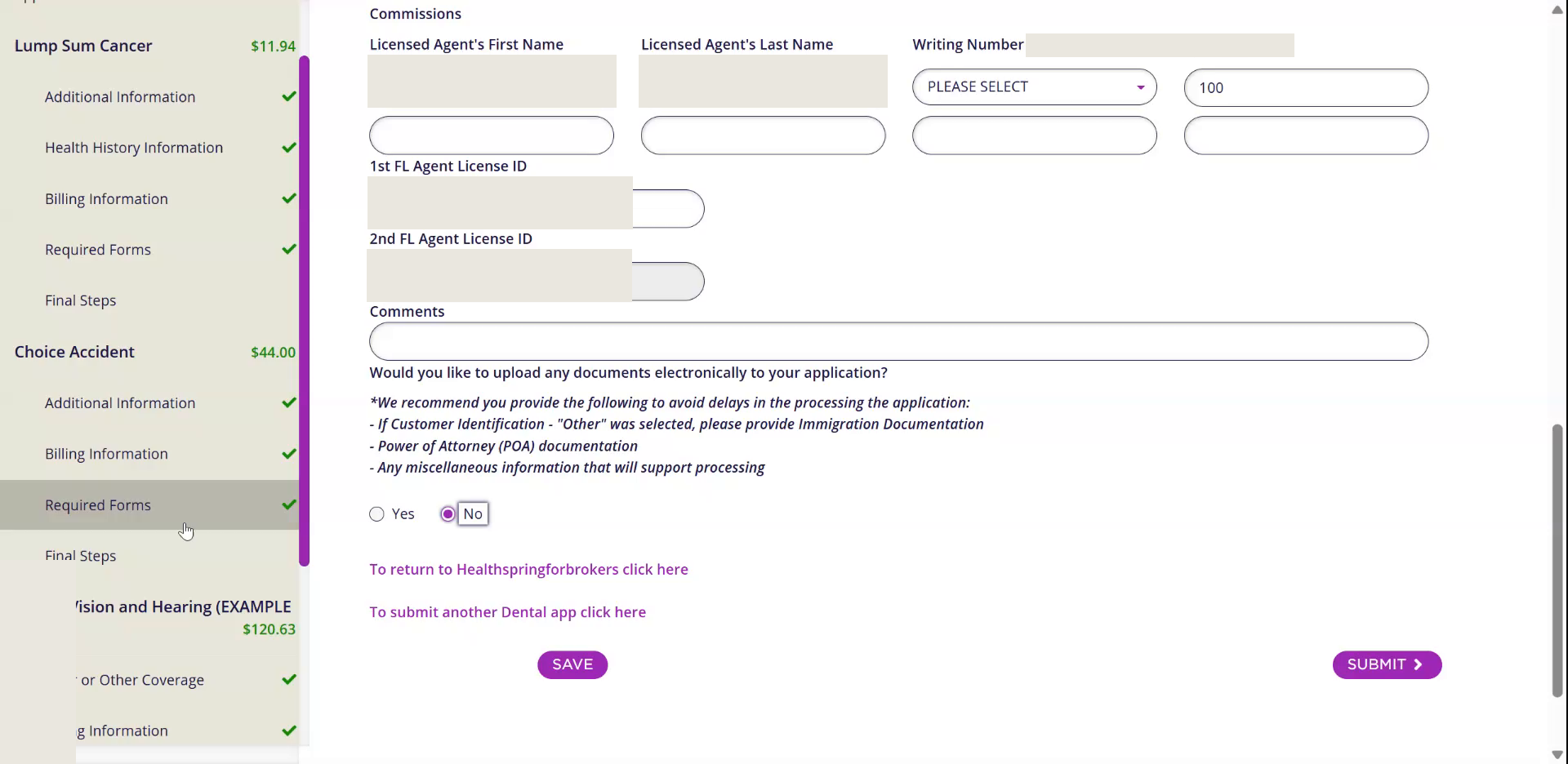
- 2Run every product in one go only when the same primary applicant is on all of them.
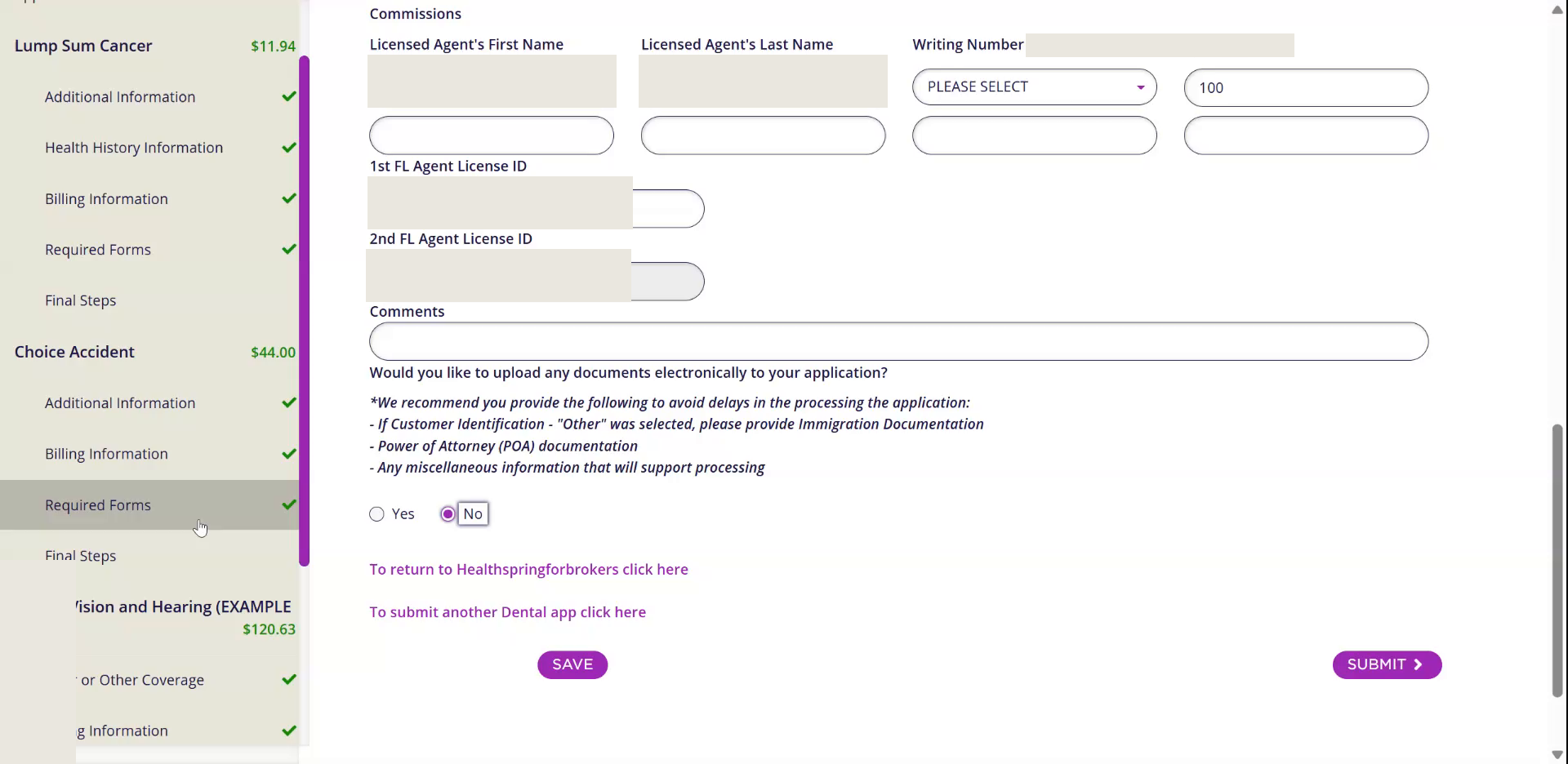
- 3If one policy has a different primary applicant, quote and submit that one separately.
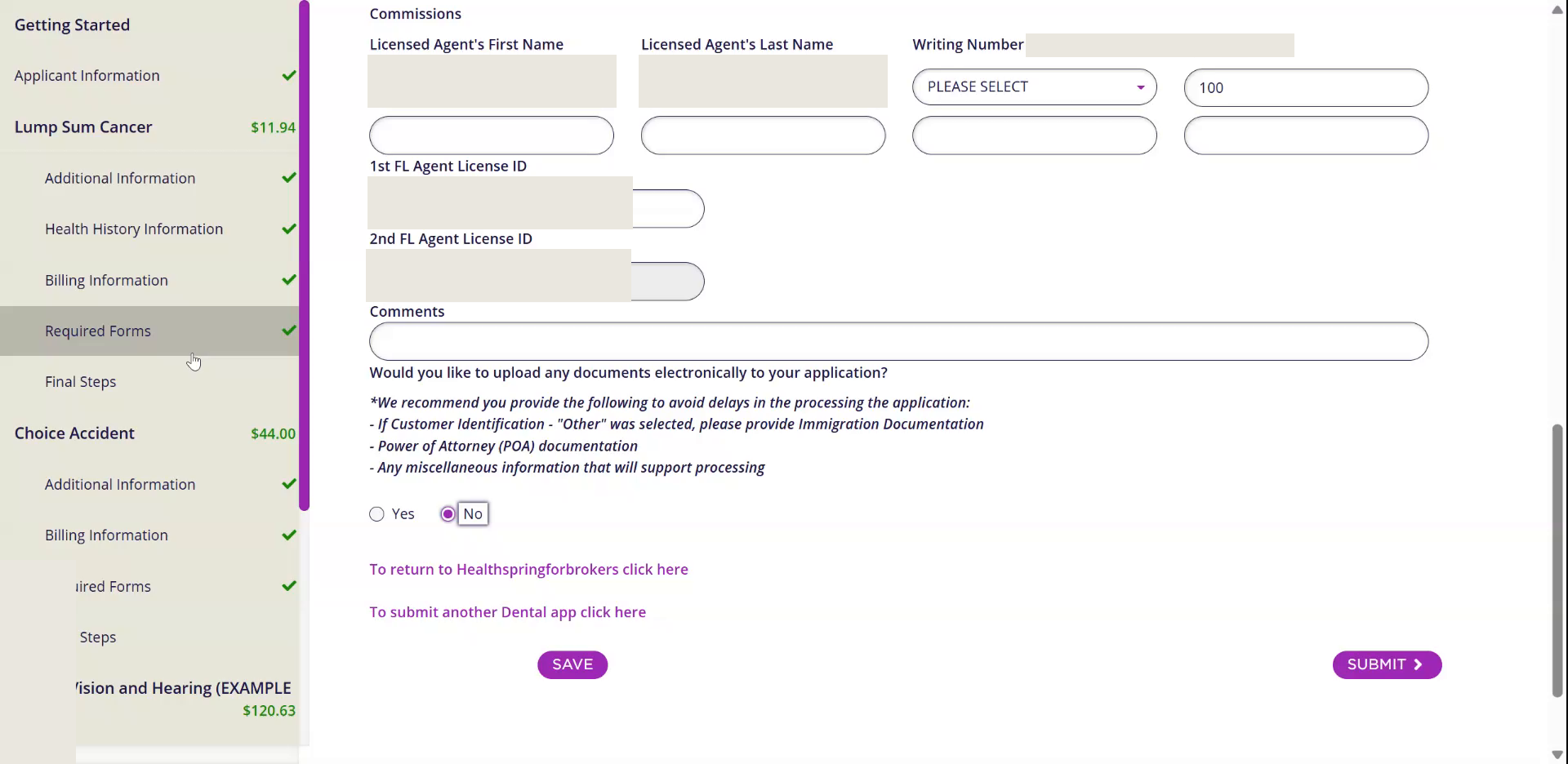
- 4Click Book of Business on the Dashboard to see the policies you wrote.
Never. run two policies with different primary applicants in one go. Quote and submit the second one on its own.
★What We Sell and How We Set It
| Product | Set it to | Price moves with | Who |
|---|---|---|---|
| Flexible Choice Dental, Vision and Hearing | $5,000 maximum benefit, the top right quote ($100 deductible, preventive at 100% from day one) | State, family type, age bucket (49 and under, 50 and over) of the oldest person | Anyone 18 and over. Children up to 25 on a family plan. |
| Choice Accident | Premier, $25 a month in most states, no riders | State and family type only | Anyone. Age and gender do not change the price. |
| Flexible Choice Cancer (our critical illness plan) | $10,000 base, Heart/Stroke rider at $10,000, Specified Disease rider at $10,000 | State and age, many age buckets, priced by the oldest person | Offered at 40 and over on ACA calls. |
Withdrawal date defaults to the 28th. Effective date defaults to Date of Approval, except dental, which starts on the first of next month.
TrueCost training. Screens from the HealthSpring broker portal, October 2026. Prices on the screens are examples for one state. Always read the price off the screen in front of you.